Let the audience put topics in order with a topic ranking
Add a topic ranking, write its prompt and cards with optional explanations and slide links, set the starting order, and check dragging, the move buttons, the keyboard and Reset in a saved preview.
Before you start
Open a saved CLM presentation in Edit with permission to change it and select the slide. Finish any pending edit. If a card should lead to more detail, add that slide to the presentation first.
Add the topic ranking
- Open Components, choose Engage, find Topic ranking and choose Add topic ranking. Studio adds a blank ranking to the selected slide, selects it and opens its settings. Nothing is written for you: the prompt and cards start empty.
- Move or resize the ranking so the prompt, every card and the Reset order button fit the slide.
Write the prompt and the cards
- In Content, write the Prompt the audience answers by ordering the cards, for example which topics they want to discuss first.
- Choose Add card and enter its Title. Add an Explanation when a card needs one more line of detail.
- To let the audience open more detail from a card, choose a slide in Link to slide. The card then shows a Go to button with that slide's title. Choose None to remove the link.
- Select a card in Cards to change it, or choose Remove card to take it out.
- Optionally enter a Label above the first card and a Label below the last card, such as what the two ends of the list mean.
Set the starting order and the look
- In Behavior, use the arrow buttons in Starting order to put the cards in the order the audience starts from. On the slide in Edit component you can also drag a card by its handle, or use its move up and move down buttons. Each move or drop is one step for Undo component edit and Redo component edit.
- Keep Show a Reset order button on to let the audience return to the starting order, or turn it off.
- In Style, choose Rank labels: Position numbers shows each card's place in the list, None hides the numbers. Choose Card spacing: Compact, Comfortable or Roomy. The ranking uses the slide typography and the component's saved text and background colours.
Try the ranking and save
- Choose Try interaction. The cards start in the starting order.
- Drag a card by its handle with a mouse or a finger. The other cards make room as it passes them, and the card stays where you release it.
- Without dragging, use a card's move up and move down buttons, or focus its handle, press Space to pick it up, move it with the up and down arrow keys or Home and End, and press Space again to drop it. Escape returns it to where it was. The keys stay with the ranking and do not change the slide.
- After each move, the status under the list says where the card landed, and screen readers also hear the whole order. Choose Reset order to return to the starting order.
- Choose Edit component to continue editing. Trying the ranking never changes the cards or the starting order.
- Choose Save interaction and wait for confirmation. If a save is unconfirmed, choose Check saved interaction before repeating the edit.
Review the saved preview
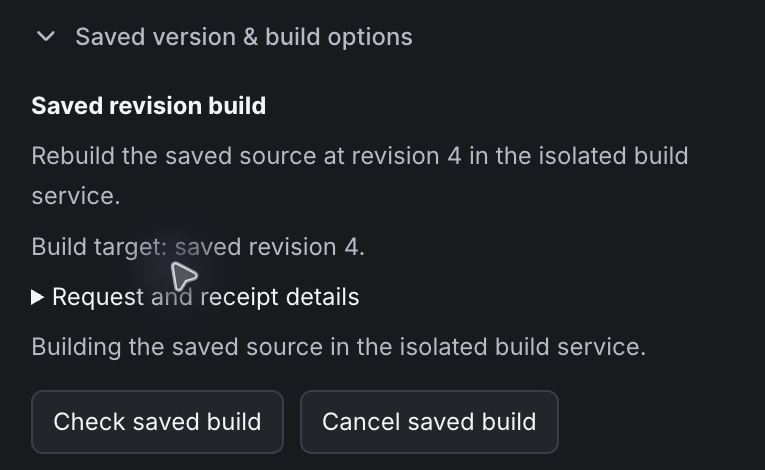
- Rebuild the saved revision from Builder using Saved version & build options. If a build request is retained, use Check saved build before starting another.
- Open the confirmed saved preview. Reorder the cards by dragging, with the move buttons and from the keyboard, follow a card's Go to button, and choose Reset order.
- Move to another slide and back: the audience's order stays for the rest of that presentation session. Reload and reopen the saved preview: the cards start again in the starting order, because the audience's order is never saved.
Saved version & build options uses the same retained build controls after you save the ranking. The example below shows the running-build state.
 Enlarge screenshot
Check the result
- The ranking shows the prompt and the cards in the starting order, with position numbers when Rank labels is Position numbers.
- Dragging, the move buttons and the keyboard each change the order, and the new position is announced.
- Reset order returns the cards to the starting order.
- A card with a slide link opens that slide.
- Reopening the saved preview starts again from the starting order, with the prompt, cards, explanations and links retained.
Recover and continue
- If Save interaction is unavailable, read the message under the settings: give every card a title, and remove an explanation that is only spaces.
- If Link to slide shows Unavailable slide, or saving asks you to link each card to a slide in this presentation, the linked slide is hidden or was deleted. Choose another slide or None, then save.
- If the preview shows an earlier edit, rebuild the intended saved revision.
- If export is refused for this presentation, keep using the Studio preview while the topic-ranking package processor is being qualified.