Find authored answers during a discussion with a searchable FAQ
Add a searchable FAQ, write its questions, exact answers, categories, keywords and sources, and check the search, the category filter, the answers and the sources in a saved preview.
Before you start
Open a saved CLM presentation in Edit with permission to change it and select the slide. Finish any pending edit. Have your approved questions and answers in front of you: every question and answer in the FAQ is written by you and shown exactly as you write it. To cite a source on an answer, add it to the presentation's sources first.
Add the FAQ
- Open Components, choose Explain, find Searchable FAQ and choose Add FAQ. Studio adds a blank FAQ to the selected slide in free space, selects it and opens its settings. Nothing is written for you: the FAQ starts with no questions, answers, categories or keywords.
- Move or resize the FAQ so its search field, category buttons and several questions fit the slide. The question list scrolls when it is taller than the component.
Write the questions and answers
- In Content, write a Title, for example the product or topic the questions are about.
- Choose Add question. Write the Question as the audience would ask it, and the Answer exactly as it should be shown. Line breaks in an answer are kept.
- Optionally choose a Category, add Keywords separated by commas, and choose the Source reference the answer comes from. Keywords are other words people may search for, such as battery for a question about a warning light; they help the search find the question and are not shown with the answer.
- Add the next question. To change the order the audience sees, select a question and choose Move question earlier or Move question later, or focus it in Questions and press Alt with the up or down arrow.
- Select a question in Questions, or select it on the slide, to change it. The selected question shows its answer on the slide while you edit. Choose Remove question to take it out.
Group questions into categories
- Under Categories, choose Add category and name it, for example Using the device or Care and storage. Give each category a different name.
- Choose a category for each question in its Category list. A question without a category appears only under All.
- Use Earlier and Later to order the category buttons. Removing a category keeps its questions, without a category.
Choose the search and starting category
- In Behavior, write the Search placeholder shown in the empty search field, or leave it blank to show Search questions.
- Choose Initial category to open the FAQ on one category, or All categories.
- Write the No-results message shown when nothing matches, or leave it blank to show No questions match your search. A Show all questions button always follows it.
- The FAQ uses the slide typography and the component's saved text and background colours.
Try the FAQ and save
- Choose Try interaction.
- Type in the search field. The list narrows to the questions whose words or keywords contain everything you typed, in your order, ignoring capitals and accents, and the count shows how many of the questions match. A question found through a keyword says which keyword matched. Answers are not searched.
- Choose a category button to narrow the list, and All to show every category again.
- Select a question to show its answer with its category and source. Select it again, or press Escape, to close the answer.
- Search for a word that matches nothing to see your no-results message, then choose Show all questions, or choose Clear search to empty the field.
- Choose Edit component to continue editing. Trying the FAQ never changes what you wrote or the settings you chose.
- Each change is one step for Undo component edit and Redo component edit. Choose Save interaction and wait for confirmation. If a save is unconfirmed, choose Check saved interaction before repeating the edit.
Review the saved preview
- Rebuild the saved revision from Builder using Saved version & build options. If a build request is retained, use Check saved build before starting another.
- Open the confirmed saved preview. Tab to the search field and type a question word. Press the down arrow to move to the first question and the up and down arrows to move between questions; press Enter or Space to show an answer and Escape to close it. Press Escape in the search field to clear it.
- Choose each category button and All, and check that each answer is the one you wrote.
- Check each source reference shown with an answer against your source.
- Reload and reopen the saved preview: the questions, answers, order, categories, keywords, sources, placeholder, starting category and no-results message are kept as you saved them.
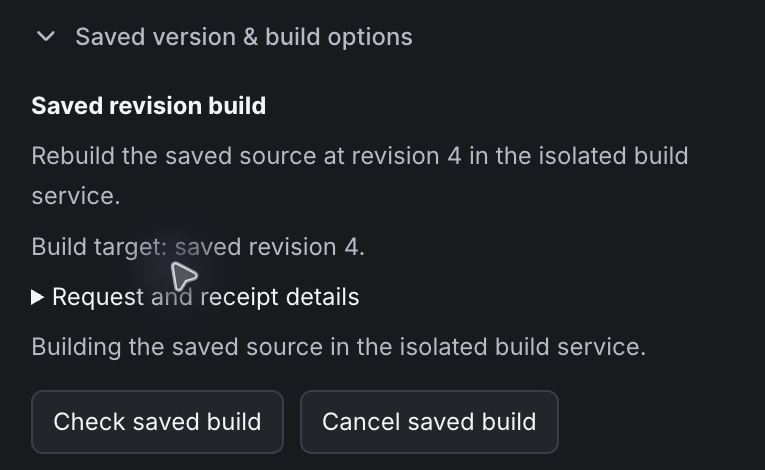
Saved version & build options uses the same retained build controls after you save the FAQ. The example below shows the running-build state.
 Enlarge screenshot
Check the result
- Every question appears in the order you set, under All and under its category.
- Typing a question word or a keyword narrows the list and the count, and a word found only in an answer finds nothing.
- Selecting a question shows exactly the answer you wrote, with its category and its source by the name the Source reference list shows for it, such as the site, page and version of a retrieved web page, or Source not available when Studio could not read that name when you chose it.
- A search that matches nothing shows your no-results message and Show all questions; Clear search and All bring every question back.
- The search field, questions and answers work with the keyboard and by touch.
- Reopening the saved preview keeps the questions, answers, categories, keywords, sources and settings.
Recover and continue
- If Save interaction is unavailable, read the message under the settings: write every question and its answer, name every category, and give each category a different name.
- If a question cannot be found by a word people use, add that word to its Keywords.
- If Source reference shows Selected source version unavailable, or saving asks for registered evidence sources, choose a source of this presentation again or No source reference. If the saved preview shows Source not available, wait until Source reference lists the source by its name, choose it again and save.
- If the preview shows an earlier edit, rebuild the intended saved revision.
- If export is refused for this presentation, keep using the Studio preview while the FAQ package processor is being qualified.