Follow AI generation, preview progress and recovery
Read Builder progress after sending a request, check slide groups and media, and recover the same request when its outcome is uncertain.
Read slide group progress#
In Slide groups, ready groups can show their starting progress together. Each group keeps its own status as it writes. Follow those statuses while the request runs, use Stop generation to stop the request, and review the complete proposal and preview before choosing Use this version.
Studio can write a longer presentation as groups of slides in parallel and retries a group that fails once by itself. When a group still cannot be written, Studio writes the whole presentation in one pass instead. Slide groups names each group that needed attention by its slide numbers, for example Slides 3–4. If that request still ends without a proposal, or you stop it after a group had already failed, Slide groups lists the slides that could not be written by number and planned title, for example Slides 3–4 could not be written, then Slide 3: Mechanism of action and Slide 4: Dosing, with the reason, says which slides it keeps as written and offers Retry these slides. Studio keeps the other slides exactly as written and writes only the named slides again from the same deck plan, repeating your request with the same saved files and the same selected attachment evidence, after the usual saved-file review, as a new request with its own usage. The retry is offered for your own latest request while the project is unchanged; after you edit the project or send another request, send the request again instead. If an attachment the request used has since been removed or changed, or Studio can no longer read the slides it kept, Retry these slides explains this and does not start; send the request again and choose its sources. While another request or saved-file review is in progress, Retry these slides waits and says why. Stopping a request is not a failure: if you stop it before any group has failed, use Edit and try again. A retry that still cannot write a slide saves no partial presentation and offers the retry again.
When a contrast check identifies the affected slides, Studio can correct their slide groups and keep the other completed groups. A check that applies to the whole presentation, or cannot identify every affected slide, can still require a full-presentation correction. Review the finished proposal and preview before choosing Use this version.
Generation and automatic images may briefly wait while other work saves to the same project. Follow the retained request and its image statuses. If Studio reports a confirmed failure, read Build details before deciding what to change; starting another request does not repair an earlier uncertain outcome.
A correction can keep the animation sequence on slides written in groups. Play the sequence in the proposal preview and check the order again in the saved version.
If a text-only proposal needs a contrast correction, Studio can adjust the text against its background before saving the corrected proposal. In the preview, read the headings and body text on each affected slide before choosing Use this version.
When Studio first combines the slide groups, it can change the text colour on a mid-tone panel while keeping the panel colour you requested. Check the text on each brand-coloured band or card in the finished preview.
Follow images while slides are written#
For a new presentation written in slide groups, Studio can start an image once that group has fixed its image brief and placement, while other groups keep writing. Images that still depend on the complete layout wait for the saved proposal. There is no separate early-image control.
When Studio corrects a slide heading, it keeps an image already requested for the same picture and frame. Follow that original image in Automatic images. Changes to the picture brief, frame or selected image still pass the existing checks before an image is used in the proposal.
- Describe the images and visual direction you want in Content request, then start the request once. In Builder, follow Slide groups and Automatic images together. Image planned, Image queued and Creating image describe different stages; a planned image has not necessarily reached the image provider.
- When an image finishes before the proposal, its status says Image ready; checking the final slide choice. Review the final proposal and preview before choosing Use this version. An image can be ready without being used in the proposal.
- Read any Not used explanation. A changed image brief, removed frame, stopped generation or unsaved proposal keeps that earlier image out of the final choice. A later proposal cannot silently use it instead of the image you chose.
Open Instruction, lineage and declared use on an image request. Compare Planned placement, Requested from provider and Returned image to see the slide box, the size requested and the actual pixels Studio kept. If a planned reference could not be sent, the details list the selected reference and explain why.
Used in the generated proposal describes a proposal, not an accepted saved revision. Recorded spend appears beside the image when available and distinguishes a provider-reported amount from a tariff estimate. Provider spend is being reconciled means the charge is not yet confirmed; it does not mean nothing was charged. An image that was generated but not used can still have a charge.
Check selected attachments and image placements#
When Studio writes a new presentation as groups of slides in parallel, it adds each image you chose with Use original image to the project before the groups start. The deck plan gives each image one slide, and the group that writes that slide shows the image with your description as its alternative text. If that group leaves the image out, Studio retries the group like any other group that could not be written.
If you chose Use original image for an attached image and the proposal leaves that image out, Studio does not save the proposal and ends the request as Generation failed. The message names the image by its file name, for example “palette.png”, and asks you to have Studio place it or to deselect it under Attachments before you send your prompt again. A brief that asks for no images while an original image is selected ends this way, so change the brief or the selection.
An image the proposal planned but Studio has not placed yet stays visible in the preview as a dashed placeholder the size of the image, announced to screen readers as an image placeholder. In a proposal preview, the accepted presentation’s preview and its saved preview build, the placeholder names the image’s purpose, its description and its state: Image pending, Image not generated, Image generated, not yet in this build, or No image yet. A proposal from an earlier generation, or one whose details cannot be loaded, shows No image yet. The placeholder appears only in Studio’s preview; an exported slide shows blank space there, so Check presentation warns about each unfilled image on a shown slide.
When a request uses selected attachments, Studio checks that evidence again as it prepares the deck plan and slide groups. If an attachment check is refused, read the recorded reason and review the selected files before deciding to send a new request. An uncertain outcome still needs a saved-status check; do not assume that no work started.
Follow requested media jobs#
A Builder request can ask for several media items at once, for example a background image, background music and narration that waits for the music. Media activity lists each requested job with its own estimate, state and result. Jobs from one request appear together as one brief, with numbered briefs when more than one exists, and each Depends on line names the job it waits for, with that job’s type and current state. A job that could not start because the job it depends on failed or was canceled says so and is not charged. A job that failed says why in plain words, for example that the provider did not return a usable video, that the provider charged more than the approved estimate, or that the job expired before Studio sent it to the provider and nothing was charged. Select result appears only on a job whose result is ready, so a failed job offers no result to select. The same explanation shows when you reload or reopen the presentation. Undo attachment appears only on the result whose attachment is the current saved revision; use Undo / history for earlier attachments. A brief’s generated images are listed in the same brief, so a job that waits for an image names that image job. When a later music, video or sound-effect take has replaced an earlier take at the same placement, the earlier result offers Use this take again, which places it as a new saved revision that Undo / history can reverse.
When the AI plans media in reply to a chat request, for example background music and a sound effect that waits for it, Media activity shows which jobs started and which could not start, together in that request’s brief. A slot that Studio declines before it becomes a job appears beside the request’s started jobs with its media type, Did not start and the available reason, such as Provider is not qualified. A dependent slot names the job it waited for, for example music that did not start, and explains that a required media job did not start. A request whose slots all did not start keeps its own brief, placed by date among your other briefs. These outcomes stay visible when you reopen the presentation. If the request ends as Generation failed, the status names the media step and its code. A media plan that does not pass Studio’s checks, for example one that places a sound effect on a slide that does not exist, starts no media job; adjust the request and send it again. When Studio closes a generation because one of its steps ended without a confirmed result and no proposal was saved, the status says so with generation_reconciled_without_held_usage. Your saved work is unchanged, and you can send the request again.
Open Media for video, narration and audio
For generated video, narration or music, review the estimate for each requested job in Media activity. When a result is ready, open the preview and check the slide, sound and timing before accepting it. If the result is still pending, follow that job in the same request.
If your brief asks for two videos, follow each job separately. When both show Ready, play each video on its intended slide. After Use this version, reopen the saved revision and check that both videos have their posters and can play.
Read the proposal preview status#
When Studio checks a built draft preview and records problems, the status reads Preview check found problems instead of Ready to review. It names each kind of problem and the files it was found in, for example a console error in assets/app.js, and says the draft is not marked ready to review. Open Build details to see each recorded finding under Preview check. When an earlier proposal from the same request passed its preview check, the status says so; open that proposal under Generated proposals. The check records script and console errors, selected interactions that could not be used, images, media and fonts that did not load, blocked network requests and a fixed set of accessibility checks, such as images without alternative text. It does not confirm wording, data or full accessibility conformance, and a draft without a recorded check keeps its usual status. Your saved revision stays unchanged.
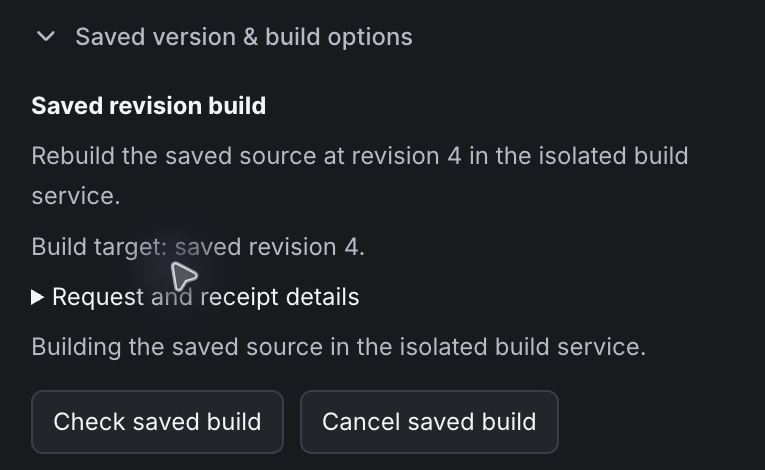
Studio builds a preview of a saved proposal automatically, and keeps building it when only Studio’s own progress note about the build could not be recorded. If the automatic preview build cannot start before the request stops or reaches its time limit, or before your access or the project version changes, Build details show Preview build canceled, No attempt recorded and the reason build_authority_changed. The proposal is still saved: open Saved version & build options, find Generated proposal builds and select Build candidate snapshot for that proposal. The Build candidate snapshot action waits while Studio confirms an unconfirmed generation outcome. A preview that is already queued or building can continue. A proposal based on an earlier project version must be refreshed first. A discarded proposal shows candidate_discarded and cannot be built.
After generation finishes, follow the preview for the latest proposal from your current project version. Its status can read Preparing your preview when queued or Building your preview when running, even while Studio is still confirming the request’s outcome or usage. The explanation keeps that uncertainty visible, and progress continues updating automatically. Follow this recorded preview before starting another generation or build.
 Enlarge screenshot
Before saving a generated proposal, Studio checks text against its fixed boxes using the embedded font metrics and can request a correction of the affected slides. Review the resulting preview for clipped titles, overlapping text and obscured links. Choose Use this version only after reviewing the corrected proposal, then reload to confirm the saved result.
Stop generation or recover an uncertain result#
When Studio confirms that a request has no saved proposal and rejects an unavailable or unpermitted source before saving starts, it ends the request as Generation failed. If Studio cannot confirm the result, the outcome stays unconfirmed; check the retained status before starting another request.
If Generation outcome unconfirmed appears because Studio lost the AI response after the AI had finished it, Studio retrieves that saved response without a second AI request. When the response contains the proposal, it appears under Generation stopped before completion with its preview build; review it before choosing Use this version. When the lost response held only the first provisional slide, Studio records its usage and shows Generation failed, so you can send the request again.
- While slide groups are writing, choose Stop generation. When the request shows Generation canceled, open Build details.
- If Completed draft slides appears, review the Draft · Slide entries, each named by slide number and title.
After Stop generation, Studio stops starting new requests. Requests already sent can finish while Studio records their usage. If Studio can confirm their responses, the run shows Generation canceled and its completed draft slides are available in Build details. If a response remains unconfirmed, Studio shows that cancellation is pending.
This panel shows slides from groups that completed before you stopped a request with no saved proposal. Its drafts are read-only and separate from your saved project; the panel offers no accept, edit or retry actions. The panel appears only for the project’s latest request, made by you, while the project and its sources remain unchanged and Studio can still read the drafts.
Troubleshoot generation and connection issues
When the generation status says “A generation step stopped with an unexpected error”, keep the code in parentheses with the request details if you contact support. It identifies the last recorded step error. A completed run no longer shows that code.