Present supplied statistics with supporting context
Add metric cards, enter supplied values and exact source versions, and review their context in a saved presentation.
Before you start
Open a saved presentation in Edit with permission to change it and select the slide. Finish any pending edit. Have the supplied values and supporting context ready, and add the intended source material to the project before linking its version.
Add and select cards
- Open Components and choose Add blank metric cards. Select the group on the slide or in Layers, then choose Edit component.
- Use Add card for another supplied statistic, then select the new card in the Cards list before entering its value and context. You can select and edit each new card before saving the group. Move card up, Move card down and Remove card change the selected card.
- Resize the selected group to fit the slide. Select an individual card when changing its content. A blank value displays Not supplied.
Enter the supplied value and context
- In Content, enter a Group title, then the selected card’s Label, Value and Unit. Leave Value empty when it was not supplied.
- In Behavior, choose Use shared context or Use card-specific context. Shared context applies only to cards that explicitly use it. Switching scope keeps both authored contexts available.
- Return to Content and enter the Denominator, Population, Timepoint and Explanatory note / footnote for the selected context.
- Under Source versions, select the exact registered source version supporting that context. Review the recorded version before saving.
Choose layout and number formatting
- In Style, choose Row, Grid or Stack for the group’s Layout.
- Choose Standard or Strong Emphasis and the selected card’s Number formatting. Compare the displayed number with Stored value. Formatting changes the display without changing that stored value.
- Review long labels and supporting context at the intended slide size. Keep the supplied numerical meaning and units intact.
Try the cards and save
- Choose Try interaction and open each card’s supporting context. Review its denominator, population, timepoint, note and source version. Use the keyboard or pointer to open and close context.
- Return to Edit component to change authored content. Trying or resetting the interaction does not change the saved numerical values or context. Use Undo or Redo to reverse or restore an edit.
- Choose Save interaction and wait for confirmation. If the result is unconfirmed, check the retained interaction before starting another change.
Review the saved preview
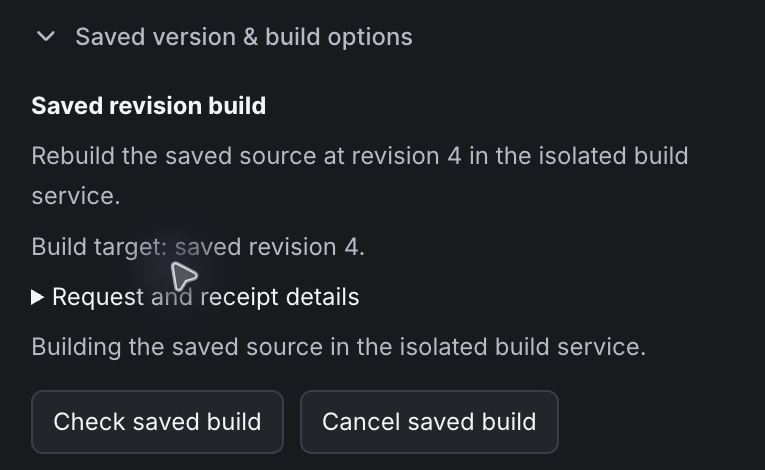
- Rebuild the saved revision from Builder using Saved version & build options. If a build request is retained, use Check saved build before starting another.
- Open the confirmed saved preview. Check each displayed value and open every card’s supporting context. Inspect linked source material in Studio when available.
- Reload and reopen the saved preview. Confirm that the values, formatting, context scope and source-version links are retained.
Saved version & build options uses the same retained build controls after you save the cards. The example below shows the running-build state.
 Enlarge screenshot
Check the result
- Every card shows the supplied statistic or Not supplied, with the intended label and unit.
- Opening each card reveals the intended shared or card-specific context and exact source version, or an explicit missing-source state.
- Reopening the saved preview retains the stored numbers, layout, emphasis, number formatting and context.
Recover and continue
- If a value is invalid, correct the numerical text or leave it empty before saving. The previous valid stored value remains unchanged until the input is valid.
- If a saved source version is unavailable, review the project’s source material and deliberately choose the intended version. Do not infer support from a missing reference.
- If a save is unconfirmed, use Check saved interaction to reconcile it before repeating the edit. For a revision conflict, review the latest saved interaction and its recovery controls.
- If the preview shows an earlier edit, rebuild the intended saved revision. Refresh saved preview when its access expires; an access refresh does not require another build.