Builder, Edit & Preview
Understand conversation, proposals, builds and the saved presentation.
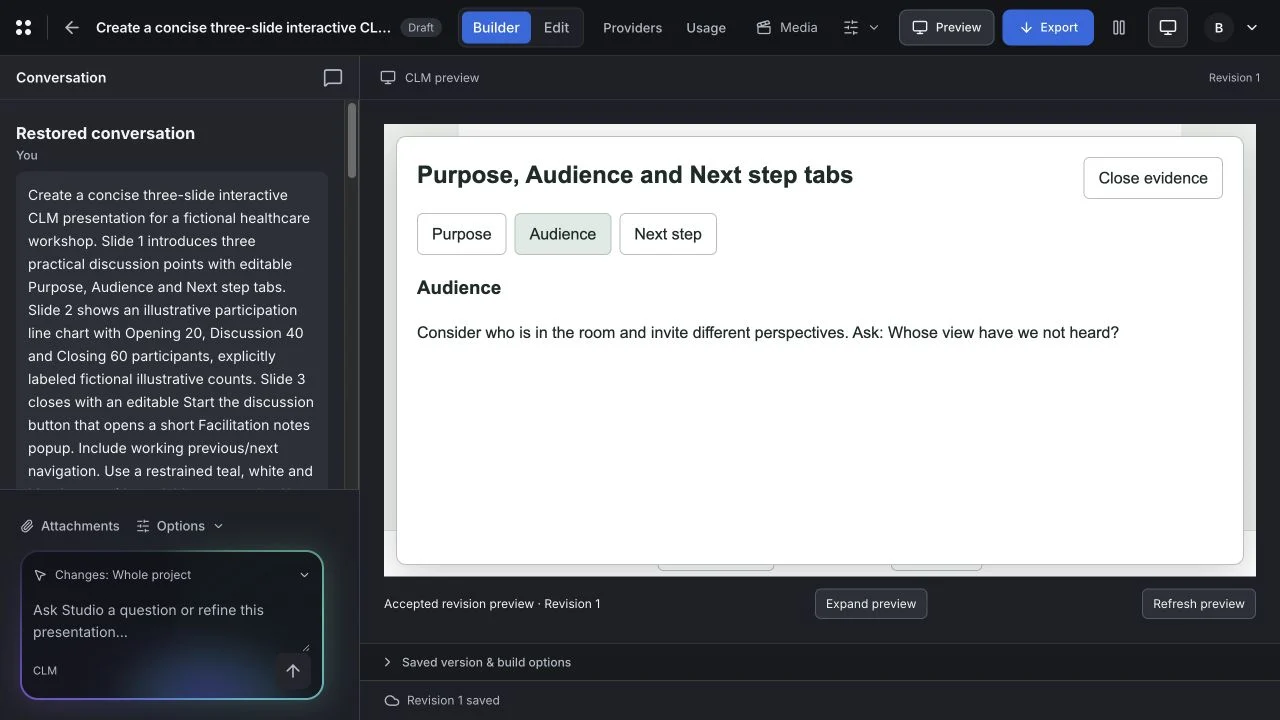
Switch between authoring and playback#
Choose Builder in the project toolbar to work through requests and proposals. Choose Edit to directly refine supported slide objects. Preview opens the interactive presentation for review.
Revision N identifies your saved presentation. After an edit, save and build the matching revision before relying on its compiled preview. Use Sample preview for fictional personalization cases, and Personalization setup to configure their fields and fallbacks.
Move between Builder and Edit#
Builder is the place to describe and refine the experience. Edit provides direct authoring controls for supported content. Both views work with the same project, but an unsaved edit or separate proposal is not automatically the current saved presentation.
On a narrow screen, use Conversation and Preview to switch between panels.
Keep the stages clear#
| Stage | What it means |
|---|---|
| Request | Your instruction has been sent or retained for status checking. |
| Proposal or candidate | A reviewable change separate from the accepted saved project. |
| Build | The source is being compiled for an interactive preview. |
| Accepted revision | The project has a confirmed saved revision containing the accepted change. |
Open the available preview#
- Read the generation or build status in Builder.
- When a candidate build is available, choose Preview candidate.
- Inspect the content and operate the interactions rather than judging only the first slide.
- Use the proposal acceptance action only after reviewing the actual result.
- For a saved presentation, look under Saved version & build options. Existing build outcomes can be checked with Check saved build.
Choose Rebuild saved revision when you need a new preview of the current saved revision. Follow the build status and open the matching result. If Rebuild saved revision is disabled, an authoring canvas still remains useful for direct editing.
Check preview freshness#
Check the revision or candidate identified by the preview. A result can belong to an earlier saved revision after the project changes. Save your edit, then open a matching available build before using it as review evidence.
An interactive browser preview does not establish behavior in a native Vault CRM client. Use the target handoff workflow for that separate assessment.