Build, reopen and refresh a saved preview
Review the version you have saved, reopen its compiled preview later, and renew expired preview access without generating the presentation again.
Before you begin
- Sign in to the workspace and open the project you want to review.
- Save your changes and note the saved revision number. Wait for any save or message submission to finish before starting a build.
- Starting a new saved build requires permission to edit the project and saved builds to be available. If the build control is unavailable, check access or service availability with your administrator.
Build the saved version
- Open the project in Builder. If the Builder is showing Storyboard, choose Preview.
- Open Saved version & build options beneath the preview. Find Saved revision build and confirm the revision number is the version you intend to review.
- Select Rebuild saved revision. This builds the saved presentation; it does not send a new generation prompt or accept a proposed version.
- Watch the build status. Queued and running are still in progress. If automatic checks pause, select Check saved build to check the same request.
- Wait for the status message “The saved revision build succeeded and its artifact receipt is verified.” The preview may then show Loading saved preview while it opens. Check that Saved preview · Revision shows the revision you intended, then review the rendered slide.
Use the saved-preview controls
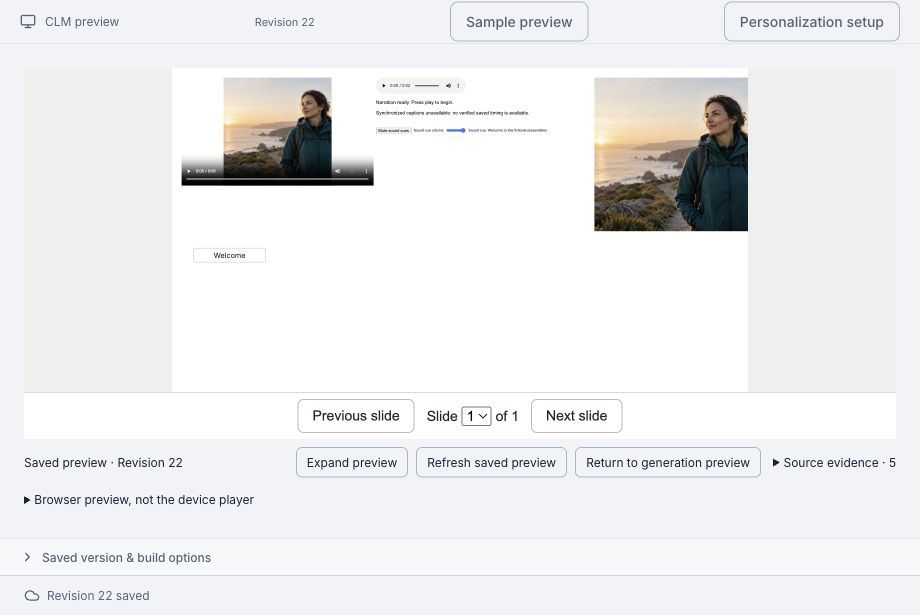
- Select Expand preview for a larger view. If the browser cannot expand it, keep reviewing in the normal frame or use your browser's viewing controls.
- Use Refresh saved preview to reopen the built saved version or renew its preview access. Allow the loading state to finish before reviewing it again; refreshing may reload the preview.
- Open Source evidence, when available, to review reference documents linked to this saved version.
- Use Return to generation preview to switch back to the project’s generation preview. This changes the view without generating content or accepting a proposal.
Reopen after leaving or reloading
- Reopen the same project in Builder, then choose Preview if needed.
- If Saved revision build still lists the build request, select Check saved build. A successful result for the current saved version opens its saved preview. In a fresh tab, when no generation or accepted preview is showing, Studio can also find a successful saved build for that exact saved version.
- Confirm Saved preview · Revision and the rendered slide. Opening is not always immediate. If a saved-preview recovery action appears, select Refresh saved preview and wait for the slide to render. If the normal preview area instead offers Refresh preview, use that control to check it again.
- If No compiled preview yet remains and the current saved version has no successful build, open Saved version & build options and build that saved version. A build for an older revision does not include later edits.
Refresh expiry and recover safely
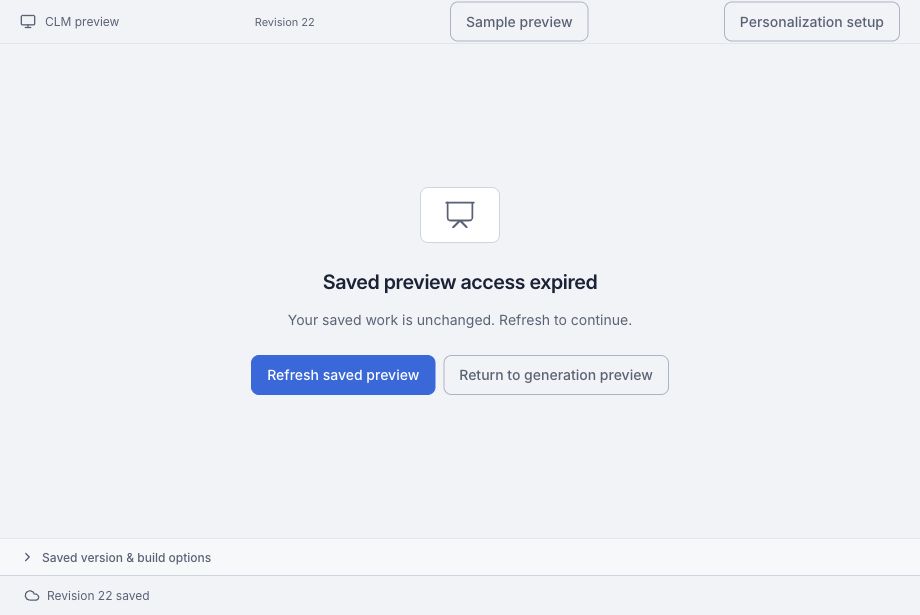
- Saved preview access expired: choose Refresh saved preview. Expired access does not mean the saved work was lost, and renewing access does not rebuild or regenerate it.
- This project changed: reload the project, confirm its current saved revision, and refresh the preview. If that saved revision has not been built, build it. Refreshing an older build does not add newer edits.
- Sign-in or access problem: follow the sign-in/reload guidance, confirm the correct workspace and project access, then refresh again. Rebuilding is not a substitute for restoring access.
- Refresh timed out or service unavailable: retry the refresh. If it keeps failing, open Error details when available and use its request reference when asking for help. Do not submit another generation prompt just to renew preview access.
- Build outcome not confirmed: use Check saved build. No build receipt is visible yet does not prove that the build request failed. If Studio offers Retry exact saved request, use that action for the retained request rather than starting a different build. If a build has definitively failed, follow its displayed guidance; service or dependency problems may require an administrator before another build can succeed.
Review in the browser, then on the target device
The saved preview is the compiled build running in this browser. For CLM presentations, open “Browser preview, not the device player” for the in-app explanation. Slide navigation here is a preview control, and fonts, motion and layout can differ on another browser or device. Review the exported presentation in the intended CLM app and device before release; a successful browser preview does not establish native-device acceptance.