Update a slide with AI, precisely
Choose exactly what may change, write a useful request, compare the proposal and confirm the saved result.
Use a focused request for a specific improvement#
You have a good draft, but the evidence page feels crowded. You want a clearer hierarchy while keeping its values, source text and every other slide intact. This is where a scoped AI request is useful: you describe the intended result and limit the part of the presentation Studio may edit.
The same process works for a shorter headline, a new visual, a clearer chart treatment or a better explanation behind a hotspot. Start with one coherent task so you can judge whether the result succeeds.
This guide uses fictional Avenlith and CENDORYA practice content. Replace it with your own cleared material when working on a real presentation.
Save the starting point and identify the slide#
- Open the saved presentation and confirm you are in the intended workspace and project.
- Finish or cancel any active text, layout or media edit. Wait for its saved result before starting a new generation.
- Note the displayed Revision and the target slide title. The revision identifies a saved presentation state; it is not the slide number.
- Open Builder, or use the chat controls available beside the selected slide.
- Write down the problem in one sentence: for example, “The evidence chart is too small because the explanation competes with it.”
Checkpoint: you can name the saved starting revision, target slide and intended improvement before submitting anything.
Choose where Studio may make changes#
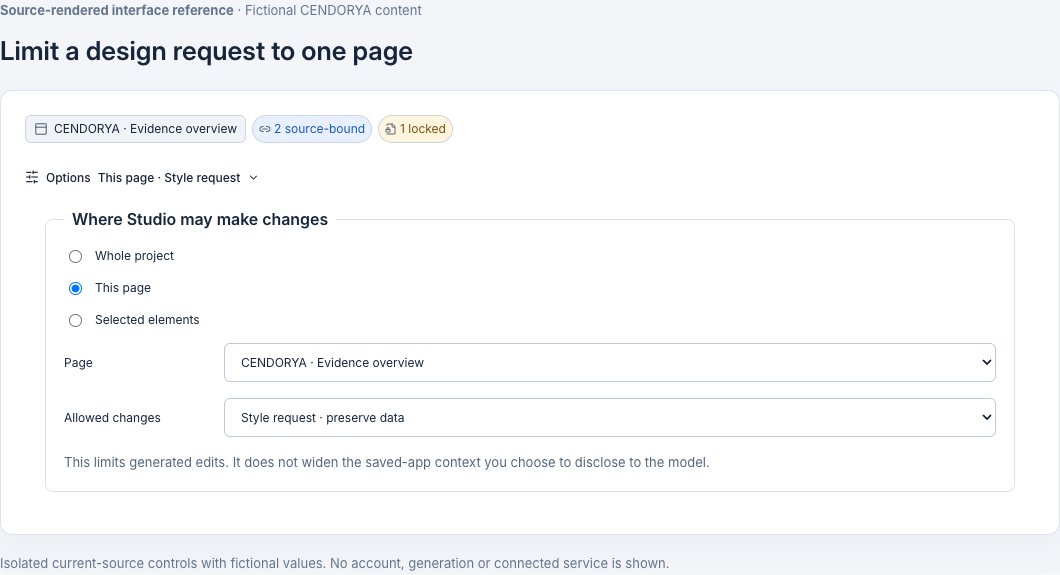
Open Options and find Where Studio may make changes. Choose the smallest scope that can accomplish the task.
| Scope | Use it for | What to select |
|---|---|---|
| Whole project | A change that needs several slides, such as restructuring a narrative. | The current project. |
| This page | Recomposing one slide or changing relationships between its objects. | The exact slide in Page. |
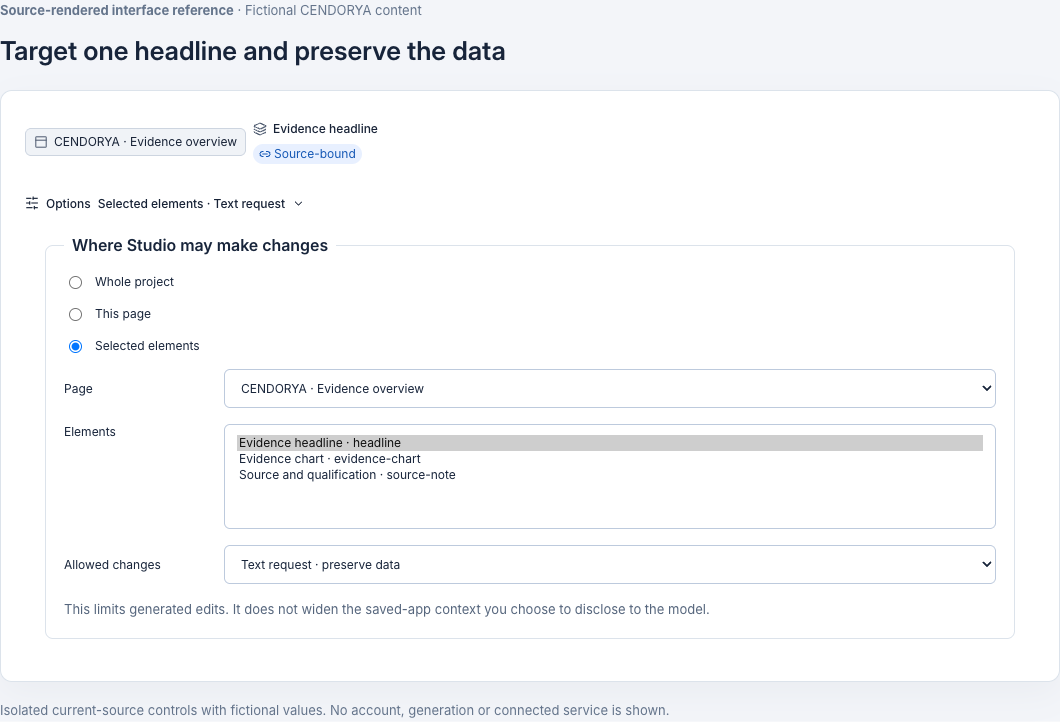
| Selected elements | Rewriting a headline, replacing one visual or changing a defined group of objects. | The exact Page and intended elements in its selection controls. |
Read the selected page and element labels after choosing the scope. Mentioning “slide 5” in a prompt is useful context, but it does not replace selecting the actual page in Options. If a scope is unavailable, resolve pending work and confirm the saved page has selectable elements.
Choose the kind of change you are asking for#
Set Allowed changes to match the task:
- Content and design allows a broader content or structural change within the selected scope. Use it when adding a visual, a new explanation or an interaction.
- Style request · preserve data is appropriate for layout, typography, spacing and visual hierarchy while keeping the presentation data fixed.
- Text request · preserve data is appropriate for wording changes while retaining numerical content and its context.
A preservation mode is a useful boundary, and the candidate still needs review. State the fixed material explicitly: values, units, groups, endpoint, population, timepoint, citations, qualification and navigation where relevant.
Checkpoint: the scope, page, selected elements and change kind all agree with your written request.
Write the request in four parts#
Use Target → change → preserve → success. Name the object or page, describe the change, list what must remain fixed, and say what you will inspect afterwards.
Target: the selected evidence page.
Change: make the main comparison easier to inspect at presentation size. Give the chart more space, place the interpretation beneath it and simplify competing decoration.
Preserve: every value, group label, endpoint, population, unit, timepoint, citation, qualification and existing navigation. Keep the other pages unchanged.
Success: the chart is the first focal point, all labels remain readable and the same evidence is present in the chart and table.
Describe the visible outcome. “Make it premium” leaves the key decisions open; “give the comparison plot two-thirds of the content area and move supporting explanation below it” gives Studio a composition to propose.
Example: turn a crowded slide into a clear evidence page#
Choose This page and Style request · preserve data. The example changes hierarchy rather than the evidence.
| Before | Requested result |
|---|---|
| Chart and three text blocks have equal emphasis. | The chart becomes the primary focus; supporting explanation is subordinate. |
| Source note floats far from the claim. | The source and qualification sit directly below the evidence. |
| Several decorative accents compete. | One restrained emphasis treatment guides the eye. |
Recompose this page as an editorial evidence layout. Put the existing chart in the main content area, place the short interpretation below it and align the source note to the chart edge. Use the current palette and typography. Remove only redundant decoration. Preserve all text meaning, numerical values, chart scales, units, citations and qualifications. Keep existing navigation and every other slide unchanged.
In the candidate, check the largest object first, then the longest label and smallest footnote. A larger chart is only an improvement if nothing important is clipped or displaced.
Example: shorten a headline without changing its meaning#
Choose the headline under Selected elements and use Text request · preserve data. Supply the communication purpose and any words that must remain.
Rewrite only the selected headline so it is easier to read aloud and fits in two lines at the current text size. Keep its original meaning and level of certainty. Do not introduce a new claim, outcome or comparison. Preserve any endpoint, timepoint, product name and qualifying wording. Leave the body, chart, sources, design and other objects unchanged.
Compare meaning as well as length. A shorter headline that drops “simulated,” changes a population or strengthens a conclusion has not met this request. Inspect wrapping in the actual slide, then check the saved text after accepting.
Example: replace a visual while protecting the page#
Select the intended image and choose Content and design. Explain the composition, its job on the slide and the area that must remain clear for live text. Use 3D visuals and interactive scenes for a more detailed visual recipe.
Replace only the selected illustration with a sophisticated 3D-style cutaway of a fictional artery for the CENDORYA training story. Use a pearl background, restrained crimson details and soft directional studio light. Keep the subject toward the right, leaving clear space for the existing headline on the left. Do not bake text, numbers or logos into the image. This is a simplified educational illustration, not patient imaging. Preserve the image frame, source text, chart, navigation and all other objects.
Inspect the generated visual before placement or acceptance. Check its relationship to the approved explanation, the crop at the actual frame size and its alternative text. A 3D-style image is a still visual; a rotatable scene is a separate kind of content.
Example: refine a chart without rewriting the evidence#
For appearance changes, select the chart and choose Style request · preserve data. Keep data updates as a separate, deliberate task with the relevant reviewed source.
Improve the readability of the selected chart at presentation size. Increase label clarity, simplify nonessential gridlines and use one consistent emphasis color. Keep the chart type, scale, baseline, group order, every data point, interval, unit, timepoint, source and qualification unchanged. Do not calculate new comparisons or infer missing data. Preserve the simulated-data label.
Compare the candidate against both the saved chart and the reviewed data. Inspect every value, the axis range and any reference line. If you need a different representation, request it explicitly and verify that the supplied data supports it; see Advanced evidence design.
Example: add useful detail behind a hotspot#
Choose This page and Content and design when the change needs a control and its detail content. Define the starting state, action, revealed content and return.
On this mechanism page, add three clearly labeled hotspots corresponding to the three regions in the supplied explanation. Each opens only its matching reviewed explanation and has an obvious close or return action. Keep the essential overview readable before interaction. Preserve the illustration, existing claims, sources and navigation. Do not introduce new scientific details. Make the hotspot labels meaningful for keyboard and assistive-technology use. Leave every other page unchanged.
Test each control, close action, return and keyboard focus in the available interactive preview. Confirm that a hotspot does not cover a source note or block slide navigation.
Submit once and follow the retained request#
- Read the selected scope, page, elements and Allowed changes again.
- Review the request and the source material selected for it.
- If Studio presents a saved-file disclosure, inspect the named revision and scope. Choose Allow saved app files for this request when the displayed context is appropriate, or Edit request to revise it.
- Use the displayed send action once. Follow the request status and retained result.
Change scope limits generated edits. It does not widen the saved-app context you choose to disclose. If the request outcome is uncertain, use its offered status or retry control to check that same request rather than starting a duplicate generation.
Compare the candidate and verify the change boundary#
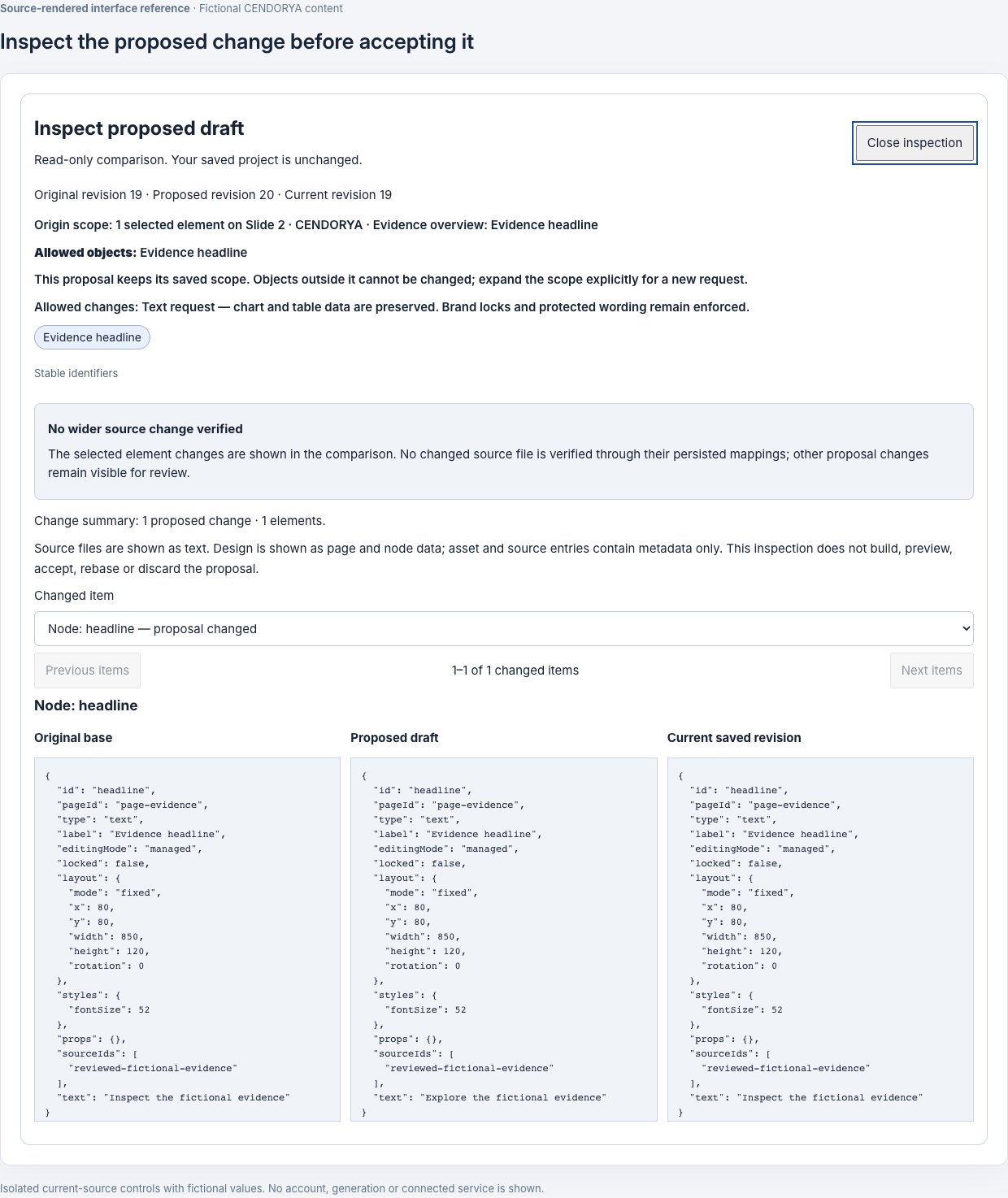
Open Generated proposals and the relevant Review proposal entry. Compare the proposal with its original and current saved versions. Inspect the changed content before considering acceptance.
- Check the target slide: did the intended improvement happen?
- Check the fixed content: values, labels, sources, qualifications and navigation.
- Check the change list and neighboring slides: did anything outside the selected scope change?
- Build and inspect the candidate when available. Test behavior, not only appearance.
- For an authored correction, use Preview authored draft before Accept authored draft.
Checkpoint: the candidate satisfies the request and the comparison supports the intended boundary. Viewing a candidate is not the same as accepting it into the saved presentation.
Refine, discard or regenerate a proposal deliberately#
If the design misses the intent, name the mismatch in the next focused request: “The chart is clearer, but the source is now too small; keep the new layout and restore readable source text.” Review the next candidate against the saved revision you intend to change.
If the saved presentation moved on, the proposal is stale. Rebase proposal, when offered, prepares a successor for review without changing the saved deck. If it reports a conflict, inspect the current project rather than forcing the older proposal over newer work.
For a fresh generation, enter Changes to regenerate and choose Regenerate at current revision. Review the prepared scope and request before submitting. To reject the proposal, choose Discard proposal, then Confirm discard. Discard preserves the comparison and leaves the saved project unchanged.
Confirm the saved result and recover an earlier revision#
After accepting, confirm the saved revision changed, reopen the target slide and verify its wording, layout and behavior. Inspect an unaffected neighboring slide too. If acceptance is unconfirmed, use Check acceptance rather than accepting again.
Use Undo / history to inspect saved work. In Compare saved revisions, choose From and To, then Compare. Use Change type and Show unchanged when useful to inspect the exact saved difference.
If a saved change needs to be undone, review Restore revision N and the affected material. A restore creates a new saved revision while retaining history; it is different from discarding an unaccepted proposal. Rebuild the relevant saved preview after a restoration, then check the target page again.