Work with Layers
Find overlapping objects, control visibility, and organize a slide.
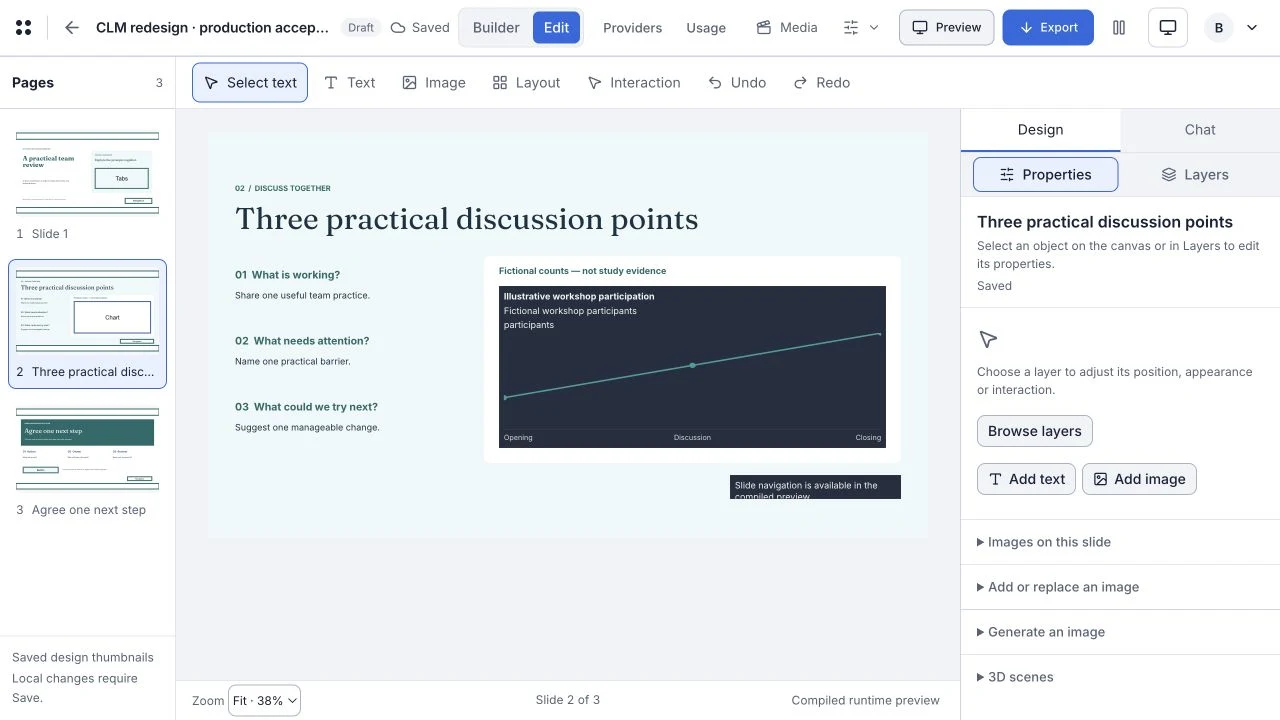
Find objects in the layer list#
In Edit, open the inspector’s Layers tab. The list is ordered front to back. Each row identifies an object or group; selecting a row selects its corresponding canvas content.
Use a layer row when an object is too small or covered by another object. Expand a group to inspect its members. Rename supported layers to describe their role rather than leaving several indistinguishable objects.
Show, hide and lock#
- Select the layer or group you want to change.
- Use its eye control to Hide or Show it.
- Use its lock control to Lock or Unlock it.
- Confirm the result on the canvas and check that the saved change completes.
Hidden content remains listed so it can be shown again. Hidden objects are not drawn in the authored output. Locks protect against accidental changes; a locked selection can make transform controls unavailable.
Group or link related layers#
Multi-select the layers you need, then use Group layers or Link layers. Grouping creates a collapsible visual unit. Linking keeps the individual layers and groups while allowing linked transforms together. The chain indicator shows the relationship.
Use Ungroup layers or Unlink layers when the relationship is no longer useful. Linked transforms still respect locks.
Reorder and recover changes#
Reorder the supported layer rows to change stacking. Use Duplicate layers or Delete layers for the current selection. Check that a deletion targets the intended layers before using it.
Use Undo layer change and Redo layer change to step through layer actions. Reopen the project to verify names, grouping, visibility, locks and links. Check the export guide for delivery availability.