Explain selected terms with an inline glossary
Create definitions, link exact wording and review terms and their sources in a saved presentation preview.
Before you start
Open a saved presentation in Edit with permission to change it. Use managed text and a registered project source that supports the definition. Finish any pending text edit before choosing an occurrence.
Create an entry and link exact wording
- Choose Components, then Open glossary editor under Inline glossary. Select the text object and the exact word or phrase to explain.
- In the glossary Content tab, choose Add entry. Enter Term, Abbreviation (optional) and Definition, then choose the registered material in Source.
- Under Entry to link, choose the intended entry and select Link selected text. Check the linked wording and its object in the occurrence list. Repeat for each intended occurrence; similar words are not linked automatically.
- Choose Save glossary and wait for the saved result. After a save, finish the current clean text session and select the saved wording again when you want to link or try another occurrence.
Try a definition and the alphabetical list
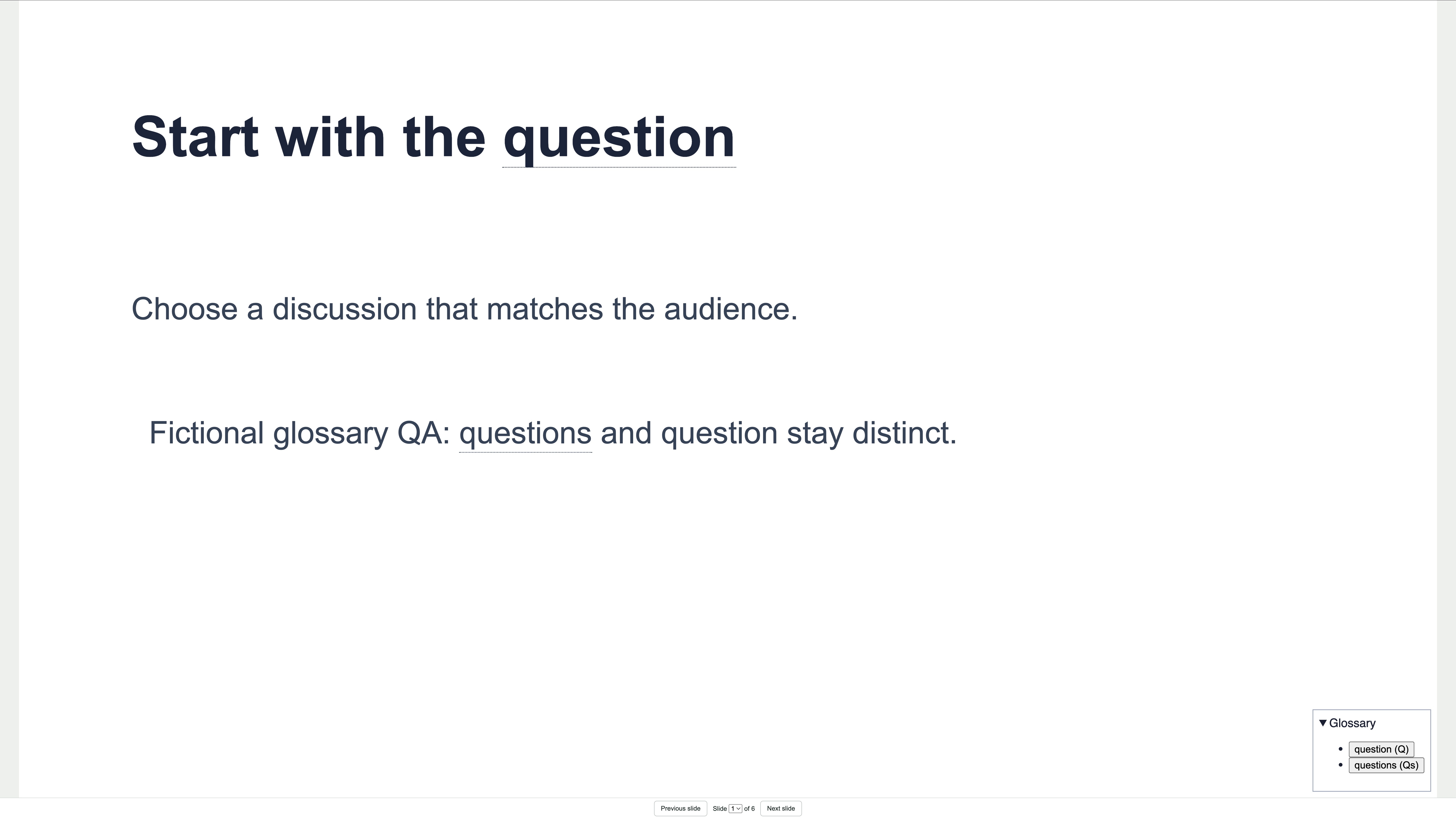
- Select the saved text object and choose Try glossary. Activate a linked term to read its definition, or open Glossary to browse the alphabetical list.
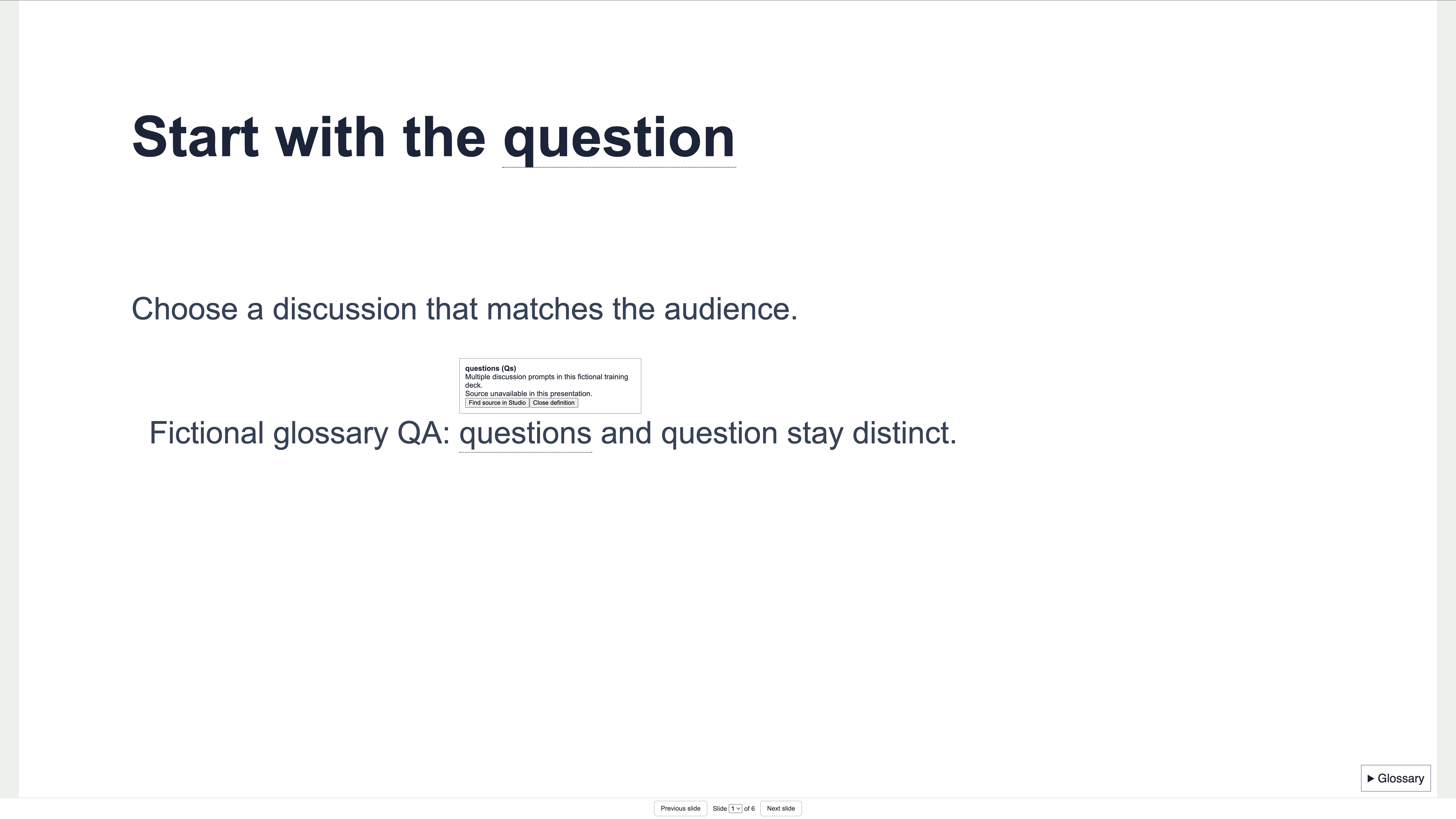
- Use the pointer or keyboard to open an entry. Choose Close definition or press Escape to return focus to its opening control. If the browser is in fullscreen, Escape may first leave fullscreen.
- Use Open source to inspect the registered material in Studio. Choose Edit glossary to return to the authoring controls. Trying a glossary does not save a draft.
 Enlarge screenshot
 Change behavior or restore an entry
- In Behavior, set Definition placement to Above or Below. Style keeps the linked wording’s existing font, color and formatting. Save the glossary when the draft is ready.
- Review the occurrences shown under an entry before changing its definition or source. Unlink occurrence removes one binding. Remove entry and Confirm remove entry remove that entry and its identified links while leaving the slide wording.
- After a confirmed save, use Undo glossary change or the editor Undo control when it names that change. Wait for confirmation, then check the restored entries and links.
Build and reopen the saved preview
- Open Builder, then Saved version & build options. Rebuild the saved revision and wait for its confirmed result. If a request is already retained, use Check saved build to reconcile it before starting another.
- Open the saved preview for the intended revision. Activate each linked term and the alphabetical list, then reload and reopen the presentation to check the entries and bindings.
- For a source that is not embedded in the presentation, choose Find source in Studio and open the registered material under Source evidence. The preserved original downloads separately. An unavailable in-presentation source is identified rather than replaced with another document.
 Enlarge screenshot
 Check the result
- Each intended occurrence opens the correct definition; an unlinked similar word remains plain.
- The alphabetical list keeps distinct terms, and closing a definition returns focus to its opening control.
- Definitions, bindings and placement survive saving and reopening. Check source access again from the reopened saved preview.
- Review the declared output separately. A browser preview does not establish native-player, upload or distribution acceptance.
Recover and continue
- If a selection cannot be linked, finish the current edit, select the intended saved wording again and check whether it already has a link. Choose the entry before using Link selected text.
- If a save is unconfirmed, use Check saved glossary or Retry saved glossary for that same retained change before making another edit. Review a conflict against the latest saved content.
- After glossary changes, rebuild the current saved revision before checking its compiled preview. Refresh saved preview if its access expires; this does not require another build.
- If a source is unavailable, check the registered source and your current access. A source link records the selected material; it does not by itself verify that the definition is supported.