Ask the audience with a poll card
Add a single- or multiple-choice question, write the follow-up each choice reveals, and check the session-only choices in a saved preview.
Before you start
Open a saved CLM presentation in Edit with permission to change it and select the slide. Finish any pending edit. Decide on the question, the choices viewers can make and what you want to say after each choice.
Add the poll card
- Open Components, find Poll card under Engage and choose Add poll card.
- Wait for the confirmation. If the result is unconfirmed, choose Check saved outcome and review the saved slide before adding another poll.
- Studio selects the new poll and opens its controls. Move or resize it in Position to fit the slide.
Write the question, options and follow-up
- In Content, enter the Question. The editor shows Unsaved changes while you work on the draft.
- Choose Add option for each choice and enter its label. The label field uses the whole row and wraps, so you can read all of it; a label stays one line of wording. Use Move earlier, Move later and Remove option, below each label, to arrange the list.
- Under Response, choose an option in Shown when viewers choose and write its Follow-up text. Leave the follow-up blank when a choice should reveal nothing.
- Check the Before presenting list. It names a missing question, fewer than two options or an unnamed option.
Choose how viewers select
- In Behavior, choose Single choice or Multiple choice for Selection.
- For multiple choice, set a Minimum or Maximum under Choice limits only when you need one. Leave a limit blank to set none. Viewers see the limits as plain guidance, such as Choose 2 to 3.
- Set the Starting selection. Leave it Unanswered to open the poll with nothing chosen.
- Turn Show Reset choices on or off. Reset returns the poll to its starting selection.
- In Style, choose whether the follow-up appears below or beside the options.
Try the poll and save
- Choose Try interaction. Select options on the slide with a click, a tap or the keyboard: Tab moves to the options, the arrow keys move between single-choice options and Space selects.
- Check that each choice reveals its follow-up. With multiple choice, the follow-up appears once the minimum is met. Choosing more than the maximum leaves the existing choices in place and explains how to change them.
- Choose Reset choices, then Edit component. Trying the poll never changes what you authored.
- Choose Save interaction and wait for confirmation.
Review the saved preview
- Rebuild the saved revision from Builder using Saved version & build options. If a build request is retained, use Check saved build before starting another.
- Open the confirmed saved preview. Make choices, check each follow-up and use Reset choices.
- Reload and reopen the saved preview. Confirm that the question, options and starting selection are retained and that the earlier choices are gone.
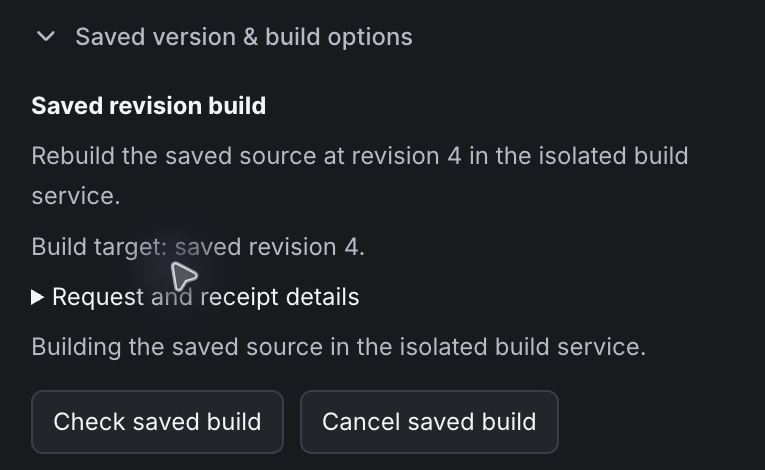
Saved version & build options uses the same retained build controls after you save the poll card. The example below shows the running-build state.
 Enlarge screenshot
Check the result
- The question, options and follow-up text appear exactly as written, in the intended order.
- Single choice behaves as one group of options; multiple choice lets viewers pick several within the limits you set.
- Choices last only for the current presentation. Reopening the preview, or a different personalized audience, starts from the starting selection.
- No percentages, totals or other audience results appear anywhere on the slide.
Recover and continue
- If Save interaction is unavailable, fix each item listed under Fix before saving.
- If a choice reveals nothing, select that option under Response and write its follow-up.
- CLM package availability depends on the saved presentation and the packaging service configured for your workspace. Open Export, select Native Veeva CLM and run Check presentation. If it reports a blocking finding, use its Go to action and guidance, then save and check again. When there are no blocking findings and preparation is available, choose Prepare slide packages once and follow that saved export to its result. Review the delivered slide in the intended client; the Studio preview alone does not establish client playback or qualification.
- If the poll action could not be confirmed, use Check saved outcome before repeating it. For a revision conflict, review the latest saved poll first.
Edit and reorder options on the slide
In a poll card, click the question or an option’s text on the slide and type. Pasted text arrives as plain text on one line. Press Enter or click elsewhere to keep the change, or press Escape to restore the text you started with. To move an option, drag it by its box or its handle with a mouse or a finger, or focus its handle and press Up or Down arrow.
Each change on the slide is one step for Undo component edit and Redo component edit, alongside your changes in the inspector. Choose Save interaction to save them as one change and wait for Saved.