Know your workspace: left, centre and right
A visual tour of both side panels, the canvas, direct tools, Builder conversation and the timeline below your slide.
Read the workspace before you edit#
Use the left side to choose where you are working, the centre to shape what the audience sees, and the right side to control how the selected object behaves. The timeline underneath the canvas controls when supported objects appear.
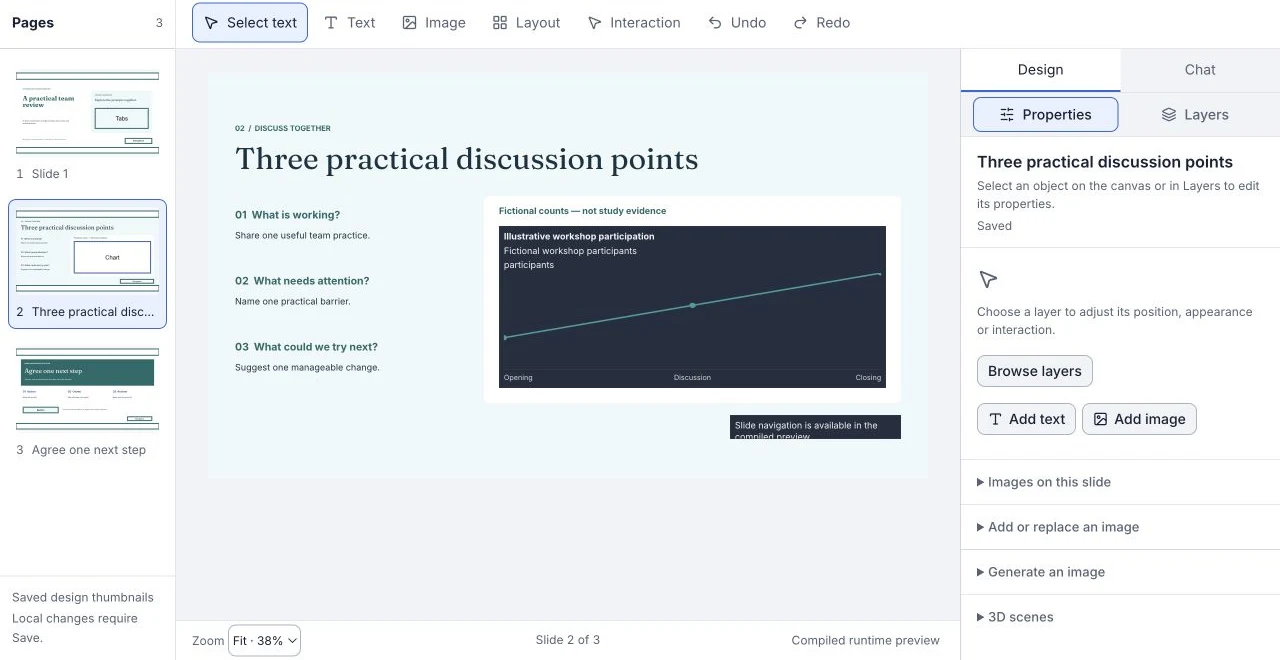
| Area | Use it for | First action |
|---|---|---|
| Left: Pages | Select the slide and understand the sequence. | Choose the thumbnail for the slide you want to edit. |
| Centre: canvas and direct tools | Edit a word, place an image, arrange objects or inspect an interaction. | Select the object, then choose the appropriate tool. |
| Right: Design / Chat | Change properties, inspect layers and evidence, or ask about the selection. | Choose Design, then Properties or Layers; choose Chat for a scoped request. |
| Below: Timeline | Sequence an object reveal and check its reduced-motion alternative. | Add an object track on a compatible managed CLM slide. |
The screenshots in this guide are interface references. The dated workshop captures show real controls; the separate timeline example is rendered from current interface source with fictional data.
Left panel: choose and organize your slides#
Why use it: the thumbnail rail lets you navigate the presentation without losing the object you are editing. It shows the authored slide sequence; a discussion path can use a different selection or order.
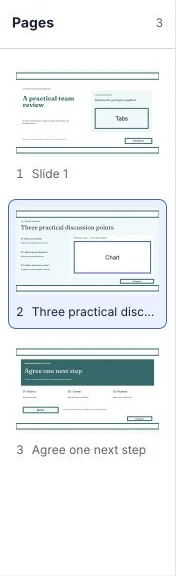
- Choose Edit, then select a slide in Pages. The active thumbnail is highlighted.
- Use the Slides controls to add or duplicate a slide. Give it a useful Slide title so the rail and later review are easier to scan.
- Use Earlier or Later to adjust sequence. Use Hide when a slide should stay in the project but leave the presented route.
- Save the slide-structure change before making an unrelated object edit. Recheck the rail and the active slide.
Technique: keep an evidence-detail slide after the main narrative and give it a distinctive title. Use Paths to make that depth available without forcing every discussion through it. Hiding a slide and excluding it from a discussion path are different decisions.
Centre: the canvas and direct authoring tools#
Why use it: direct editing is the shortest route for precise changes whose outcome you already know: a line break, a crop, alignment or the position of one reference.
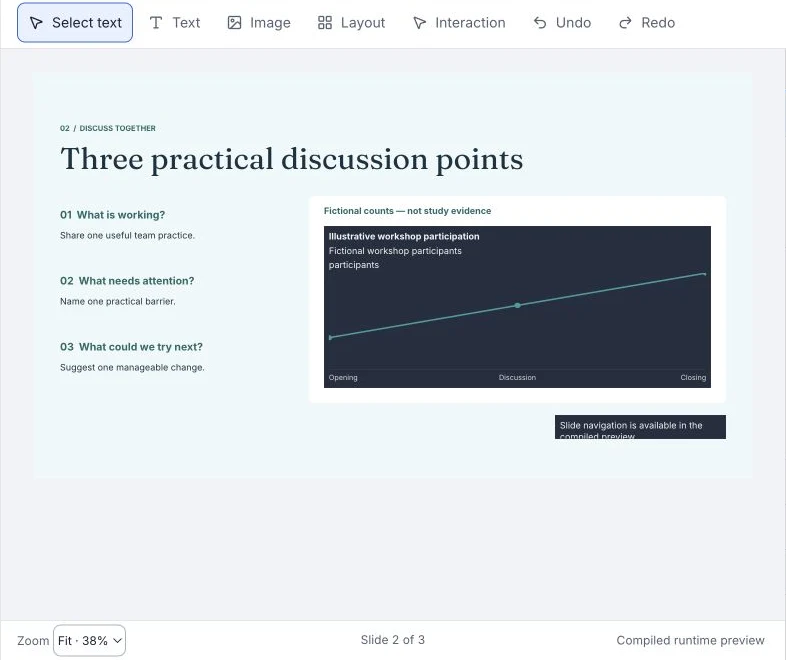

- Choose Select text to select editable text, Text to place new text, or Image to choose a supported image file.
- Use Layout when the change concerns position and size. Enable Snap to align dragged objects with slide edges, centres and other objects.
- Select the object on the canvas. Its relevant controls appear in the right inspector; the tools available depend on the object and presentation format.
- For compatible managed CLM slides, use Table, Calculator or Chart for structured content. Choose a chart family that matches the data before styling it.
- Use Interaction to work on an editable interaction already present on the slide. Test the actual result in preview.
- Check the local edit and save it. Use Undo or Redo for the active text or layout edit; use project history when you need a saved revision.
Technique: finish one visual hierarchy at a time. Position the headline, supporting evidence and source note as a group, then check the slide at a realistic viewing scale. A large editing zoom can hide crowded reading order.
See text editing, precise arrangement and charts and tables for the detailed controls.
Right panel: Properties, Layers and selection context#
Why use it: the inspector turns a visual selection into explicit settings. Use it when the change needs an exact value, a meaningful label or a reliable relationship between overlapping objects.
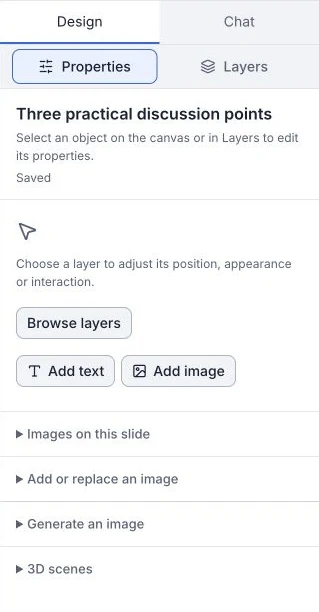
- Choose Design. Select the object on the canvas or find it in Layers.
- Open Properties to change the settings supported by that selection. Text, images, charts, video and interactions expose different controls.
- Use Layers when an object is hard to click, covered by another object or needs a clearer name. Select the row, then return to Properties for its settings.
- For several objects, Shift-click the canvas or layer rows. Group related objects when they should move together; use visibility and locking deliberately.
- Use Search text and layers to find a label or text across slides. Choose a result to open its slide and inspect the object.
- When a selected object has source material, review the evidence context in the inspector before changing its claim or replacing its source.
Technique: name layers for their role: “Primary endpoint”, “Endpoint definition” and “Source note” are more useful than “Text 7”. Keep decorative imagery separate from the evidence group so a layout change cannot accidentally hide the reference.
The empty inspector offers an entry point such as Browse layers. Object-specific controls appear after selection; an empty inspector does not mean the slide has no editable objects. See Work with Layers.
Builder and Chat: keep the request connected to the work#
Why use it: use a request when the outcome needs interpretation or exploration: a new story structure, a different visual direction or a coordinated change across several slides.
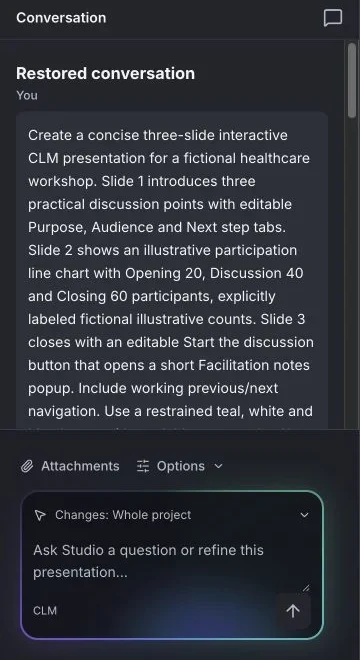
- Choose Builder for the conversation beside the compiled presentation preview. Keep the relevant source files with the request.
- Set the change scope: Whole project, This page or Selected elements. Use the narrowest scope that matches the task.
- Describe the desired result and what must stay fixed. For example: “On this page, simplify the headline and move the source note below the chart. Keep the values, endpoint and interaction unchanged.”
- In Edit, select an object and choose Ask about this selection to reveal the retained conversation with that selection as context. Opening it does not send a request.
- Review the proposed result, inspect its candidate preview and explicitly accept the version you want to keep. Then reopen the saved result.
Technique: ask for one coherent revision rather than mixing creative direction with unrelated fixes. A precise request can still affect more than text; inspect data, navigation and source notes before acceptance.
See Builder and interactive preview and reviewing AI changes.
Make room without losing your place#
Why use it: a detailed illustration or chart may need more canvas space, while a precise edit needs the inspector close at hand.
- Use Hide slides panel to close the left rail, and Hide inspector panel to close the right panel.
- Use their Show controls to restore either panel.
- Use Canvas focus mode to hide the panels together. Press Escape or use the same control to return.
- On a narrower workspace, use Inspector to open the contextual panel, then close it to return to the canvas.
- Use Fit to see the whole slide after checking detail at a larger zoom.
Changing panel visibility and zoom changes your editing view. It does not change the authored slide size or its saved object positions.
Below the canvas: motion timing and preview#
Why use it: a short reveal can pace a complex explanation. Show the question first, the evidence second and the interpretation last, while keeping the full slide understandable without animation.
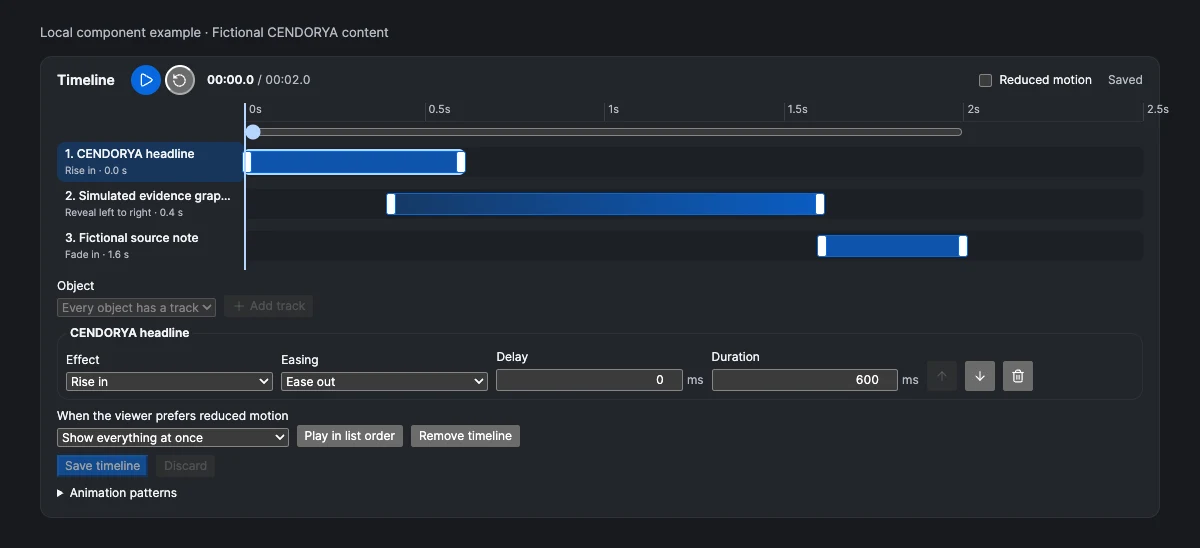
- On a compatible managed CLM slide, find Timeline below the canvas.
- Choose an Object and Add track.
- Set Effect, Easing, Delay and Duration, then scrub or play the result.
- Check Reduced motion, save the timeline and inspect the saved presentation preview.
The timeline sequences supported slide objects. Video trim and audio mixing have their own controls; this is not a film-editing timeline. Follow the complete timeline guide for the step-by-step workflow.
Finish with the audience’s view#
- Save the current edit. Check the saved state before switching task.
- Open the relevant preview and verify the correct presentation revision.
- Click the tabs, hotspots, navigation and media controls that the audience will use. A canvas selection is an authoring action; it does not test the runtime interaction.
- Check a complete discussion path, including its ending and a return to an earlier slide.
- Return to Edit for a precise correction, or to Builder for a scoped revision.
For a richer design reference, explore the fictional CENDORYA cardiovascular atlas. The showcase is a separate finished demonstration; its appearance does not establish that every interaction is available as a ready-made Studio component.