Contact support and follow your request
Send a support request, email the team, search support articles and understand offline chat.
Gather the details that help us investigate#
Open CLM Studio support when you need help with your project or want to report a problem. Have an email address where you can receive a reply.
- Write the steps you took and the result you expected.
- Copy the exact message you saw and note the approximate time, browser and device.
- For a project issue, include the relevant saved revision and diagnostic reference when available. In Studio, open Author help, then Get help with this context and choose Copy IDs.
- Remove passwords, API keys, patient information and unrelated confidential details from screenshots and files.
If you are unsure whether an earlier operation completed, first follow Troubleshooting and support to check its retained status.
Send a support request from the form#
- On the support page, choose Open support form. The Your support request section opens below the support links.
- Complete the required fields shown in the form. Give the request a useful Subject and explain the steps, expected result and actual result under How can we help?.
- Read the contact-field guidance and provide a contact method where the team can reach you. Review any file before adding it.
- Complete the verification shown by the form, then choose Submit once.
- Wait for confirmation and keep the ticket reference and receipt email. The receipt confirms intake; a support reply follows separately.
The embedded form has room for its submission controls on desktop and phone. If the form does not load or a control is hard to reach, choose Open form in a new tab to use the direct form.
Email the support team#
- Choose support@clmstudio.io on the support page, or address an email to that address.
- Use a specific subject and include the same steps, expected result, actual result and diagnostic references you would put in the form.
- Send the message and check your inbox for the support receipt. Keep its ticket reference with your original message.
The support address accepts incoming requests and sends branded replies. An automated acknowledgment or suggested answer confirms receipt; it does not mean a person has reviewed or resolved the issue.
Follow an existing request#
- Keep the receipt and ticket reference rather than opening another request for the same issue.
- On the support page, choose Follow an existing request to open the support portal.
- Sign in when the portal asks. Private tickets and replies require a support-portal account; they are not available from an anonymous link.
- Use the ticket reference when asking the team for an update. If you cannot access the portal, email support with that reference and explain the access problem.
Keep the request open until you have checked the proposed solution in your project. A receipt and an answer are separate stages of the support conversation.
Search articles before starting another request#
- Choose Search support articles on the support page.
- Search for the task or message you are working with, such as saved, and open a relevant result.
- Follow the article’s link to the complete Help Centre guide for the full workflow.
If the popup is unavailable, choose Open support articles in a new tab. You can also use Find an answer in the guides to browse and search the Help Centre.
Understand offline chat#
- Choose Open support chat on the support page.
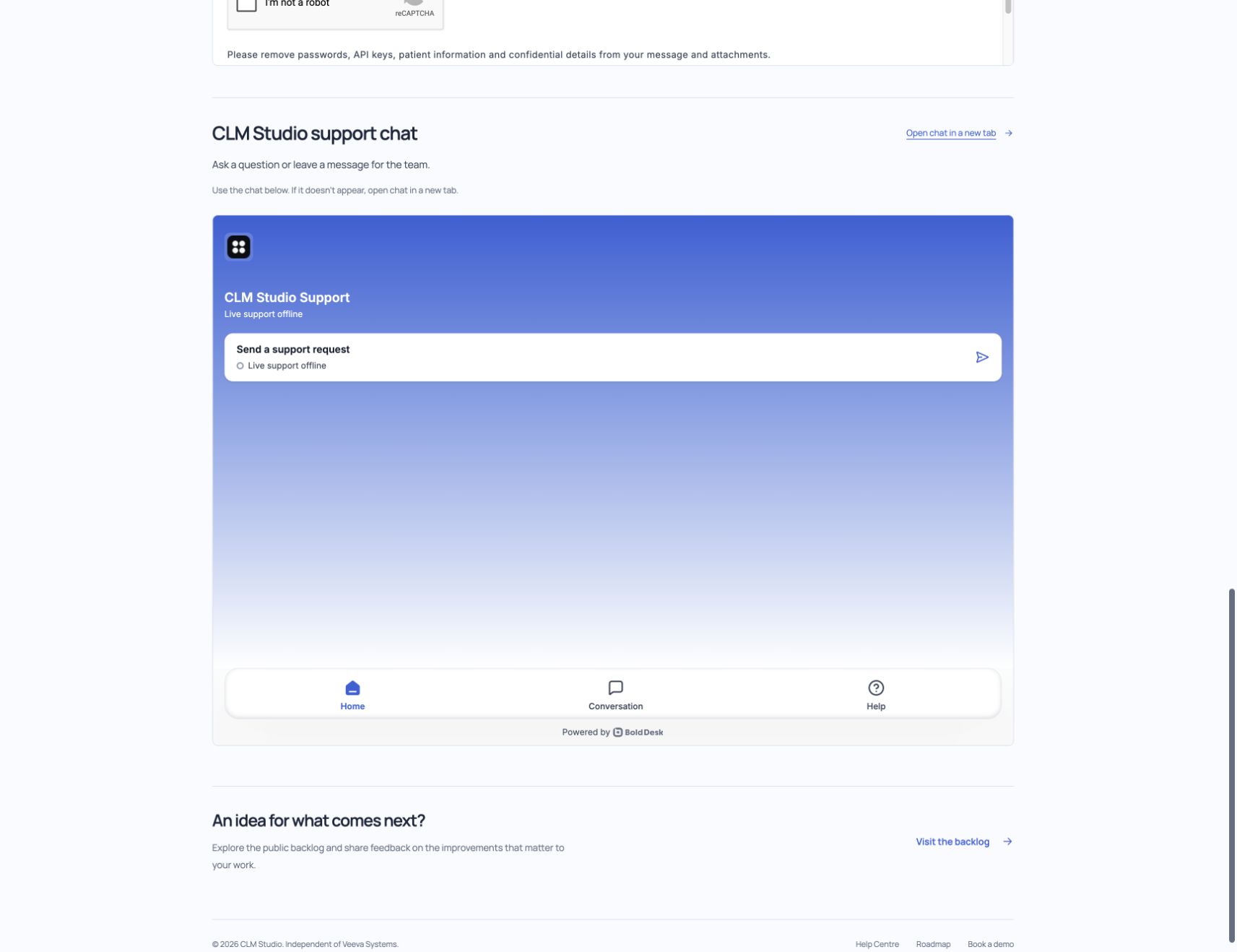
- Read the availability shown inside the chat. When it says Live support offline, choose Send a support request to leave your issue for the team.
- Use the direct support form or email if the chat does not appear. Open chat in a new tab provides the same chat surface separately.
Recover a missing form, receipt or reply#
- Form or popup does not load: use its new-tab link, or email the support team.
- Required field or verification message: follow the form’s displayed guidance before submitting again.
- Submission result is unclear: check for the on-screen confirmation and receipt email first. Keep the details of the original attempt; avoid submitting duplicate requests.
- Receipt is missing: check the email address you entered and your spam folder. Contact support with the approximate submission time and subject if you still cannot find it.
- Portal asks you to sign in: use your support-portal account. If you cannot access it, email support with your ticket reference.
- An answer does not solve the issue: describe what happened when you tried it and include the existing ticket reference, expected result and current result.
For a feature suggestion, use the public backlog. For problems with saved work, keep your original project and diagnostic references available while the team investigates.