Edit slides with keyboard and motion preferences
Navigate slide editing controls with a keyboard, review motion preferences and check your saved edits.
Before you start
- Open a saved presentation in Edit with permission to change it. Choose the intended slide and finish any pending edit.
- Use reviewed data and media that you have permission to use.
Use template and animation dialogs
- In Edit, open Slides and choose Browse templates. Use Tab or Shift+Tab to move among the dialog controls; choose Close templates or press Escape to return to the opener.
- For an available slide timeline, choose Animation library. Move through its controls with the keyboard, then close it or press Escape to return to the library button. Opening or closing a dialog alone does not save an edit.
Review reduced motion
Pause interface motion and Resume interface motion control Studio’s interface decoration. They do not change authored slide motion. The timeline’s Reduced motion switch and the animation library’s static alternative control are separate preview choices.
- Set your device’s reduced-motion preference before opening the editor. In Timeline, check Reduced motion, whose control is named Preview reduced motion for assistive technology.
- Open Animation library and select a pattern. Use Show static alternative in the preview to compare the static and moving treatments when available.
- Review the saved presentation and intended client separately: an editor preview preference does not by itself establish playback on every device.
Edit text and position
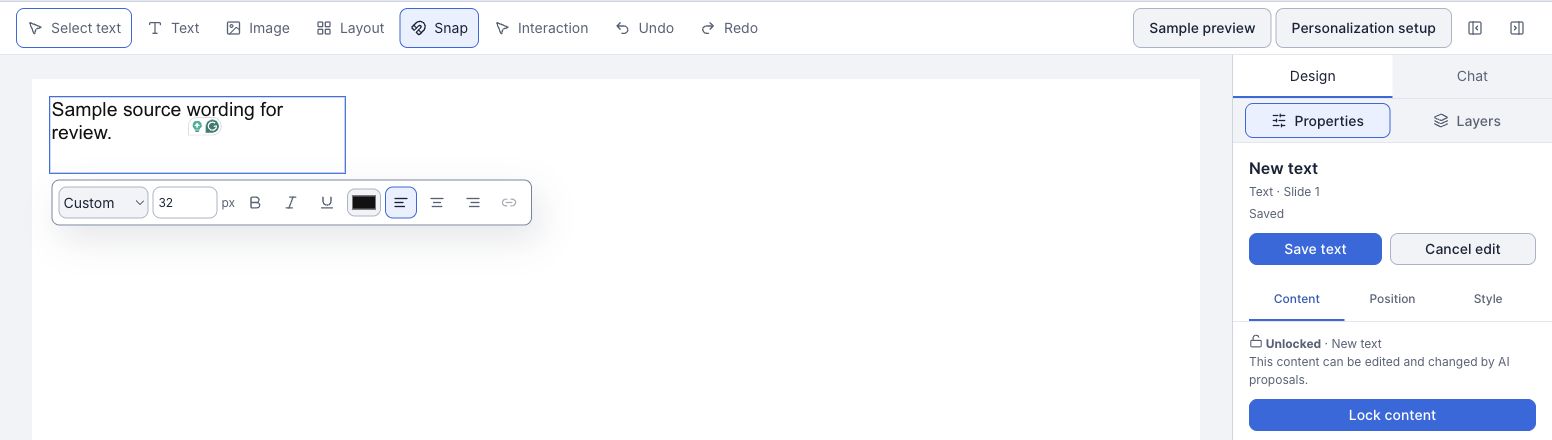
- Select the object on the slide or in Layers. Double-click text to edit its wording and use the text formatting controls for its appearance.
- Choose Save text, Save design or Save layout as shown and wait for Saved. To reposition a selected fixed-layout object, open Position, change Layout values or use its Move and Resize handles.
- Use arrow keys on a handle to move or resize by one pixel, or Shift with an arrow for ten pixels. For a responsive page, use the offered flow layout fields and review the result at the intended screen sizes.
- For several objects, Shift-click them and use the available arrangement controls; choose Save arrangement and wait for confirmation.
Check the result
- Keyboard focus remains visible as you move through the editor, and closing either dialog returns you to its opener.
- The chosen workspace panel and reduced-motion preview state are clear. Confirm any edit is saved and remains after reopening.
Recover safely
- If an edit is unsynced, use Retry unsynced edit. For Save conflict, review the current saved content and use Discard conflicted edit only after deciding what to keep.
- If controls are unavailable, finish or cancel the current edit and check your access. If a dialog does not close as expected, use its Close control or reload after resolving any unsaved work.
- If the reduced-motion preview is not the expected state, check the device preference before opening the panel and use the displayed Reduced motion or static alternative control. Check the delivered presentation separately.