Navigate a video or audio clip through authored chapters
Add chaptered media, choose the exact project clip version, write each chapter's title, start time and description, and check that selecting a chapter plays the clip from it in a saved preview.
Before you start
Open a saved CLM presentation in Edit with permission to change it and select the slide. Finish any pending edit. Upload the video (MP4) or audio clip (MP3 or WAV) to the presentation first, and have the chapter titles and times you want in front of you: every chapter is written by you, and Studio never invents a chapter, a time or a duration.
Add chaptered media
- Open Components, choose Media, find Chaptered media and choose Add chaptered media. Studio adds a player of the presentation's first video or audio clip to the selected slide in free space, with an empty chapter list beside it, selects it and opens its settings. Without a clip in the presentation, Components says to upload one first.
- In Content, choose the clip under Video clip or Audio clip. The exact version is pinned: the settings show its version number, and a later upload does not change what the player plays.
- Move or resize the component so the player and the chapter list fit the slide. The chapter list scrolls when it is taller than the component.
Write the chapters
- Play or seek the clip on the slide to where a chapter starts. Choose Add chapter at playhead: the button shows the exact time it adds, and the new chapter starts at that time. Write its Title.
- To set a time directly, type it in Start time as seconds (65 or 65.5), minutes and seconds (1:05 or 1:05.5) or hours, minutes and seconds (1:01:05). Use playhead time sets the selected chapter to where the clip is now.
- Optionally write a Description. It is shown under the chapter title in the chapter list, exactly as written.
- Chapters are always listed in time order. Select a chapter in Chapters, or on the slide, to edit it; the clip on the slide plays from it so you can check the time. On the slide, the selected chapter's title and start time can be edited in place.
- Choose Remove chapter to take a chapter out.
Choose where the player opens, the trim and the layout
- In Behavior, choose Initial chapter to position the player, paused, at that chapter when the slide opens, or Start of the clip.
- Under Trim, enter Play from and Play until to play only part of the clip. Times stay the clip's own, so chapters keep their start times. Choose Remove trim to play the whole clip again.
- In Style, choose Chapter list to show the chapters beside the player or below it. The player uses the slide typography and the component's saved text and background colours.
Repair chapters after a clip change or a trim
- Choosing another clip, or another version of it, marks every chapter Needs repair, because its times were set on the earlier clip. A trim that leaves a chapter outside the clip marks that chapter too.
- Select each chapter marked Needs repair. Set a new start time to repair it at once, or save the new clip first, play the chapter to check it and choose Time checked.
- Viewers are not offered a chapter until it is repaired, so the rest of the chapter list keeps working while you repair it.
Try the player and save
- Choose Try interaction.
- Select a chapter: the clip moves to its start, keeping it playing or paused as it was, and the chapter is highlighted as the current one.
- Play the clip. The highlight and the status beside the player follow playback to each chapter as it starts, and follow the clip's own controls when you seek with them.
- Use Previous chapter and Next chapter to move between chapters.
- Choose Edit component to continue editing. Trying the player never changes the chapters or the settings you chose.
- Each change is one step for Undo component edit and Redo component edit. Choose Save interaction and wait for confirmation. If a save is unconfirmed, choose Check saved interaction before repeating the edit.
Review the saved preview
- Rebuild the saved revision from Builder using Saved version & build options. If a build request is retained, use Check saved build before starting another.
- Open the confirmed saved preview. The player opens paused at your initial chapter, or at the start of the clip.
- Select each chapter and check that the clip plays from the moment you set. Tab to the chapter list and use the up and down arrows, Home and End to move between chapters, and Enter or Space to play from one. On a touch screen, tap a chapter.
- Play through the clip and check that the current chapter changes as each chapter starts, and that replaying the clip starts again at the first chapter.
- Reload and reopen the saved preview: the clip version, chapters, times, descriptions, initial chapter, trim and layout are kept as you saved them.
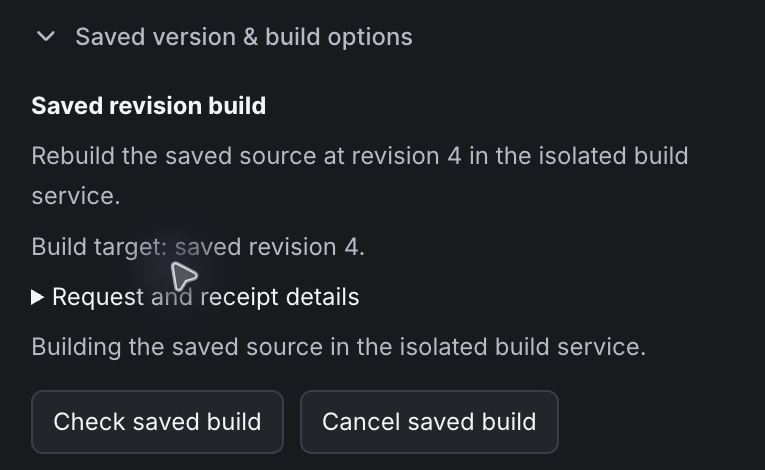
Saved version & build options uses the same retained build controls after you save the chaptered media. The example below shows the running-build state.
 Enlarge screenshot
Check the result
- The chapter list shows each chapter in time order with its start time, title and description.
- Selecting a chapter plays the clip from its start time, by keyboard and by touch.
- The current chapter follows normal playback, seeking and replay.
- A chapter marked Needs repair is not offered until you repair it, and a chapter after the end of the clip is shown as an error on that chapter.
- Reopening the saved preview keeps the clip version, chapters and settings.
Recover and continue
- If Save interaction is unavailable, read the message under the settings: give every chapter a title and its own start time, and keep repaired chapters inside the trimmed clip.
- If Add chapter at playhead is unavailable, a chapter already starts at that time or the playhead is outside the trimmed clip; play or seek the clip to another time.
- If the clip shows Selected video version unavailable or the duration cannot be read, choose a clip of this presentation again.
- If the preview shows an earlier edit, rebuild the intended saved revision.
- If export is refused for this presentation, keep using the Studio preview while the chaptered media package processor is being qualified.