Review saved media and download a references manifest
Inspect saved image details, check stored media availability and download a JSON record of the saved presentation’s ordered slides and asset references.
Before you start#
Open the saved CLM presentation you want to review. Finish or resolve any current edit and confirm Saved and the revision number at the top of the workspace. Use an editor or owner session to download a package manifest.
The package manifest is a JSON record of a saved revision. It includes ordered slide records and local asset references. The selected presentation must use a supported CLM handoff profile.
Inspect the saved image and its retained original#
- Choose Edit, select the slide containing the image and open Images on this slide in the inspector.
- Choose the image in the Image list. Under Asset details, read Source, File and Status to identify the image placed in this revision.
- When verified details are available, review Rights, Provenance, Source reference and Original. A derived image can also show its Parent asset.
- Use Inspect available size to compare Placed image, Retained original or an available crop or thumbnail. Read Version, Dimensions, File and SHA-256 for the selected size. Inspecting a size does not replace the saved image.
A cropped image can have different dimensions, bytes and a parent reference while retaining its original. Rights and provenance describe the saved records; they do not establish factual accuracy or approval to use the image.
Check whether the referenced files are available#
- Open Export and keep Native Veeva CLM selected under Output. Confirm the saved revision number shown in Export CLM handoff.
- Review Check presentation. Choose Run check again after any saved fixes.
- Read Stored asset availability checked and its available-file count. Review any missing or unverified file finding separately from playback, text-alternative and package-processor findings.
- Use Go to on a finding to inspect the affected slide or object. Save a correction before running the check again.
Download the saved revision manifest#
- In Export CLM handoff, confirm the saved revision again and scroll to Download package manifest.
- Choose Download package manifest once. Keep the workspace open while the request finishes.
- Wait for Manifest downloaded for saved revision followed by the matching revision number, and check the browser’s Downloads list for the .manifest.json file.
- Open the downloaded file in a text viewer. Confirm that revision matches the saved version you intended to review. Keep that file with your review records.
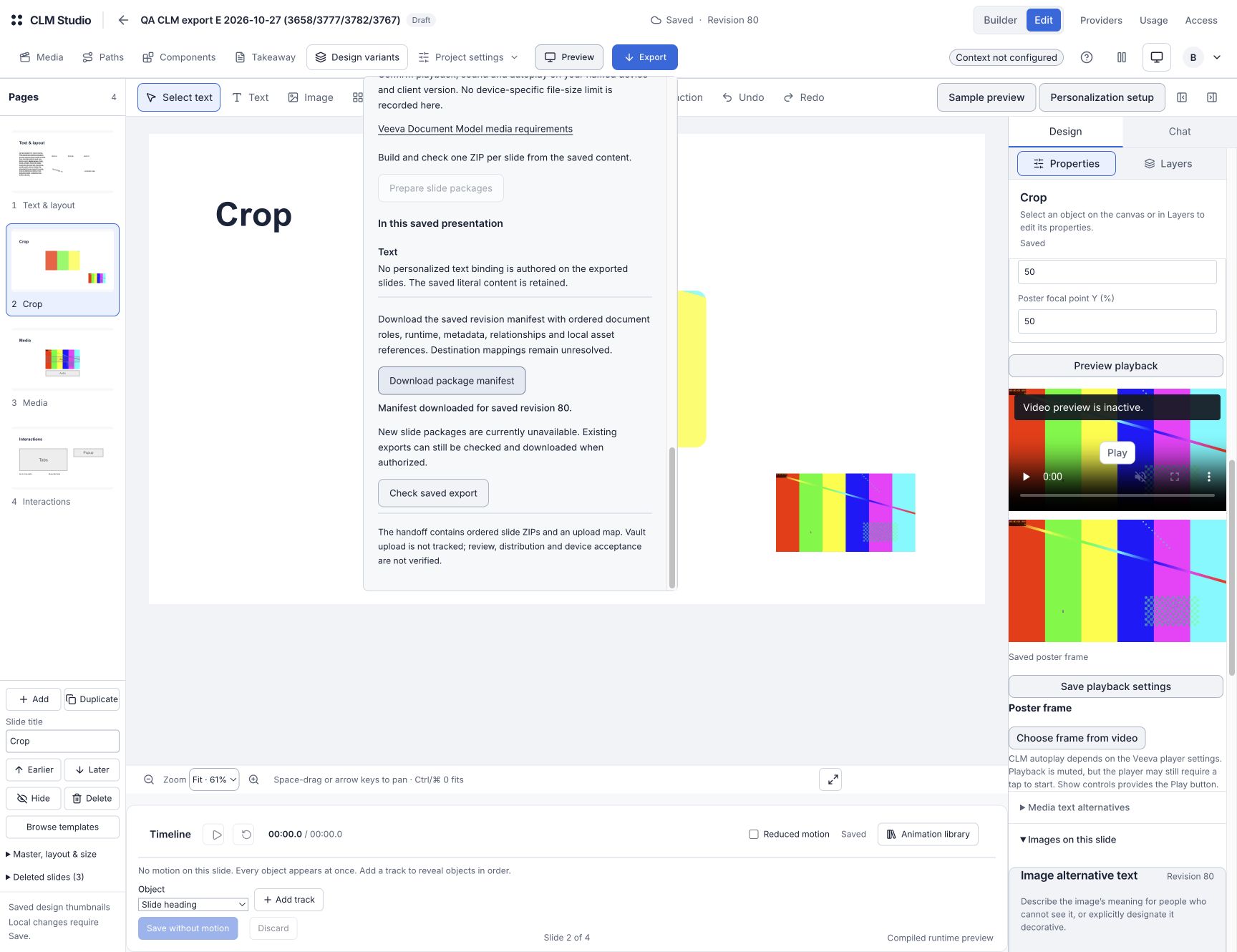
The manifest records the saved revision, slide order and local media references, including asset versions, hashes, file types and byte sizes. Its document records describe roles, runtime, metadata and relationships. Review destination mappings where they are marked unresolved.
Check the result after reopening#
- After the download finishes and Saved is confirmed, reopen the project or reload the workspace.
- Confirm the revision number and inspect the same image under Images on this slide. Check that its placed image, retained original and any crop details still refer to the intended saved content.
- Compare that revision with the downloaded manifest. A later edit creates a newer saved revision; the earlier downloaded file continues to describe its recorded version.
The expected result is a manifest download for the chosen saved revision, with its media references retained after reopening. The saved image and its inspected size remain unchanged by the review.
Resolve an unavailable or unverified result#
- Download button unavailable: finish the current request and check your session. An editor or owner can create the immutable package manifest.
- Session cannot download this manifest: sign in again and confirm the saved project and revision before continuing.
- Revision manifest unavailable: check that the project uses a supported CLM handoff profile and that its saved assets are available. Inspect the current findings before trying the download again.
- Download or verification message unclear: check the browser’s Downloads list and the on-screen confirmation first. Preserve an already downloaded file; do not repeat the action merely because a separate download notification was missed.
- Verified asset details unavailable: keep the saved image unchanged and check access and connectivity. An unavailable detail read is not proof that the underlying file is missing.
- Need slide ZIPs: use the separate package workflow and resolve its readiness findings. The JSON manifest is a review record, not a replacement for a verified slide package.