Your first CLM presentation
Create a presentation, make an edit, and check the saved result.
Before you start#
Open CLM Studio and sign in. Use the account menu to confirm the workspace you want to work in. Your projects belong to that workspace.
For a first session, use invented content or your own cleared materials. Keep your audience, intended market and main message close at hand. You can start with AI, a blank canvas, a template or a Markdown file.
Create a small first project#
- Open Create and choose Blank under Starting point.
- Open Project details and enter a recognizable Project name. Add your brand and market when relevant.
- Choose Create blank presentation. Complete sign-in if requested.
- Open the presentation in Edit. Use Text to place a text object on the slide, or choose Add text in the inspector.
- Enter a short headline. Make your changes and use the save control shown for the active edit.
Prefer a structured start? Choose Template instead, select an editable template, then choose Create template presentation.
Check what has been saved#
Wait for the save confirmation before opening another edit. Return to Projects, reopen the project and confirm the headline is still there. A local editing preview and a saved revision are different stages.
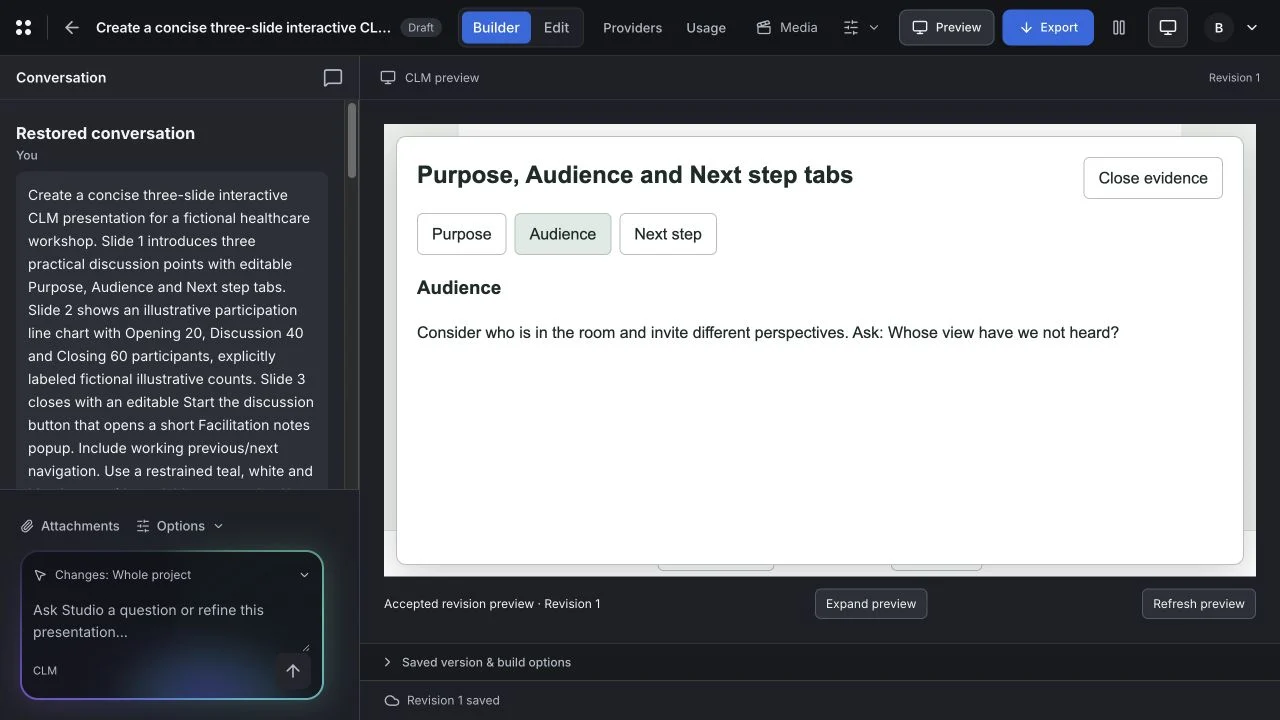
Open Undo / history to inspect the saved revision. In Builder, review any available preview separately; an interactive preview may need a new build after you save changes.
Try the next useful task#
Add a second slide, place an image and learn how Layers controls overlapping objects. If you want AI to develop the presentation, return to Builder and give one clear request with an appropriate change scope.
Your final delivery is a separate workflow. See Review and handoff before treating an authoring preview as a deliverable.