Find a released feature and its guide
Read a published change, understand its date and follow the related instructions before using the feature.
Before you start#
Release notes and Help Centre guides are public. You can read them without opening a presentation or signing in. Keep the feature name or public SCO ticket reference you want to check.
A completed backlog item can be waiting for production verification or documentation. Use its published release item and related guide to check the announced outcome. A count of completed tickets does not identify which features are available.
Find the published update#
- Open the Help Centre and choose Release notes in the navigation.
- Read the newest entries first, or find the feature name or ticket reference with your browser’s Find command.
- Read the update title and summary. For a detailed entry, review the individual change and its Why it helps explanation.
- Choose View this release to open the update’s own page. Keep that page’s address when referring to this announcement.
An older entry may have a shorter summary and a group of related guides. Open the guide that matches your task.
Open the guide beside the change#
- On the release detail page, find the change you want to use under In this release.
- Read its description, Why it helps and public ticket reference where shown.
- Follow the Help link beside that change. You can also use the related guide under Explore the guides.
- In the guide, read the prerequisites and follow the steps for your task. Check the expected result and any availability or recovery notes before continuing.
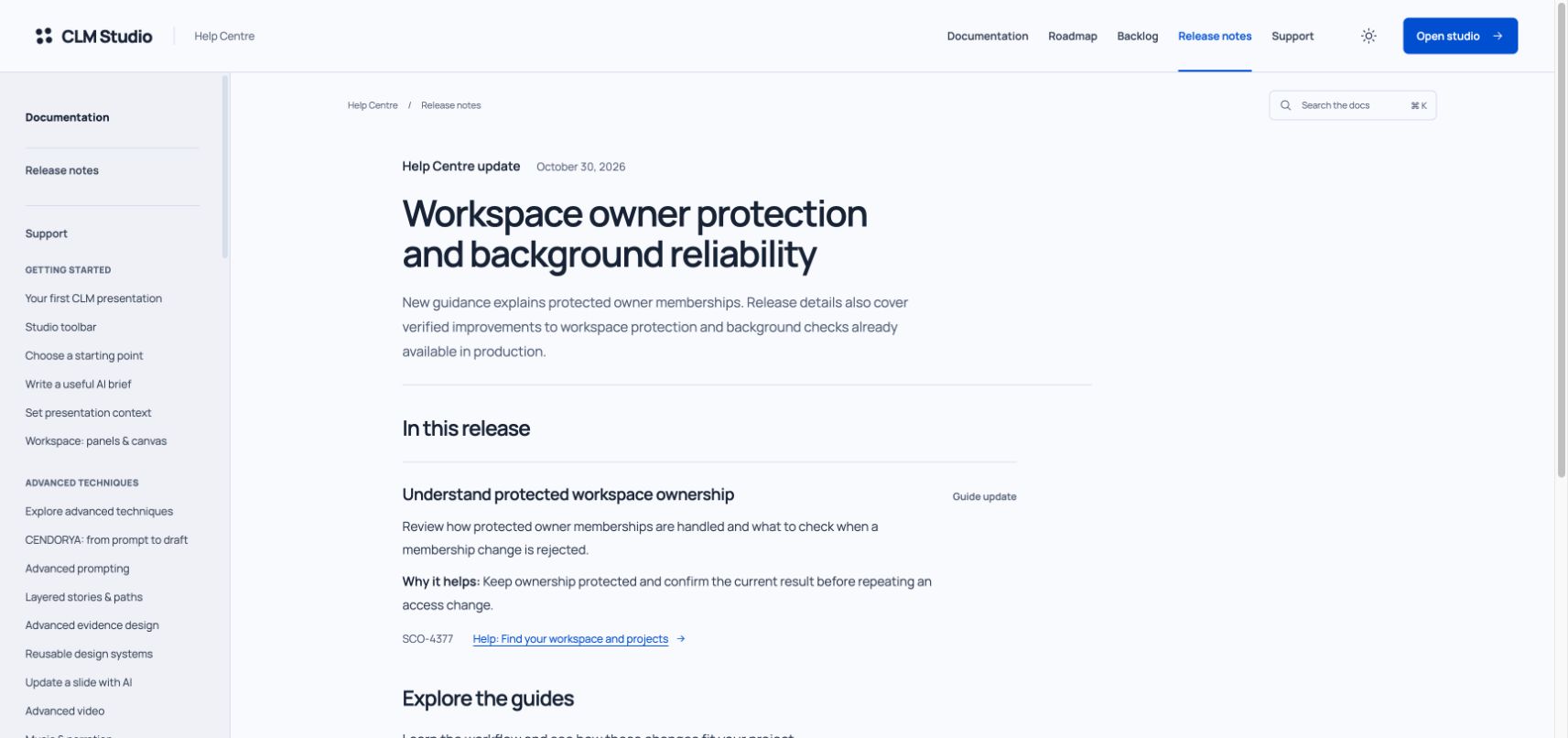
The expected result is the guide named beside the selected change. In this example, the Help link opens Find your workspace and projects, including the section Understand protected workspace ownership.
Understand the date and scope#
The release list is ordered newest first. Publication dates use America/New_York. Application entries show a recorded release number when available and a source reference; Help Centre updates have their own label and date. A Help Centre update can improve instructions for a feature already in production.
An announcement describes its listed changes. It does not establish that every completed ticket or every feature from the same application deployment has passed its checks. Read each change’s linked instructions and availability limits.
A release detail page retains its announcement. The guide at its canonical address can be updated later as verified behavior changes. Compare the guide’s Updated date and screenshot captions with the announcement date; a capture describes the environment and scope stated in its caption.
Check the result and resolve a missing update#
- Wrong guide: return to the release detail page and use the Help link beside the specific change.
- No matching announcement: check older release entries and the public backlog. Planned or completed tracker work can still be awaiting verified publication.
- Feature unavailable in your workspace: read the guide’s prerequisites and the application’s availability message. Some actions require a particular role, compatible content or service readiness.
- Guide or link does not load: preserve the page address, feature name and any public ticket reference, then contact support.
- Instructions and observed behavior differ: record the step, visible message and guide address. Share only the project details needed for support and keep private content out of public feedback.
You have finished when the announcement and linked guide describe the task you intended to check, and you understand the conditions for using it in your workspace.