Ask for 3D visuals and build interactive scenes
Generate a sophisticated 3D-style image from a prompt, or direct an interactive scene with views, hotspots and an accessible fallback.
Choose the visual job, then ask for it#
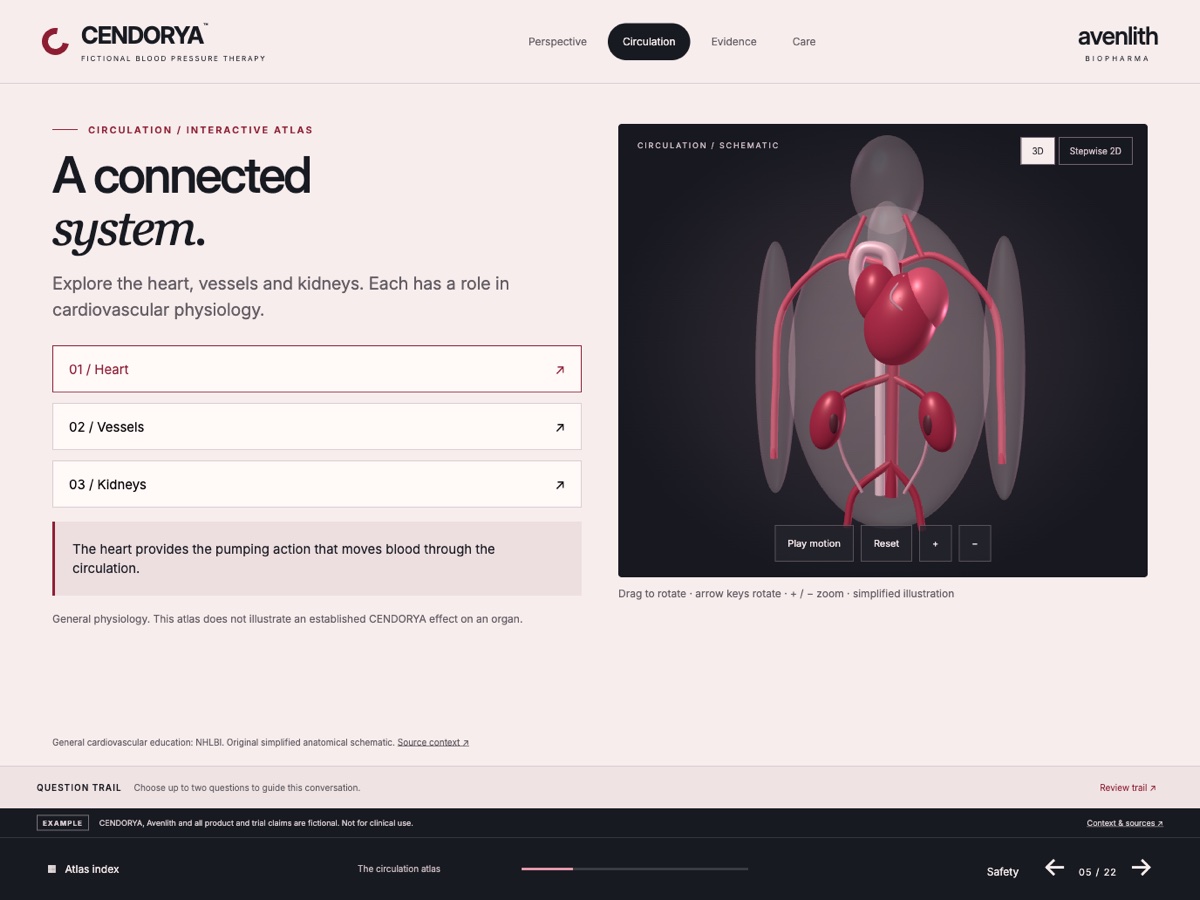
You can start with a request. A 3D-style image is useful when you need a polished hero or mechanism illustration in a fixed composition. An interactive 3D scene is useful when turning, focusing or revealing a part helps explain the story.
For fictional Avenlith practice material, use a simplified artery cutaway to direct attention to a particular region. Explain which parts matter, what the viewer should learn and where the live text will sit.
A generated 3D-style image is a raster visual. A rotatable scene contains scene objects and interaction controls. Describe the intended result in the prompt so Studio can propose the appropriate kind of content.
Generate a sophisticated 3D-style illustration#
In Builder, choose the target page or image and use Content and design. Give the subject, composition, materials, lighting, palette and clear space for text.
Generate a sophisticated 3D-style editorial illustration of a fictional artery cutaway for the CENDORYA training presentation. Show a clear outer wall and a simplified internal channel, with one focal region that can be explained by nearby live text. Pearl surface, restrained crimson accents, soft studio key light and subtle depth. Use a three-quarter view with the subject on the right and generous empty space on the left. No embedded labels, numbers, logos or implied treatment effect. This is a simplified educational illustration, not patient imaging. Preserve the page's existing text, sources and navigation.
Review the actual generated visual for the intended meaning. Make scientific corrections explicit; lighting and surface realism do not establish anatomical accuracy.
Use the image controls and refine the result#
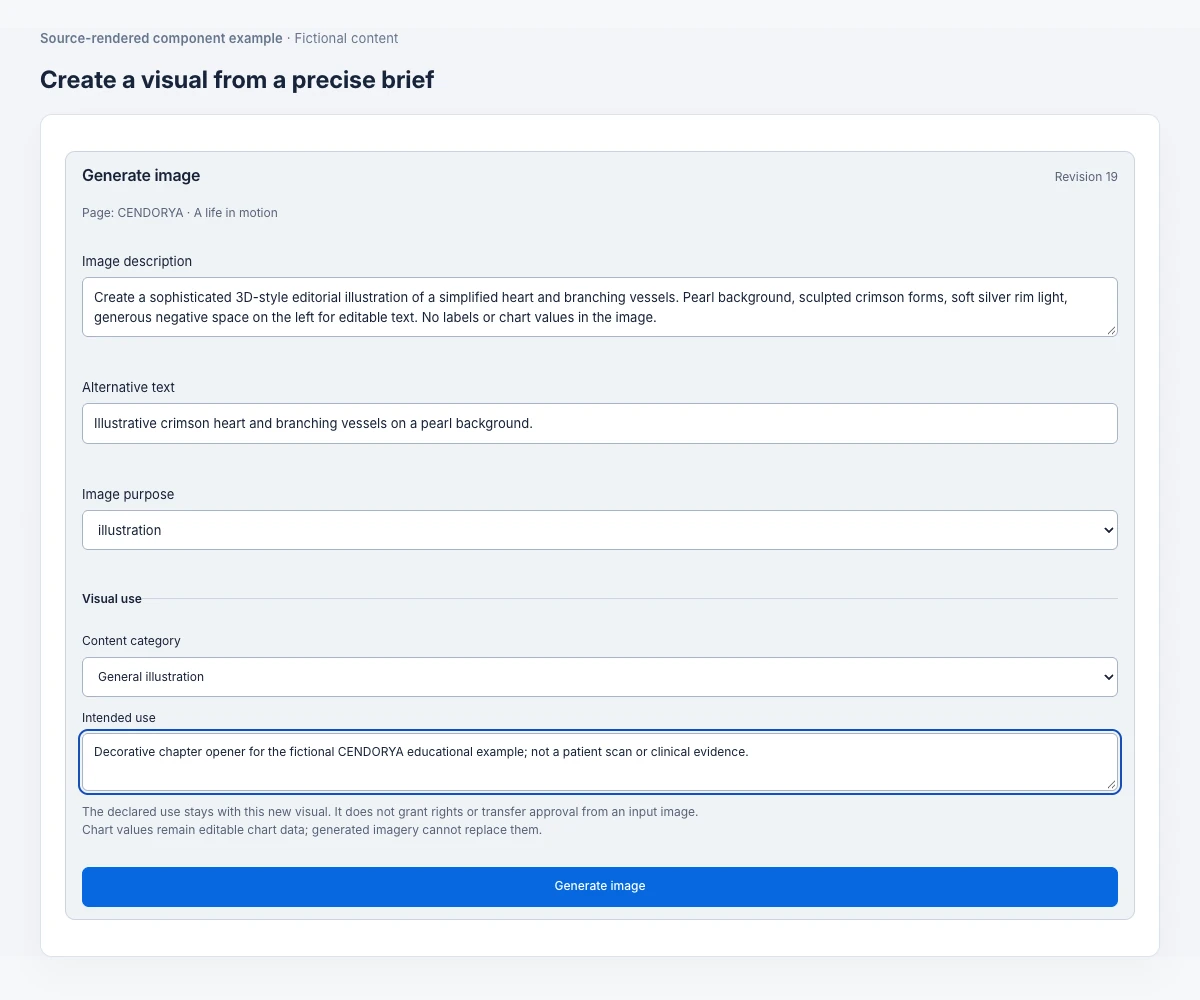
- In Edit, open Generate an image in the inspector.
- Choose the exact Page.
- Enter the request in Image description and write useful Alternative text.
- Set Image purpose to hero, background, illustration or texture as appropriate, and complete the displayed intended-use context.
- Choose Generate image once. Inspect the result under the generated image and Visual alternatives views.
- Use Preview size to inspect the Thumbnail, Poster and Original where offered. Confirm the intended placement before applying the selected result.
Refine one visible issue at a time: “Keep this composition and lighting, but simplify the internal channel and leave more clear space around the focal region.” Inspect the crop in the actual slide frame and keep live labels as editable text.
Ask for an interactive scene when exploration matters#
Choose This page and Content and design. Specify the initial view, the parts to explore, the controls and the static alternative.
Create an interactive illustrative 3D scene on this fictional CENDORYA mechanism page. Use a simplified artery cutaway with clearly separated outer wall, inner channel and focal region. Give the viewer rotate, zoom, pause and reset controls. Start from a useful three-quarter view. Add three numbered hotspots that reveal only the supplied explanations, with meaningful accessible labels and a clear return. Use charcoal, pearl and restrained crimson. Keep the current headline, sources, qualifications and navigation. Include a labeled static fallback and respect reduced-motion preferences. This is educational geometry, not a physiological simulation. Prepare a reviewable scene draft.
Review the generated proposal, build and inspect it when available, then accept the intended saved result. A request for interactivity needs a behavior check; a still image of a model is not the same result.
Open and organize the scene in Edit#
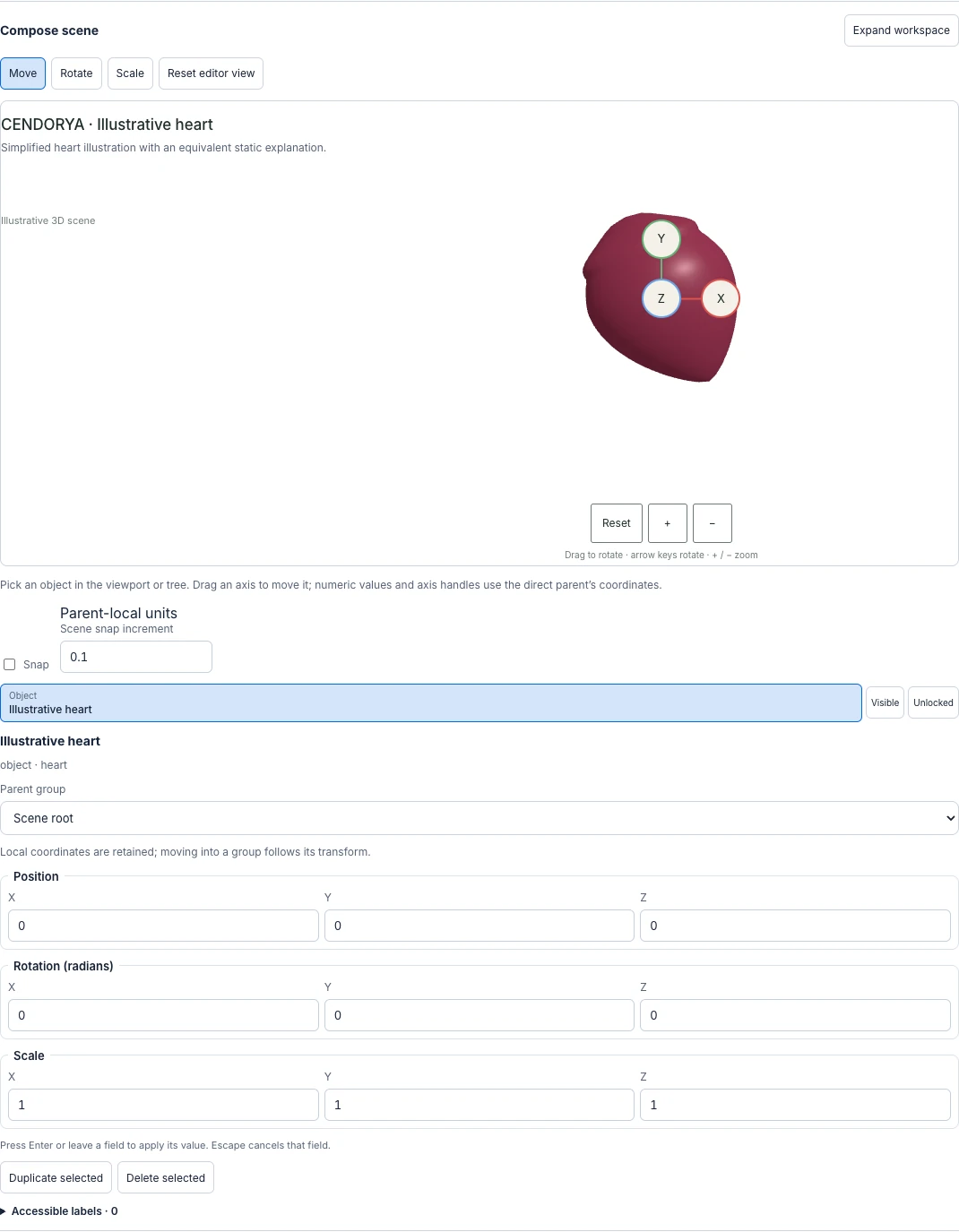
Open Edit, then the 3D scenes inspector disclosure. Confirm Current slide and choose the saved Scene. To author a supported procedural scene directly, use Create procedural scene.
- Give the scene a useful Scene label.
- Select a Procedural object and inspect its Object label, Shape, transforms and material controls.
- Use meaningful object and group names so the explorer controls can refer to the correct parts.
- Inspect the Camera and Light settings. Frame the important region before adding decorative movement.
- Use Undo scene edit or Redo scene edit for scene-edit history while refining.
Keep the scene out of the headline and navigation area. If the canvas reports no clear slide area for scene cards, move or resize the surrounding content before trying to force the scene into it.
Add useful views, materials and camera controls#
Under Explorer, use Place in its own page frame for an explicit scene frame. Deck art direction and studio lighting lets you inspect the panel position, light rig, background and deck palette treatment.
Enable Orbit, zoom and idle motion as appropriate. Choose Idle motion deliberately and keep Rotate, Zoom, Pause and Reset available where the explanation needs them. A stable initial view often explains more clearly than continuous spinning.
Under Views (tabs), choose Add view. Set Tab label, View title, View copy, Scope note and Visible groups. Use Store a camera for this view when each tab needs its own framing.
Use Translucent shell (inner parts show through) only when it clarifies the relationship. Illustrative breath, where offered, is explicitly an illustration rather than a physiological simulation.
Place and explain the hotspots#
- Under Hotspots, choose Add hotspot.
- Set Hotspot label, Hotspot title and Hotspot description using the reviewed explanation.
- Enter a meaningful Accessible hotspot label.
- Choose Hotspot action: Show detail or the supported Focus object.
- Set Hotspot presentation to Numbered marker on the model or Button beside the scene.
- For a marker, use Place on model and inspect its position. Use the anchor controls when it needs to follow a particular object.
- Review Shown in views and Evidence source references where applicable.
Inspect markers from each saved camera view. A point that is clear from the starting camera can be hidden after rotation. Keep an understandable button or text route to essential information.
Bring an existing model into the scene#
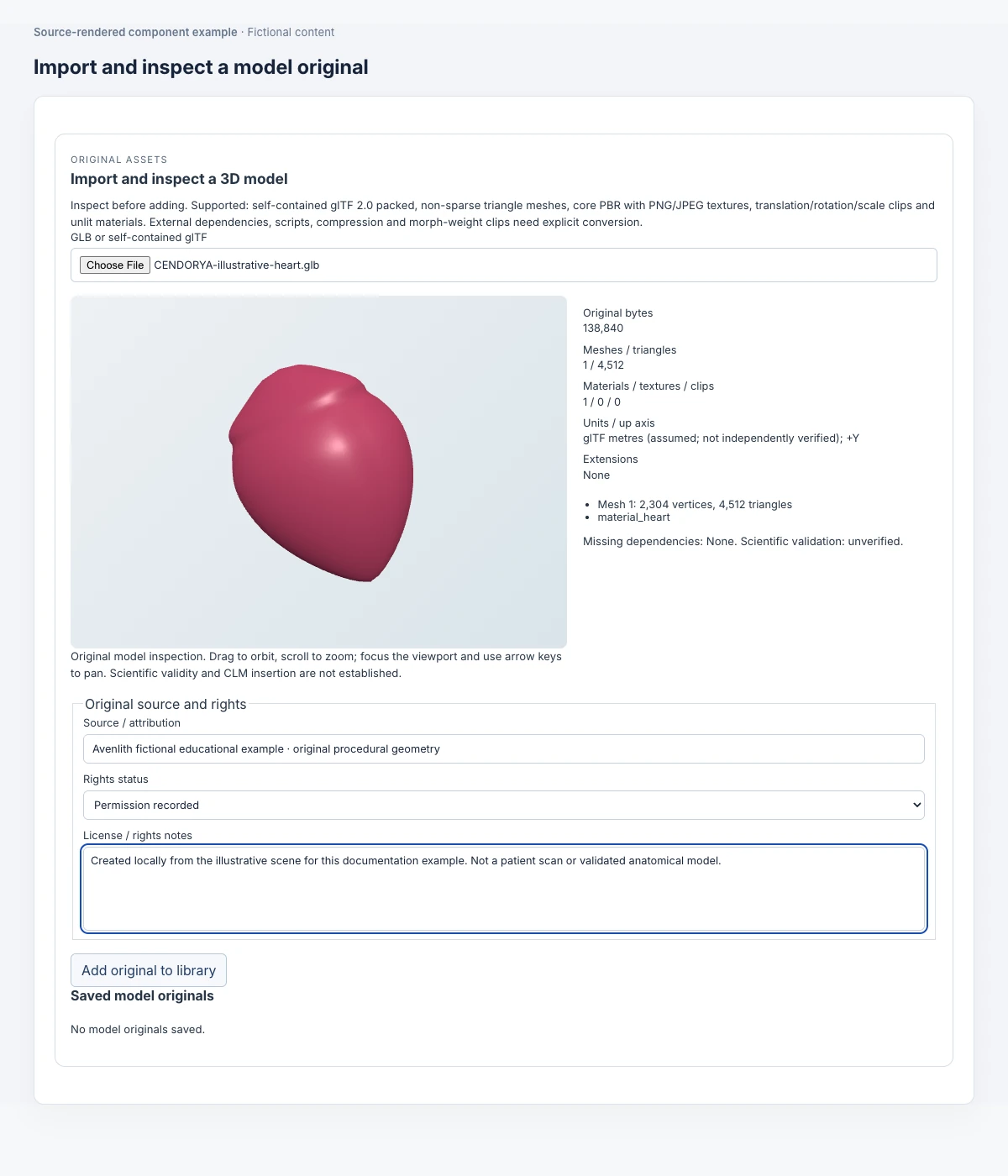
When you already have a cleared model, use Import and inspect a 3D model. Choose GLB or self-contained glTF, then enter Source / attribution, Rights status and License / rights notes.
- Inspect the file and resolve reported issues. The supported import expects a self-contained GLB or glTF 2.0 file within its processing allowance.
- Choose Add original to library and confirm the saved original.
- Use Inspect saved original and the offered preview before placement.
- Under Place a library model, choose Library model, then Place model in this scene or Create scene from model.
- Review its transforms and Model motion where clips are present. Choose Static (no motion) when movement is unnecessary.
Imported materials and textures are drawn as admitted; not every procedural material edit applies to imported content. Inspect the actual result rather than expecting a new color setting to recolor all model parts.
For imported model motion, supported clips animate the model’s translation, rotation or scale. Do not assume skeletal rigs or newly generated animation are included.
Author the static and reduced-motion experience#
Fill in Static fallback label and Static fallback description so the explanation remains understandable when the interactive renderer cannot be used. Describe the relationship the model teaches, not only its appearance.
Set Reduced motion behavior to the appropriate supported option: Show static fallback or Keep 3D interactive without automatic motion. Inspect both the normal and reduced-motion experience.
Keep simplified-anatomy and fictional-content labels visible with the scene. Add a clear text explanation for essential information. A beautiful model with unexplained markers is less useful than a simpler scene with legible labels and an obvious reset.
Save and inspect the complete scene#
- Choose Save scene and confirm the saved result.
- Reopen the scene and check object names, camera, groups, views, hotspots, source references and fallback text.
- Build the relevant saved revision when available and open its presentation preview.
- Rotate and zoom, choose every view, open every hotspot and use pause and reset.
- Leave the page and return; check framing, labels and navigation again.
- Inspect the static and reduced-motion paths and the smallest supported reading frame.
Checkpoint: the scene supports the explanation, essential details remain reachable and the saved presentation contains the result you reviewed. Resolve an unconfirmed save with its retained recovery controls before submitting another scene edit. Native-client and device qualification are a separate review.