Guide a discussion with an interactive checklist
Add a checklist of discussion points or tasks, group it under section headings, link items to other slides, and check items off during the presentation without changing the saved checklist.
Before you start
Open a saved CLM presentation in Edit with permission to change it and select a visible slide. Finish any pending edit. Have the discussion points or tasks ready; the checklist starts empty and never suggests items for you.
Add the checklist
- Open Components, choose Engage or search for discussion checklist, and choose Add discussion checklist.
- Wait for the confirmation. The new checklist is selected on the slide and its inspector opens. If the result is unconfirmed, choose Check saved outcome before adding another checklist.
- Move or resize the checklist from Position so it fits the slide.
Write the items
- In Content, enter an optional Checklist title. When it is empty, no title is shown on the slide.
- Choose Add item and enter its Label. Add an optional Detail to explain the point in a second line.
- Enter an optional Section heading. Items next to each other with the same heading are grouped under it.
- Choose a slide in Link to slide when the item should lead to more content in the same presentation. Choose None to remove the link.
- Select an item in the Items list and use Move item earlier, Move item later or Remove item to arrange the checklist. Arrow keys move between items in the list.
Choose the starting checks
- In Behavior, select the items under Checked at start that should already be checked when the slide opens. Leave them all clear to start with nothing checked.
- Select or clear Show progress count to show or hide the count of checked items, such as 1 of 3 complete.
Reset and every new presentation session return the checklist to these starting checks. Checks made while presenting stay only in that session; they are never saved to the checklist, sent anywhere or written to a customer record.
Try the checklist and save
- Choose Try interaction. Check and uncheck items on the slide with a click, a tap or the Space key, and watch the progress count change. Go to slide on a linked item leaves Try interaction and moves the slide and its controls to the linked slide, as in the presentation; with unsaved changes the checklist stays and says to save first.
- Choose Reset to return to the starting checks, then choose Edit component to keep editing. Trying the checklist does not change what you authored.
- Choose Save interaction and wait for confirmation.
Review the saved preview
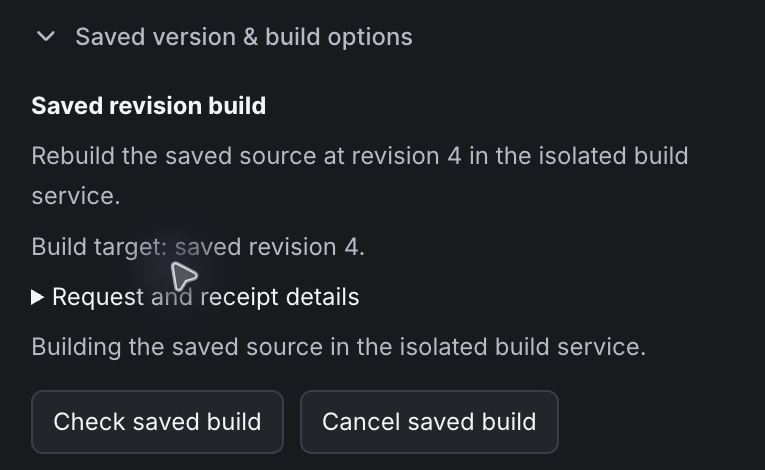
- Rebuild the saved revision from Builder using Saved version & build options. If a build request is retained, use Check saved build before starting another.
- Open the confirmed saved preview. Check and uncheck items, confirm the count, and choose Reset to return to the starting checks.
- Use a linked item's Go to slide button to open its slide, then return; your checks are still there in the same session.
- Reload the saved preview. The checklist starts again from the starting checks.
Saved version & build options uses the same retained build controls after you save the checklist. The example below shows the running-build state.
 Enlarge screenshot
Check the result
- Every item appears in the order you set, under its section heading, with its detail when one was added.
- The starting checks appear when the slide opens, and the count reflects only items that are actually checked.
- Reset and a reload return to the starting checks, and the saved checklist keeps its items, links and starting checks.
Recover and continue
- If Save interaction is unavailable, give every item a label or remove the empty item.
- If a linked slide shows as unavailable, choose another slide or None in Link to slide.
- If the checklist action could not be confirmed, use Check saved outcome before repeating it. For a revision conflict, review the latest saved checklist first.
- CLM package availability depends on the saved presentation and the packaging service configured for your workspace. Open Export, select Native Veeva CLM and run Check presentation. If it reports a blocking finding, use its Go to action and guidance, then save and check again. When there are no blocking findings and preparation is available, choose Prepare slide packages once and follow that saved export to its result. Review the delivered slide in the intended client; the Studio preview alone does not establish client playback or qualification.