Show related images and clips in a media gallery
Add a media gallery, choose the exact project images, video and audio it shows, describe each item, and check navigation, the larger view and playback in a saved preview.
Before you start
Open a saved CLM presentation in Edit with permission to change it and select the slide. Finish any pending edit. Upload the media to the project first: PNG, JPEG or WebP images, MP4 video, or MP3 or WAV audio. Register any evidence source you want to cite next to an item.
Add the media gallery
- Open Components, choose Media, find Media gallery and choose Add media gallery. Studio adds an empty gallery to the selected slide, selects it and opens its settings.
- Move or resize the gallery so the large media area, the caption and the thumbnail strip fit the slide.
Choose and describe each item
- In Content, choose a file in Project media, then choose Add media. Each file is listed by the name it has elsewhere in the editor (the file name it was uploaded with), its type and its version, and the selected item’s media appears as a thumbnail beside Media. Studio records that exact media version and its type. Repeat for each item.
- Select an item in Media items. Enter a Caption that viewers see under the media, and an Alternative description of what the image, video or audio shows for viewers who cannot see or hear it. Both are required before you can save.
- Choose a Source reference to show a registered evidence source with that item. The caption, description and source stay with the item when you reorder it.
- Use Move item earlier and Move item later to set the order, or Remove item to take one out. In the list, Up and Down move between items.
- Choose an Initial item to set where the gallery opens. Without one, it opens on the first item.
- To swap an item's media, choose another file in Media. Studio keeps the caption and source and clears the alternative description so you describe the new media before saving.
A gallery saved in its earlier version shows Update component above its fields. Choose Update component, then Save interaction, to bring it to the current version; every item and setting stays as saved. Until the gallery can be saved, Update component is unavailable and names the first thing to complete, such as an item’s caption or alternative description. On an updated gallery, select a video item to choose its Poster image from the project’s images, or choose Use this clip’s saved still when the project already holds a still for that clip. Viewers see the poster as the clip’s thumbnail and before it plays; without one they see the play symbol. Studio never generates or requests a poster. Replacing the item’s media removes its poster with its description, for you to review.
Set the larger view, playback, advance and fit
- In Behavior, keep Allow larger view on to let viewers open the current item in a full-screen view, or turn it off.
- Play clips automatically is off unless you turn it on. When it is on, a video or audio item starts when it opens. Browsers can still require the viewer to start sound, and video stays still for viewers who prefer reduced motion.
- Item advance stays with the viewer by default. To move through items automatically, choose Advance automatically and enter whole Seconds per item. Viewers can pause it; it waits while they interact or a clip plays, starts paused for viewers who prefer reduced motion, and stops at the last item.
- In Style, choose Contain to show each whole image or Cover to fill the frame and crop the edges. Video always shows its full frame.
Try the gallery and save
- Choose Try interaction. The gallery opens on the initial item. Use the previous and next buttons, select a thumbnail, or focus the thumbnails and use Left, Right, Home and End. On a touch screen, tap the controls or swipe across an image.
- Play a clip, then move to another item: the clip stops. Choose Open larger view to see the current item full screen, use its previous and next buttons or the Left and Right arrow keys, and choose Close larger view or press Escape to return.
- Choose Edit component to continue editing. Trying the gallery does not change the saved order, initial item or settings.
- Choose Save interaction and wait for confirmation. If a save is unconfirmed, choose Check saved interaction before repeating the edit.
Review the saved preview
- Rebuild the saved revision from Builder using Saved version & build options. If a build request is retained, use Check saved build before starting another.
- Open the confirmed saved preview. Move between items with the buttons, thumbnails and keyboard, open the larger view, and play and change a clip.
- Reload and reopen the saved preview. Confirm that the item order, media versions, captions, sources, initial item and settings are retained.
In the saved preview of an updated gallery, a clip with a poster shows it as its thumbnail and before it plays. In the larger view, the Left and Right arrow keys move to the previous and next item and focus stays in the larger view as the item changes, also when the item reached is the first or last; when a clip’s own controls have focus, they keep the arrow keys. A gallery not yet updated keeps its earlier saved preview until you update it.
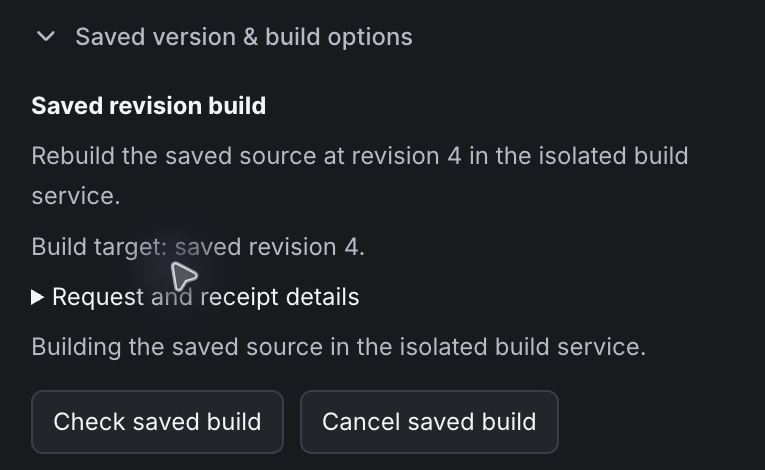
Saved version & build options uses the same retained build controls after you save the gallery. The example below shows the running-build state.
 Enlarge screenshot
Check the result
- The gallery opens on the initial item, with its caption and source under the media and the item number on the media.
- The previous and next buttons, thumbnails and keyboard move between items in the saved order, and the right caption and source stay with each item.
- Clips play only when started, or when you turned on automatic play, and stop when the item changes or the larger view closes.
- Reopening the saved preview keeps the media versions, captions, descriptions, sources and settings.
Recover and continue
- If Save interaction is unavailable, read the message under the settings: add the missing caption, alternative description or seconds per item.
- If an item shows Media unavailable in the preview, the build does not include that media or it could not be loaded. Check the media in the project, choose it again if needed, save and rebuild.
- If the preview shows an earlier edit, rebuild the intended saved revision.
- If Check presentation reports that the configured service cannot package this saved component, follow that specific finding. You can keep reviewing the Studio preview while the service requirement is resolved. Check the saved revision again afterward; do not submit replacement requests to bypass a blocker.
Reorder gallery items on the slide
In a media gallery, drag a thumbnail along the strip on the slide, or an item in the inspector’s Media items list, to change the order; with a thumbnail or item focused, Alt with an arrow key moves it one place. With a finger, drag a list item by its grip: elsewhere on the list a finger scrolls the inspector. The item you move becomes the selected one. Move item earlier and Move item later remain in the inspector. While you edit, a video thumbnail shows the still image that a video object in this presentation already uses for the same clip; without one it keeps the video symbol, and audio keeps its audio tile. Viewers see the video and audio symbols in the strip.
Each change on the slide is one step for Undo component edit and Redo component edit, alongside your changes in the inspector. Choose Save interaction to save them as one change and wait for Saved.