Place media on the right slide and check its stored files
Confirm the current slide before inserting an uploaded video or audio file, reopen the saved placement and read the stored-file availability result.
Start with a saved presentation#
Open your presentation in Edit with permission to edit it. Finish or resolve the current change and confirm Saved before placing more media. Use a file you are permitted to use.
This guide covers uploading and placing media in the editor, checking that the placement survives reopening, and reading stored-file availability. Playback settings, prepared slide packages and device review have separate checks.
Confirm where the next file will go#
- Choose the destination slide in Pages, then open Media.
- Read the slide title beside the Media heading. Under Video & audio files, the upload card also names that destination.
- If you move to another slide, check the title again. A selection from the previous slide must not remain the destination for the next placement.
- For your own video or audio file, choose the Video tab. The separate Audio tab contains music, effects, cues and mix tools.
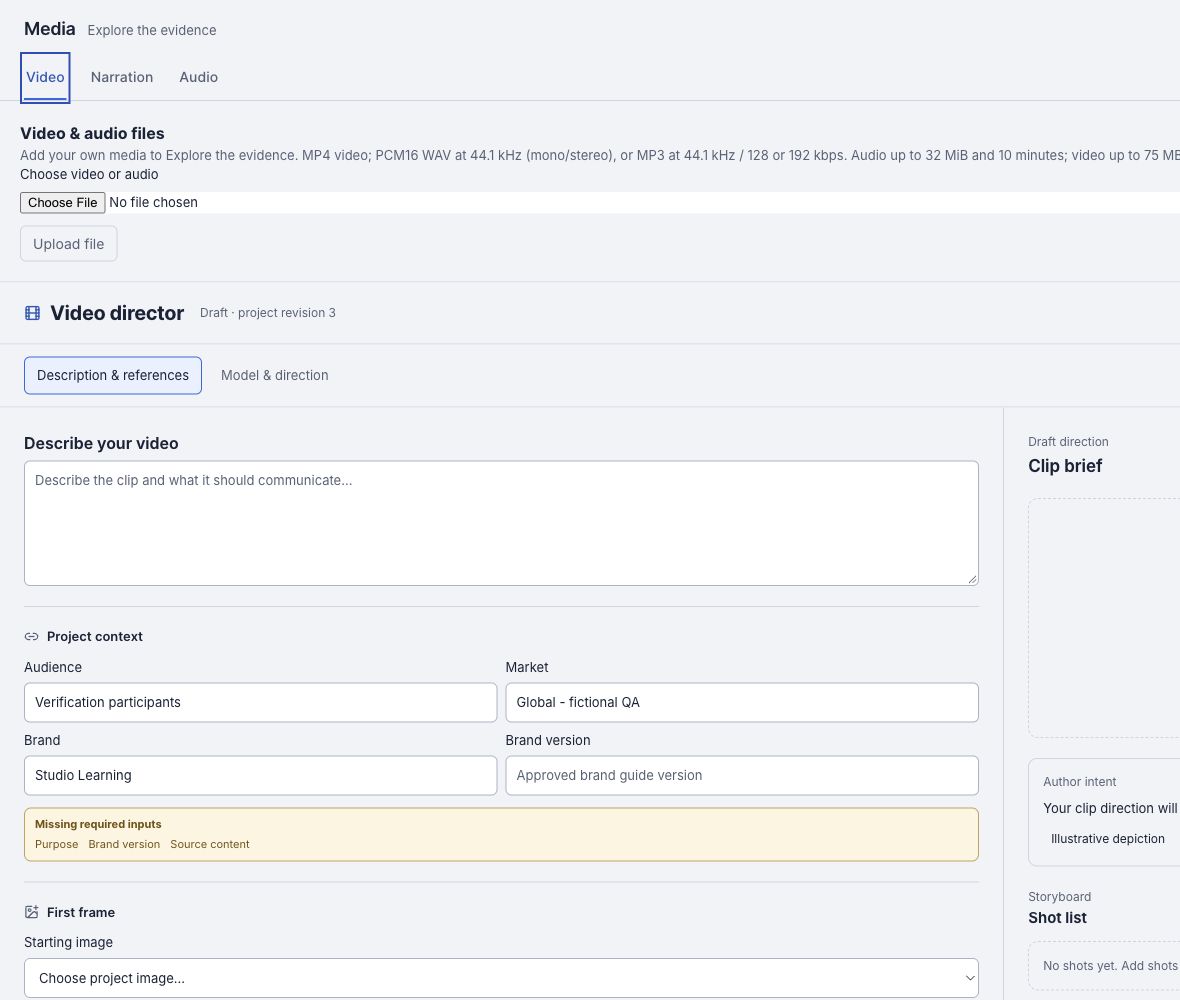
Upload, insert and reopen the placement#
- Under Video & audio files, use Choose File and select the supported file. Follow the formats and limits shown by the upload card.
- Choose Upload file and wait for its verified result. An upload alone does not place the media.
- Read Insert on followed by the intended slide title. Choose that action once and wait for Media placement saved.
- Close Media and inspect the destination slide. Confirm the new media appears there and that the previous slide keeps its original content.
- After the saved state is confirmed, reload or reopen the project. Choose the same slide and check that the placement is retained.
Use video and audio playback settings to configure the saved player. Placement in the editor does not establish playback in a downloaded package or on a target device.
Read the stored-file availability result#
- Save any correction, then open Export. For a CLM presentation, keep Native Veeva CLM selected under Output and confirm the saved revision in Export CLM handoff.
- In Check presentation, choose Run check again.
- Wait for the completed check. The initial Stored asset availability has not been checked message is replaced by Stored asset availability checked and an available-file count.
- Review any missing or unverified files and other findings individually. Use Go to to inspect the affected slide or object, save its correction and run the check again.
For example, a completed check can show Stored asset availability checked: 2 of 2 available. That count describes the saved files checked in that revision; your presentation’s count can differ.
Resolve an unexpected target or check result#
- Wrong slide title: stop before inserting. Close Media, choose the intended slide and reopen Media to verify its destination.
- Placement outcome uncertain: inspect the saved result before submitting another placement. Use the offered recovery action when there is a retained request.
- Saved revision changed: reopen the latest saved presentation and confirm both the slide and the media before continuing.
- Availability remains unchecked: finish the current request, check your connection and use Run check again. An unverified read does not prove a file is missing.
- Missing or unverified file finding: inspect the named slide and saved media. Resolve access or replace the intended file through the editor, save, then repeat the check.
The expected result is one saved placement on the intended slide, retained after reopening, plus a completed stored-file result for the saved revision you checked.