Design layered conversations and purposeful paths
Build an overview that stands alone, then let the conversation open the right detail.
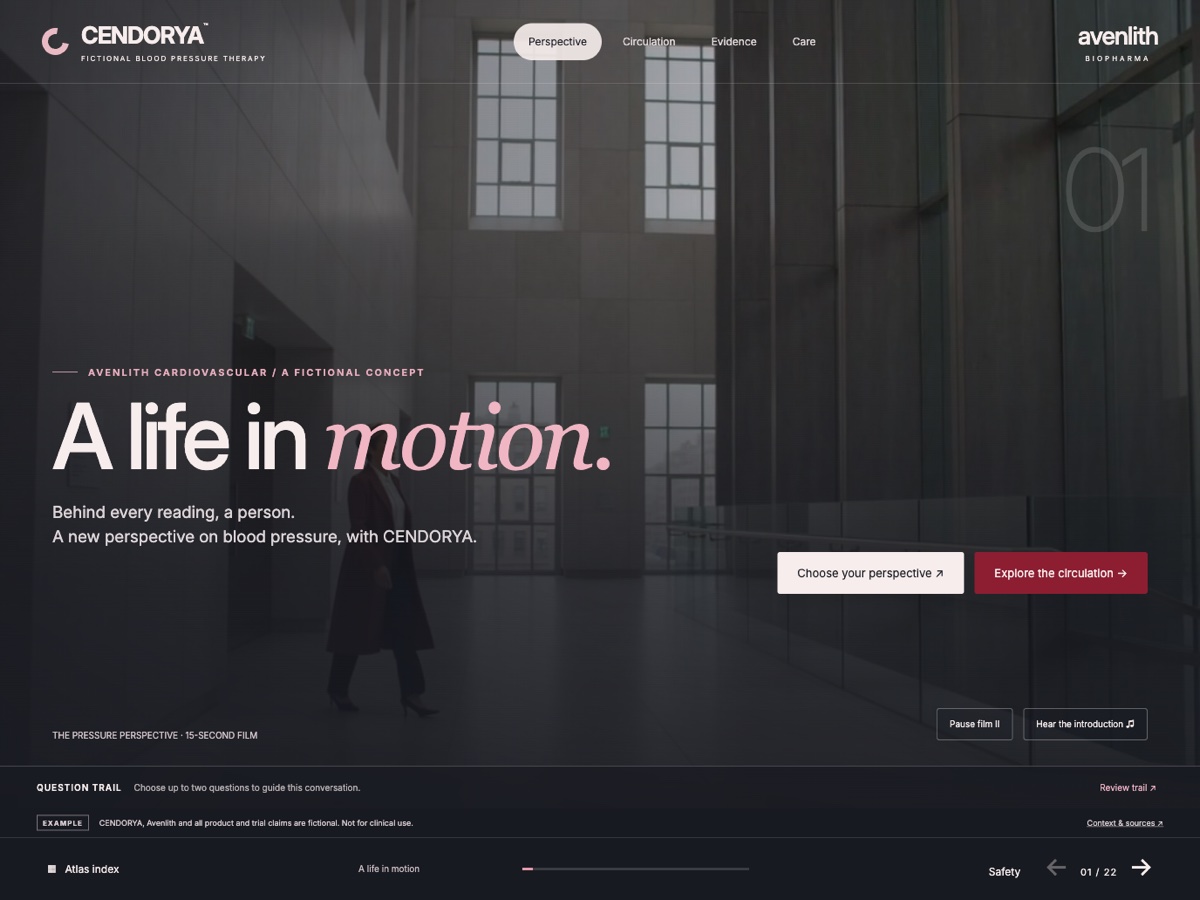
Give every page a first read and a deeper read#
A strong CLM page works before anyone touches it. Its headline, main visual and essential qualification establish the point. Interactions then answer a particular question: what happens here, how is this measured, or where does the evidence come from?
A fictional CENDORYA mechanism page might show a simplified circulation diagram with three clearly labeled regions. Selecting a region reveals an explanation. Labels should name what the audience will learn; unexplained dots make the presenter remember the interface.
Plan Overview for the essential message and Detail for supporting explanation. Put indispensable context in the overview and keep qualifications with the claims they qualify.
Make a route map before adding controls#
Write the short and detailed routes as lists of existing slides. Share the opening, necessary context and recap; add depth by selecting and ordering relevant pages rather than duplicating the deck.
| Route | Conversation | Return point |
|---|---|---|
| Overview | Question → context → evidence overview → recap | Recap or topic choice |
| Evidence detail | Question → context → evidence overview → detailed evidence → recap | The page that introduced the evidence |
| Mechanism detail | Question → context → mechanism → evidence overview → recap | The shared evidence overview |
This is an authoring plan. Create routes that fit the actual saved deck and retain the shared content required for its intended use.
Choose defaults that work without a profile#
Under Starting path, Audience choice lets the presenter choose. A Specialty rule uses a configured specialty field and permitted values.
Set the Configured specialty field, add each Specialty is and Start path rule, then use Earlier or Later to order them. The first matching permitted rule wins.
Choose an explicit Default path for missing, denied, unknown or unmatched information. Use Keep shared slides on every path when the same context belongs everywhere. Test a matching fictional specialty and a no-doctor case in Sample preview, following the actual route as well as reading its label.
Separate topic choice from pace and depth#
Open Discussion setup after saving the paths. Classify a choice as Topic when it changes the subject, or Pace / depth when it changes how far the discussion goes. A short conversation should remain meaningful when optional detail is skipped.
Name the recap and its modules. Add Resources with their slide or link action and module scope. A Duration label is your estimate, not a measured session duration.
Choose Save discussion setup and confirm the result. Base the recap on what was discussed and what remains open. Use Takeaway for a selected-topic summary and an email draft; saving a draft does not send it.
Rehearse exits, returns and missing information#
In Rehearse the experience or Guided rehearsal, choose New scenario, set Scenario name, Starting path and Target profile, then use Add step. Choose Save scenario and Run saved scenario.
| Scenario | Expected result to inspect |
|---|---|
| Overview without detail | The essential story and required context remain understandable. |
| Open detail, then return | The correct overview returns with usable navigation. |
| Change topic after a deep view | The new route starts deliberately. |
| Missing or denied specialty | The declared default route opens. |
| Reach the ending | The recap and next action match the authored path. |
Inspect the steps actually executed. Rehearsal checks supported saved-preview behavior; offline behavior, live context and native-client playback need their own target review.