Create charts and tables with context
Keep numerical values, labels and scientific meaning together.
Choose a representation#
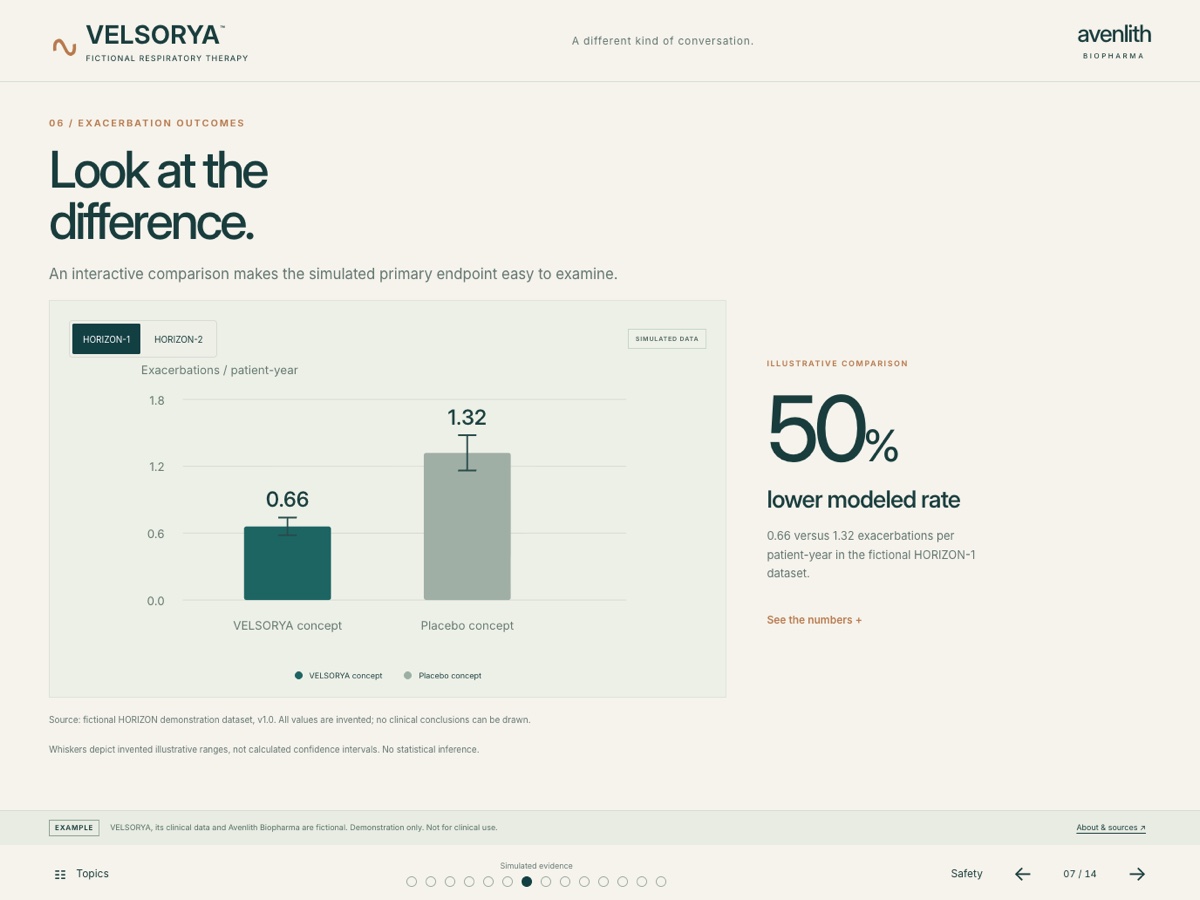
Use Table for values that readers need to inspect directly. Use Chart for a supported visual comparison or specialist chart. These toolbar controls appear for compatible managed CLM slides.
Choose the visual from the information you have. A specialist chart needs its required data and context; Studio can refuse incomplete input rather than draw a plausible-looking result.
Enter and review data#
- Open Edit and select the slide.
- Choose Table or Chart and the supported chart type.
- Complete the fields shown for that component. Preserve units, labels, endpoint, population and timepoint from the source.
- Review the rendered result before saving.
- Save the component edit, then reopen it to confirm the stored values.
For statistical visuals, supply the required interval and reference information. Do not assume an omitted field has a scientifically appropriate default.
Keep claims and sources together#
Retain citations and footnotes where the audience needs them. Explain whether figures are illustrative or drawn from a source. If source material changes, recheck both the data and its surrounding wording.
A style change should preserve data. In Builder, use Style request · preserve data when requesting visual refinements to existing numerical content.
Review the change history#
Use Undo / history and Show changes to inspect saved chart changes. The comparison identifies data changes separately from chart settings where that information is available.
Check labels, scales, reference lines and readable text in the actual review output. A chart that saves successfully still needs scientific and editorial review.