Explain a study with an expandable evidence card
Add a study evidence card, enter the supplied study details and exact source version, choose what the compact card shows, and review the full details in a saved presentation.
Before you start
Open a saved CLM presentation in Edit with permission to change it and select the slide. Finish any pending edit. Have the study details ready exactly as the source supplies them, and add the source material to the project before linking its version.
Add the card
- Open Components, filter by Evidence or search for study, and choose Add study evidence card. The card is saved on the selected slide and opens in the inspector.
- Resize or move the card with Position. A new card starts with no study details and no source; every field reads Not provided until you enter it.
Enter the supplied study details
- In Content, enter the Study title, Study design, Population, Sample size (N), Arms, Endpoints, Timepoints, Supplied findings and Limitations. Line breaks are kept.
- Leave a field empty when the source does not supply it. The card shows it as Not provided, and the summary under the fields lists every field that is not provided.
- Under Exact source, choose the registered source version the details come from. A retrieved document is listed by its site, file and the version retrieved; a registered file by its file name. The pinned version is recorded with the card and shown with its SHA-256 identity.
A card saved in its earlier version shows Update component above its fields, and keeps working as before: it shows viewers its source by ID and opens the source only in Studio. Choose Update component, then Save interaction, to bring it to the current version. Every field, the compact selection, the layout and the pinned version stay as saved; the card also records the source’s name, type and version as Studio names them: a retrieved document’s site and file, the version retrieved and the address it was retrieved from, or a registered file’s name. While Studio reads the project’s source names, Update component waits; if that read gets no answer, Update component says the names cannot be read right now and offers Read source details again. If the source has no record Studio can read, the card says Source record unavailable instead of naming the source; on the updated card, Read source details again records the source’s details once Studio can read them. A source name longer than the card’s 512-character record keeps its first 255 and last 256 characters around “…”, and the full address stays under Reference. The card shows the source details recorded when the component was updated; they are not re-verified on save. When they no longer match the source, the inspector says Source details changed since this card was updated, and Read source details again records the current ones. On an updated card, choosing another source records that source’s details. Updating a study evidence card, media gallery or milestone timeline moves the presentation to the current version of these components; after saving, run Check presentation in Export for that revision. Packaging availability depends on the configured service and the saved component version.
Choose what the compact card shows
- In Behavior, check the fields to show on the compact card before it is opened, including Source if you want the citation visible. The card updates on the slide as you choose.
- Hidden fields are not deleted. They stay saved and always appear in Study details.
- In Style, choose Single column or Two columns for the detail view. The card uses the selected object’s text and background colours.
Try the card and save
- Choose Try interaction, then View study details on the card. Tab to the control and press Enter or Space, or tap it. Every authored field appears, and missing fields read Not provided.
- Close the details with Hide study details, Close details or Escape. Focus returns to the View study details control. Inspect source in the details opens Linked material in the inspector and moves focus there; Escape closes Linked material first and returns to Inspect source, then closes the details.
- Choose Edit component to change the content again. Trying the card never changes the saved fields or compact selection.
- Choose Save interaction and wait for confirmation. If the result is unconfirmed, check the saved interaction before starting another change.
Review the saved preview
- Rebuild the saved revision from Builder using Saved version & build options, then open the saved preview.
- Open the card’s details and check every field against the source. Choose Inspect source to open the pinned source version from Source evidence.
- Reload the saved preview. The card opens closed again with the same compact fields and details.
On an updated card, the compact card and the details name the source with its type and version. Inspect source opens Source details on the slide itself: the name, type and version, the address when the source has one, and its SHA-256 identity. Focus moves into Source details. Close source details, a second Inspect source or Escape closes them and returns focus to Inspect source; the next Escape closes the study details. This works by keyboard and by tap. Studio’s Source evidence list beside the preview opens at the same source without taking focus from the slide. Try interaction on the canvas does the same for an updated card, and opens Linked material in the inspector without taking focus.
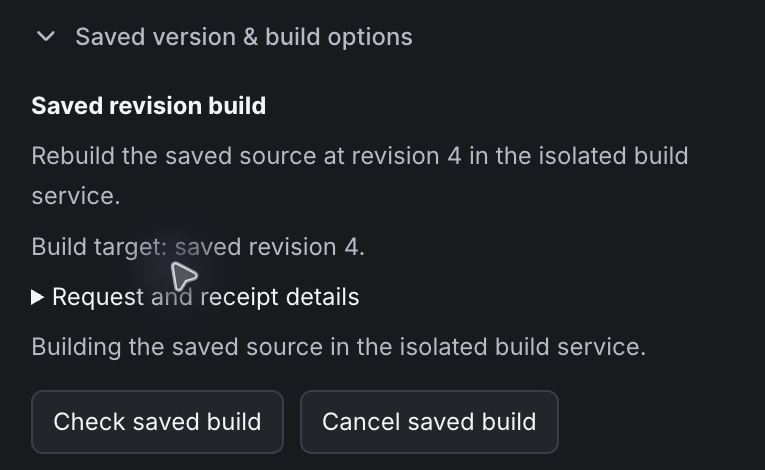
Saved version & build options uses the same retained build controls after you save the study evidence card. The example below shows the running-build state.
 Enlarge screenshot
Check the result
- The compact card shows the title and only the fields you chose, with Not provided for any chosen field that has no value.
- Study details show every authored field and the exact source, or an explicit Source not provided state.
- Reopening the saved card keeps its details, compact selection, layout and source version.
Recover and continue
- If Exact source shows Selected source version unavailable, the pinned version is no longer registered; the source’s name follows when another version of it is registered. Review the project’s sources and deliberately choose the intended version; the card never relinks on its own.
- If a save is unconfirmed, check the saved interaction to reconcile it before repeating the edit. For a revision conflict, review the latest saved card first.
- If Check presentation reports that the configured service cannot package this saved component, follow that specific finding. You can keep reviewing the Studio preview while the service requirement is resolved. Check the saved revision again afterward; do not submit replacement requests to bypass a blocker.