Add tabs and a popup to a slide
Add and configure tabs and a popup, connect an element to a tab, and review the saved presentation.
Before you start
Open a saved CLM presentation in Edit with permission to change it. Choose the slide you want to edit. Finish or cancel another active edit and wait for Saved before starting. You can work with the existing presentation without generating it again.
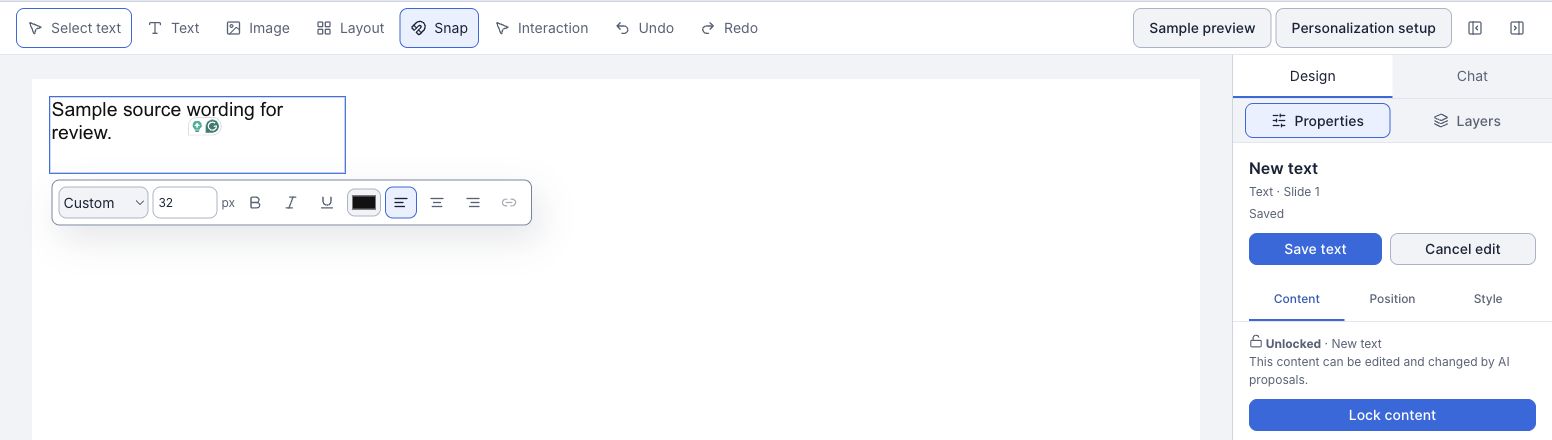 Enlarge screenshot
 Add and configure tabs
- In the slide editing toolbar, choose Tabs. Select Insert tabs to add the draft, then wait for it to save.
- Select the Tabs component on the slide, or choose it in Layers. If components overlap, use Layers to select the intended one. In Content, change the tab labels and content. Use Add tab or Remove tab when needed.
- Use State preview to select a tab and inspect its content. This preview does not save your changes. Choose Save interaction and wait for the saved result.
Add and configure a popup
- Finish the tabs edit, then choose Popup in the slide editing toolbar. Select Insert popup and wait for it to save.
- Select the Popup component and open Interaction. Under Content, edit Trigger label, Dialog title and Dialog body.
- In State preview, choose Preview interaction to inspect the dialog. Close it with Close interaction preview or Escape. Choose Save interaction and wait for the saved result.
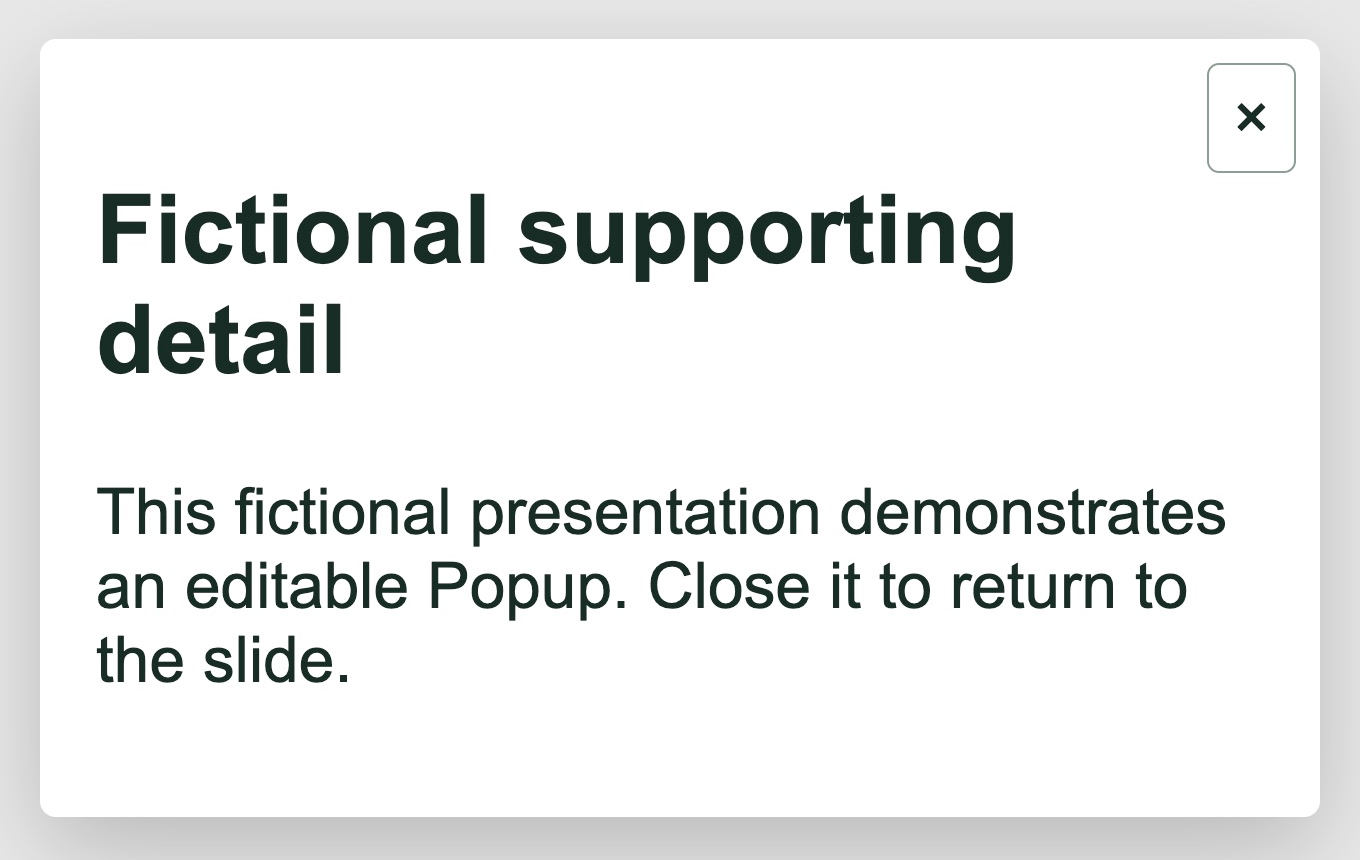 Enlarge screenshot
 Make an element open a tab
- On the same slide as the Tabs component, select an unlocked text or image element. Finish any pending edit first. Remove an existing text link or CRM binding before adding a click action to that element.
- In Properties, find Interactions. Under On click, choose Change tab.
- Under Tabs or selector, choose the visible Tabs component on this slide. Under Tab, choose the tab to open. A Popup is a separate interaction and is not a Change tab target.
- Choose Save action and wait for Change tab saved. The action is saved with the slide; selecting a tab in State preview does not change the saved action.
Build and review the saved presentation
- Reopen the presentation in Edit and return to the slide. Check the tabs, popup and selected element’s On click, Tabs or selector and Tab choices. Confirm the editor shows Saved.
- Choose Builder, then Preview if Storyboard is showing. Open Saved version & build options and find Saved revision build. Confirm the revision is the one you saved, choose Rebuild saved revision and wait for the successful result.
- Open the saved preview and check that Saved preview · Revision matches your saved version. Activate the text or image and check that it opens the intended tab and content.
- Use the keyboard to focus and activate the element, move through the tab controls and close the dialog. Open the Popup with its trigger, check its title and body, and close it. Reload and reopen the saved preview to check the same action and content again.
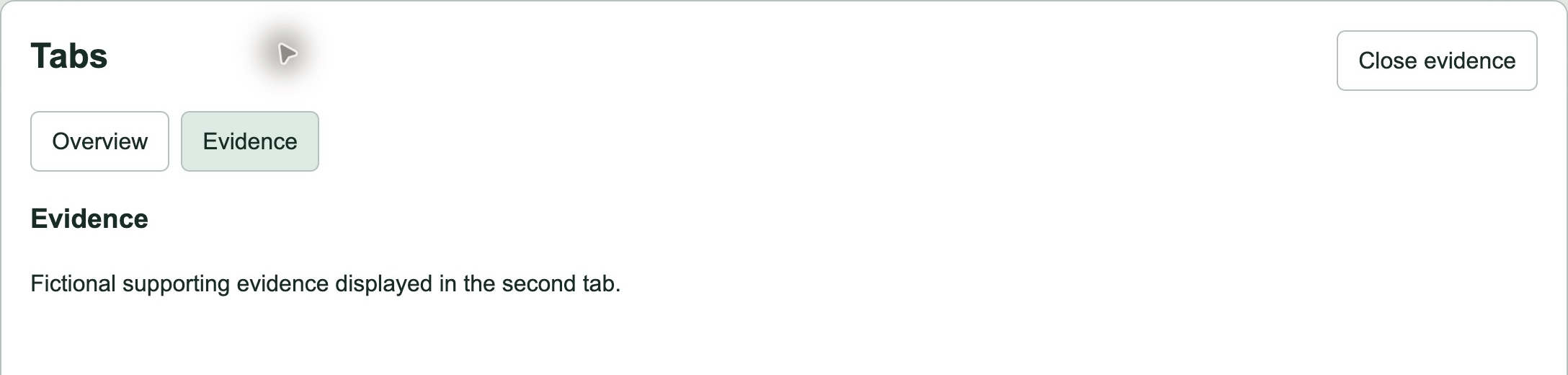 Enlarge screenshot
 Check the result
- The saved slide retains the tabs and popup with their edited content after reopening.
- The selected element opens the intended tab in the matching saved preview. The popup opens separately and shows its saved title and body.
- Pointer and keyboard controls work in the preview, and the same saved content remains after a reload.
Recover and continue
- If a new component is still a draft, choose Insert tabs or Insert popup, or choose Cancel edit to discard it. Wait for the result before starting another edit.
- If an interaction save is unconfirmed, use Check saved interaction or Retry saved interaction for the retained edit. If an action save is unconfirmed, use Check saved action change or Retry saved action change for that retained change. After a conflict, review the latest saved content.
- If the target is missing, check that the Tabs component is visible on the same slide and the source is an editable text or image element. Finish another active edit and check your access if controls are unavailable.
- If a build is unconfirmed, use Check saved build for the existing request. If preview access expires, choose Refresh saved preview. Rebuild a newer saved revision before reviewing its changes.