Direct, add and refine video
Ask for a purposeful clip, place the reviewed result and control how it behaves through the conversation.
Use video where movement explains or establishes something#
A short opening can establish the human setting before the presenter begins. A mechanism sequence can explain a change that is hard to understand in a still. Choose the job first, then the duration and treatment.
For fictional CENDORYA practice material, an opening might show a quiet moment of everyday movement before returning to the discussion question. A mechanism sequence should use the supplied explanation and clearly identify simplified educational imagery.
Keep the essential message readable when the clip has not played. The still image, headline and primary action should already form a useful opening.
Start with a precise video request#
In Builder, select This page for the destination and Content and design. Describe the shot, its purpose, movement, composition and exclusions. If you are changing only one existing object, choose the appropriate Selected elements.
Create a short cinematic opening clip for this fictional Avenlith CENDORYA training page. Show an invented adult walking through a quiet coastal setting, with natural movement and a restrained, hopeful tone. Use a slow, steady camera and leave clear space for the existing live headline. No embedded text, logos, medicine packaging or implied treatment outcome. Keep the current page copy, sources and navigation. Prepare the video direction for review before replacing any existing media.
Review the proposed direction and destination. For clip-specific generation settings and its saved estimate, use Media and the Video task.
Turn the direction into a saved clip brief#
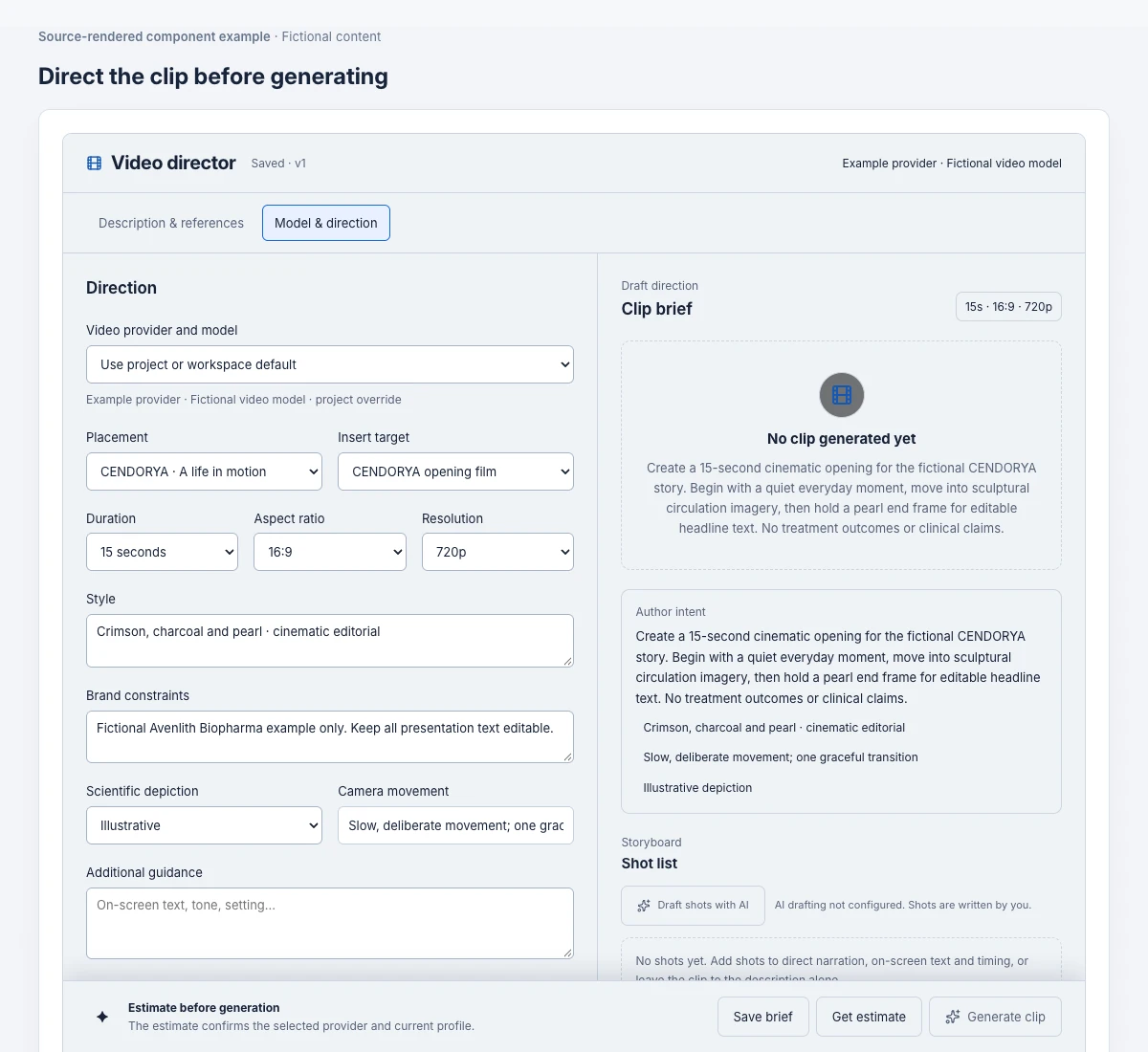
- Open Media, then Video.
- Enter the Clip brief and relevant project context.
- Choose a currently available provider and model from the displayed options.
- Set Placement to the exact slide and Insert target to the intended object or Whole page.
- Choose supported Duration, Aspect ratio and Resolution. Match the destination frame rather than cropping a mismatched result later.
- Use Style, Camera movement, Brand constraints and Additional guidance for the specific direction.
Checkpoint: the brief names the correct slide and target, the chosen settings are supported, and its visual job is clear.
Use references and scientific depiction deliberately#
Add an available project image reference or a Starting image when the clip should inherit a particular composition. Review the associated Rights record and Likeness provenance fields for the material you supply.
Choose Scientific depiction appropriately. Illustrative is suitable for a simplified educational sequence. For Evidence-grounded content, select the relevant Grounding claims from the reviewed scope and verify that the generated sequence expresses them correctly.
If Audio generation is offered, decide explicitly whether the clip needs generated sound. When you intend to add separate narration and music, a silent clip often gives you more control over the final mix.
Save, estimate and generate the clip#
- Choose Save brief and confirm the saved result.
- Choose Get estimate and inspect the current model, settings and estimated cost.
- Resolve unsupported settings using the offered options. A model change can alter the supported duration, format and references.
- Choose Generate clip once when the brief and estimate are ready.
- Follow the activity for that saved request and inspect the resulting clip.
Watch the full result, including its first and last frames. Check the subject, implied meaning, continuity, crop and unintended text. Use the displayed attachment action only after choosing the take you want; a generated file and a placed slide object are different stages.
Add an existing clip instead#
Use Upload video or audio for your own cleared MP4. The same panel accepts WAV and MP3 audio.
- Choose the target slide before selecting the file.
- Use Choose video or audio, select the MP4 and inspect the selected file and destination.
- Choose Upload file and wait for the confirmed upload.
- Choose Insert on [slide title] to place it. Uploading alone does not insert it.
- Inspect the resulting slide object before changing playback.
For a replacement, confirm the exact existing target in the relevant placement controls. Keep the previous take available until you have checked the replacement. If confirmation is uncertain, use Check upload or Check placement for the retained request.
Control the clip, the exit and the return#
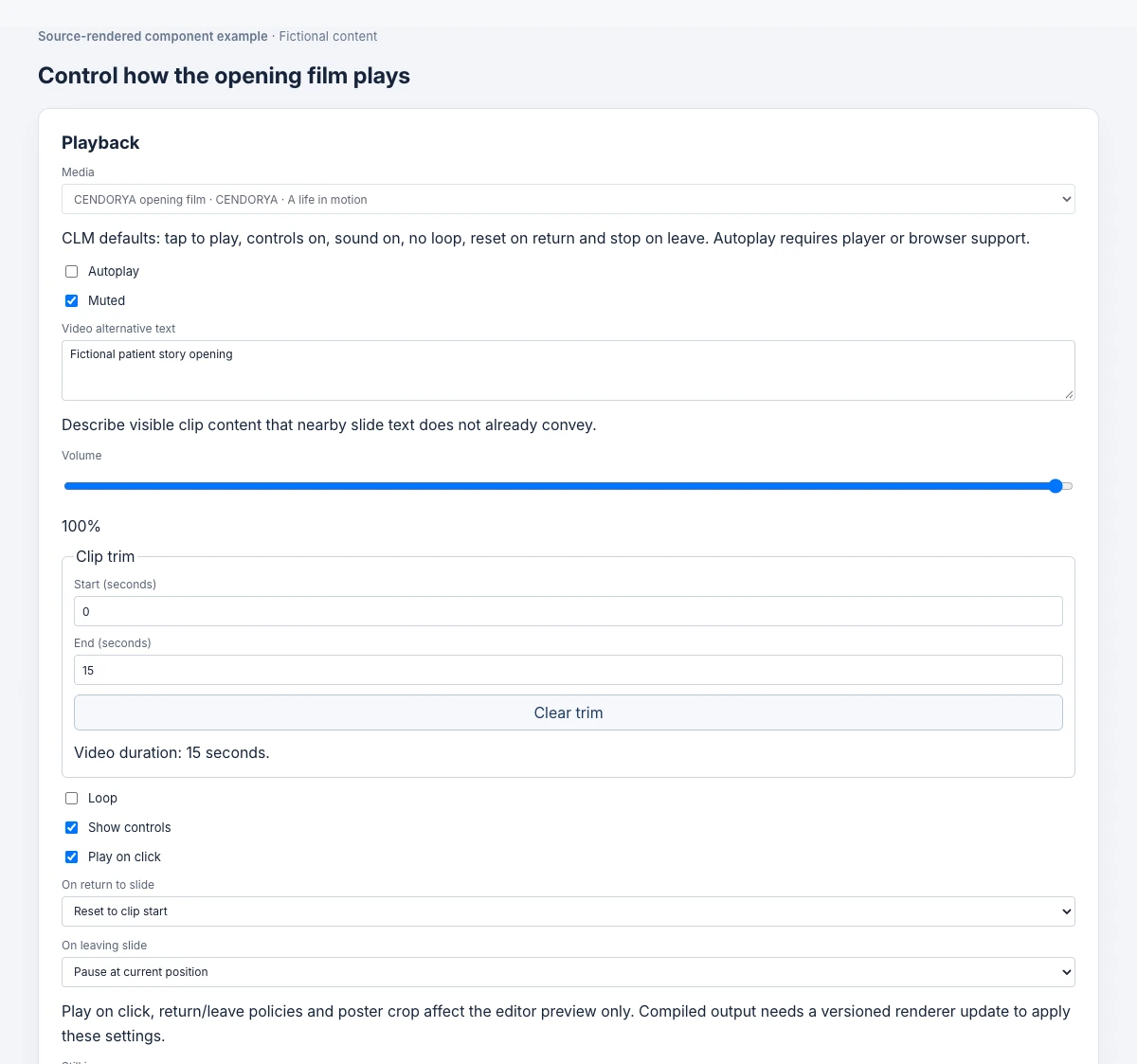
Open the placed video's Playback settings and confirm the Media selection. Set Autoplay, Muted, Volume, Loop, Show controls and Play on click as appropriate.
Under Clip trim, set Start (seconds) and End (seconds) within the actual clip duration. Trimming controls the playback window; inspect the opening and ending of that window.
| Setting | Decision to make |
|---|---|
| On leaving slide | Stop and reset, or Pause at current position. |
| On return to slide | Reset to clip start, or Resume from last position. |
Choose Save playback settings, then Preview playback. A discussion clip may need resume behavior; a brief opening may need a predictable restart. Test the choice by leaving and returning.
Preview and delivery: Play on click, return/leave policies and poster crop currently affect the editor preview. Use Preview playback to inspect those controls. Applying them in compiled output requires matching renderer support; check the delivered package separately before relying on the same behavior.
Make the still image work before playback#
Set Still image to an appropriate saved image. Under Poster crop, choose Fit entire poster to preserve the whole image or Fill and crop for the frame, then adjust the focal point where available.
Use a still that makes sense on its own and leaves the headline readable. A blurred transitional frame or a close crop that hides the subject makes the opening feel unfinished.
Check both the still and the first playing frame. The move from one to the other should feel deliberate. Save the settings and inspect the actual presentation frame.
Provide the meaning in text as well#
Enter useful Video alternative text. For essential speech or visual explanation, open Media text alternatives, choose the Media alternative target, set Media meaning and enter the appropriate Media transcript.
Choose Save text alternative and confirm it with Check saved alternative when needed. The transcript should include the meaningful spoken and visual information, rather than only saying that a video appears.
For generated narration with timing, use the narration caption workflow. Review captions against the actual audio and the visible frame; a saved script alone does not demonstrate readable, synchronized captions.
Test the whole video experience#
- Open the saved presentation preview at the revision containing the video.
- Inspect the still before playing. Confirm the user can find the play control if automatic playback is unavailable.
- Play the full selected window with sound, then inspect the text alternative.
- Leave halfway through and return. Check the saved exit and return behavior.
- Try an alternate discussion route that reaches this slide.
- Reopen the project and confirm placement, trim, poster and playback settings persisted.
If a save or generation is unconfirmed, check the retained operation rather than generating another clip. Changing Media tabs does not itself save or discard an active tool. Native-client playback and delivery qualification are checked separately from this browser authoring review.
Check page leave/return behavior in Preview playback. Verify the compiled or native target independently; the editor-only playback and poster-crop controls above do not establish delivered behavior.