Prepare a takeaway: saved paths, PDF and email draft
Choose the relevant path, refine its recap, retain a PDF and prepare an unsent email draft.
Before you begin
- Open a saved presentation in the correct workspace. Editing permission is required to create, change or use a takeaway.
- Choose the saved revision and discussion path you intend to recap. A rehearsal is optional; you can also declare the takeaway’s paths directly.
- If an included topic has a 3D scene, it needs a recorded still from the saved presentation. Creating that still through a saved build requires the build and capture services to be available.
- Use a retained PDF only after Takeaway ready appears. Email drafting is a separate, unsent step.
A takeaway whose included topics have no 3D scene does not need a recorded still. You can review and retain that text-only recap independently of the optional build-and-capture recovery described later.
Start from the saved presentation
Choose Takeaway in the project toolbar. The workspace lists saved takeaways for this project and identifies the revision used by each one.
Finish or cancel unsaved edits before starting a new takeaway. Select New takeaway from revision followed by the displayed revision number. If a new takeaway was already started, use Continue new takeaway from revision to return to it.
A takeaway is a separate document based on the saved presentation. Creating a new presentation revision does not overwrite an earlier retained recap.
- Open the project and confirm that the presentation version you want has been saved. Finish or confirm any pending editor change before starting a new takeaway.
- Choose Takeaway in the project toolbar. Use the Takeaway selector for an existing document, or New takeaway from revision followed by the displayed number for a new one.
- If Continue new takeaway from revision is shown, it returns to the new document already started from that revision. Check its source and path before continuing.
Use a route you have rehearsed
- Open Paths and preview the route from the saved presentation. Check that the preview says Saved rehearsal and shows the intended revision. An Unsaved path preview does not establish the saved selection for the takeaway.
- Choose the intended route in that rehearsal. If you leave the preview, use Return to editing or Back to paths. Finish any editor changes before opening Takeaway and starting a new document from the matching saved revision.
- When Selected saved route appears, check its path name, slide count and revision. Choose Use followed by the path name and slide order to start from that saved order.
- In Takeaway content, review Presentation path. The other saved paths are retained with the draft too, so you can select another path there before using the document.
- Check the actual topics even when the saved route was provided. The recap uses saved slide content; journey-specific variations and optional detours stay in the presentation.
Choose the path and page order
- In Choose the path for this takeaway, give each path a useful name.
- Move the relevant saved pages into In this path, in order. Use the earlier/later controls to arrange them.
- Use Add another path if you need a second selection.
- Select Use for this takeaway on the intended path.
- Choose Continue with followed by the selected path’s name.
Studio identifies pages that no longer exist in the saved presentation so you can correct the selection. When you arrive from a saved presentation journey, check the provided path rather than assuming it contains every page.
Refine the recap before using it
In Takeaway content, edit the Heading, included topics, topic labels and topic text. Review the proposed content under From your path; material from Other path · not included stays visibly separate until you choose to include it.
Refine What we explored and Questions to continue, then inspect the document preview alongside the form. Ensure the recap reflects the discussion you intend to capture. Wait for the field changes to finish saving before using the document.
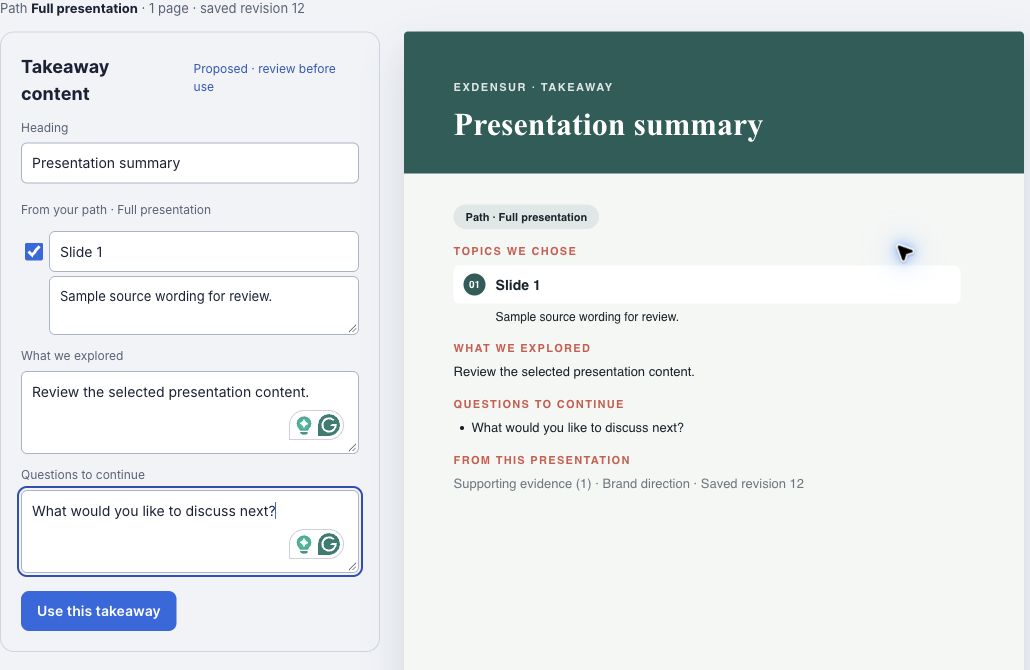
- Check the selected name under Presentation path when more than one path is available. To change it while the takeaway is a draft, select the intended path and wait for the update.
- Review From your path and its checked Include controls. Clear a topic you do not want. Review Other path · not included separately; check a topic there only if you deliberately want to add its content.
- Edit each Topic label and its included topic content as needed. Check Heading, What we explored and Questions to continue. Move out of an edited field and wait for Saving… to finish.
- Compare Topics we chose in the document preview with the checked topics. Check that material exclusive to another path is absent unless you deliberately included it. After switching paths, review the inclusion choices again.
Recover an included 3D topic whose still is missing
If the panel says A 3D still is not yet available, Use this takeaway stays unavailable for that draft. Studio does not invent a still or silently remove the selected topic.
- Check the named topic and whether you intend to include it. If it is not part of this recap, clear its Include checkbox and review Topics we chose again. Keep it selected when its meaning belongs in the recap.
- To keep the 3D topic, save and confirm the presentation changes, then return to Builder and Preview. Open Saved version & build options, check Saved revision build and choose Rebuild saved revision for the version you intend to recap.
- Wait for the saved build’s confirmed successful result. Capture availability is separate from build completion, so a finished build alone does not prove that the still is ready.
- After the build, confirm any takeaway field saves, then reload the project. If you want to use a saved rehearsal route, select it again before opening Takeaway. Choose New takeaway from revision to create a fresh document, rather than reopening the earlier draft or continuing the same new takeaway.
- Select the intended path again. Check that the missing-still warning is gone and that the appropriate still appears in the document preview before choosing Use this takeaway.
- If the new takeaway still reports a missing still, follow the build’s recovery messages or ask your administrator about capture availability. Keep the topic selected if it is required; do not substitute an unrelated image or submit another generation prompt to hide the missing capture.
Retain a PDF and download the confirmed result
When the content is ready, choose Use this takeaway. Studio prepares the PDF and, after successful retention, displays Takeaway ready and a Download PDF link with its page count.
Use the download link only after that confirmed result appears. If the panel reports unsupported font characters, edit the affected text and try again; Studio does not silently replace it. If preparation fails, read the displayed message and use the offered recovery action.
A retained takeaway records its original saved revision. If the presentation later changes, the panel tells you that the document still reflects the earlier revision. Start a new takeaway when you need a new recap.
- After reviewing the path, included topics and text, choose Use this takeaway. Wait while Creating PDF… is shown.
- Wait for Takeaway ready, then choose Download PDF. Check the page count shown beside the link.
- Open the downloaded PDF and read every page, including the end of long topic labels and the last topic. Check page numbers, text, units and values against the recap you reviewed.
- For a long label, confirm that its continuation is complete and clear across page breaks and that it does not cover the footer. The on-screen document preview is useful for content review; the downloaded PDF is the place to check actual pagination.
Prepare the email draft
- From a ready retained takeaway, choose Email takeaway.
- Review To, Subject, the message and the attached PDF.
- Choose Save draft and wait for Draft saved.
- Use Back to takeaway to return to the document.
The email panel is explicitly a Draft preview with a Not sent status. Saving it does not send email or establish an Approved Email delivery. Review and sending belong to your organization’s delivery workflow.
Reopen safely after changes or interruptions
Use the Takeaway selector to return to an existing document. An older email draft keeps its saved PDF when a newer takeaway becomes available. If you want the new document attached, inspect the difference and choose Update attachment.
If another session changed the draft, use Reload saved draft; your current edits remain available for review. For an unconfirmed save, use Retry save rather than creating another draft. If takeaway content itself conflicts, use Reload takeaway and compare the saved document before continuing.
- After successful retention, reload or reopen the same project, then choose Takeaway.
- Use the Takeaway selector to choose the retained entry by its revision and path. Check Retained · revision and the selected path in the reopened document.
- If the presentation has advanced, read the notice that the document still reflects its earlier saved revision. Download PDF returns that retained document; it does not recreate the recap from the latest slides.
- Choose New takeaway from revision only when you want a separate recap of a newer saved presentation. Keep the earlier retained document available rather than expecting it to update.
Check the result
- The takeaway shows the intended saved revision and path. Included topics match Topics we chose, with no unintended material from another path.
- Any included 3D topics have the required recorded stills. No missing-still warning remains before use.
- Takeaway ready appears before Download PDF. The actual downloaded PDF includes complete long labels, the expected topics and readable page breaks and footers.
- After reload, selecting the retained takeaway opens the same earlier revision and path, even if the presentation has since changed.
- An email draft remains Not sent. Saving or reopening it has not sent, uploaded, approved or distributed the document.
Resolve a blocked or uncertain step
- New takeaway from revision is disabled: confirm edit permission and save or confirm the current editor change. Start from the displayed saved revision, not an unsaved proposal.
- The provided rehearsal path is wrong or absent: use the explicit takeaway path chooser. To start from a rehearsal, select the saved route before creating a new document. A newly selected route does not rewrite a takeaway already under way.
- A path lists a page that no longer exists: remove it from that path and review the order before continuing. Include at least one topic.
- Use this takeaway is unavailable: check editing permission, any pending save or conflict, unsupported font characters and the missing-still message. Complete the relevant recovery before using the document.
- A 3D still becomes available later: create a new takeaway after the saved build and capture, rather than expecting the existing draft or retained PDF to change.
- Text or inclusion changes have not saved: read the status message before continuing. For a conflict, Reload takeaway reads the saved document so you can compare it; review and reapply only the changes you still intend.
- PDF preparation fails: read the displayed message, confirm the current document and use the offered recovery. Do not treat a loading state or an earlier download as a newly retained result.
- The saved list cannot load: use Try again after confirming that you can still open the project. Follow sign-in or access guidance if required.