Sequence a slide with the animation timeline
Add object tracks, shape timing, test reduced motion and save a deliberate reveal without hiding the evidence.
Choose what the sequence should explain#
Use motion to control the order of an explanation. A CENDORYA-style evidence slide might introduce the question, reveal an illustrative graphic, then show the interpretation. Keep the endpoint, source and limitations available when the evidence appears.
Use the timeline when: several objects should enter in a controlled sequence or overlap briefly. Use video playback settings for a clip’s start and end points, and the audio tools for narration and music.
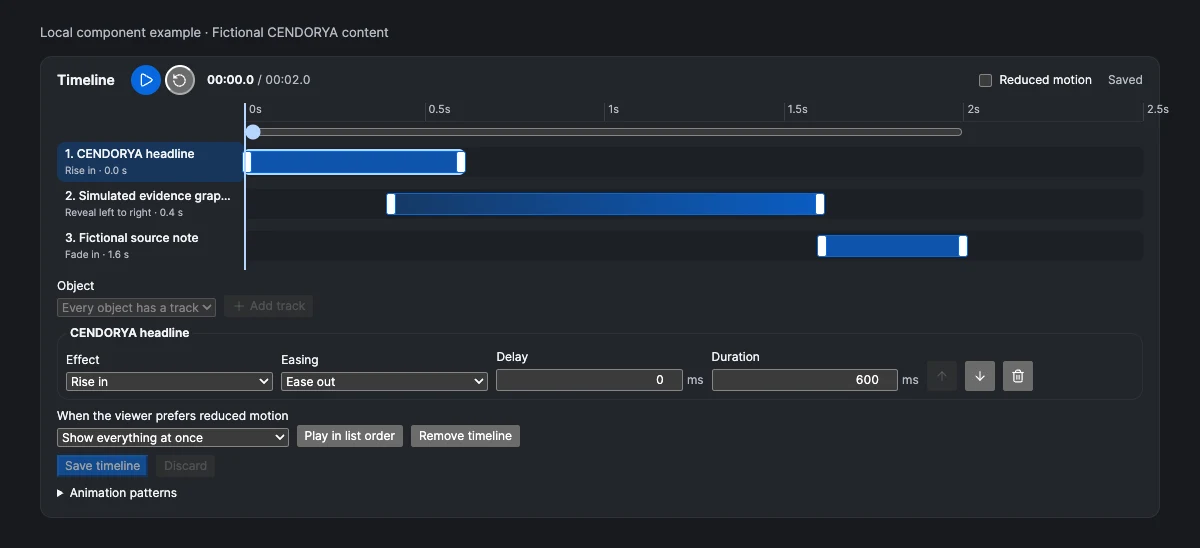
This reference renders the current Timeline component in isolation with fictional data. It illustrates the real controls and their local states; it is not a production project or evidence of a completed saved presentation.
Add your first track#
- Open a compatible managed CLM presentation in Edit and select the slide.
- Find Timeline below the canvas. A slide without tracks shows every object at once.
- Choose the intended item in Object, then select Add track. Use meaningful object names so you can recognize them in the track list.
- Select the new track and choose its Effect: Fade in, Rise in, Reveal left to right or Grow in.
- Set Easing to control how the motion changes speed. Use a restrained treatment that suits the object’s job.
- Add the other tracks you need. Objects without a track keep their ordinary authored presentation.
Tracks support text, images, supported components and video objects. To reveal a chart illustration as an image, animate that image object. A specialist chart is not an interchangeable generic motion target.
Set delay, duration and overlap deliberately#
Delay is the time before an effect starts, measured from the beginning of the slide timeline. Duration is the time the effect takes, not the time an object remains readable. The end of a track is delay plus duration.
| Example object | Delay | Duration | Reason |
|---|---|---|---|
| Headline | 0 ms | 600 ms | Establish the question immediately. |
| Illustrative evidence graphic | 400 ms | 1,200 ms | Bring in the detail while the headline settles. |
| Supporting note | 1,600 ms | 400 ms | Complete the explanation once the graphic is visible. |
These are example creative timings. Keep any qualification necessary to understand a claim visible with that claim; do not delay a material limitation until after the persuasive moment.
- Select a track, then enter its Delay and Duration in milliseconds.
- Drag the clip to change its delay, or drag either edge to trim its timing.
- For a non-overlapping sequence, arrange the list and choose Play in list order. This changes the timings to follow the list; moving a row alone is not a substitute for checking the timing.
- Replay the slide and allow enough time to read the content, independent of the animation length.
Inspect the reveal with the playhead#

- Choose Play to watch the draft timeline on the canvas. Use Pause to inspect an intermediate state.
- Choose Restart to play from the beginning.
- Move Scrub timeline to inspect a particular moment. Check the boundary where each graphic first becomes visible.
- Select a clip or its trim handle and use the left or right arrow key for a 100 ms adjustment. Hold Shift for a finer 10 ms adjustment.
- Use Show final layout to leave the timing preview and inspect the full authored composition.
Why scrub? the final frame can look polished while an intermediate frame briefly shows an unqualified number, detached label or blocked control. Scrubbing exposes those transitions before review.
Author the reduced-motion version#
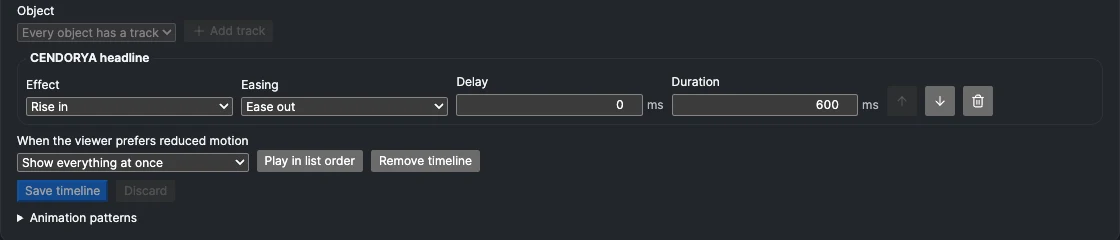
- Choose When the viewer prefers reduced motion.
- Select Show everything at once for a static full explanation, or Keep timing, fade only for a gentler timed reveal.
- Enable Reduced motion in the timeline preview.
- Check that every essential label and control remains available and that the reading order still makes sense.
- Turn off the preview switch and compare both versions before saving.
The interface control Pause interface motion concerns Studio’s own decoration. The timeline’s reduced-motion controls concern the authored slide. Check the authored result directly rather than assuming the two controls are interchangeable.
Reuse a sequence with Animation patterns#
Why use it: a named reveal pattern can give repeated evidence slides a consistent rhythm without re-entering every timing.
- Save or discard the current timeline draft before opening Animation patterns.
- Choose a published pattern and review its version and required object roles.
- Map the pattern’s slots to the correct objects on the current slide. A headline, evidence image and reference are different roles, even if all three look like rectangles.
- Check the compatibility and preview before choosing Apply and save.
- When a newer version is available, inspect the change comparison before choosing Upgrade and save. The applied version stays pinned until you choose to upgrade.
Keep a short reference note for the pattern: what it should explain, which objects are required, and what must appear immediately. Reuse the explanation structure as well as the motion.
Coordinate motion with video, narration and music#
A slide can contain several kinds of time. The object timeline controls a supported object’s entrance. A video has its own trim and playback policy. Narration and music have their own audio settings and mix.
- First decide what the audience must see before media begins. Put essential labels and an obvious play control in the initial view.
- Use the timeline for the video object’s reveal if that is part of the design; set the clip’s trim, sound and return behaviour in its video controls.
- Add narration and music through the Media workflow. Confirm both their identity and placement.
- Rehearse the actual presentation, including leaving and returning to the slide. Check that sound does not continue unexpectedly.
- Keep transcripts, captions and meaningful still alternatives with the media they explain.
A short object reveal does not prove the video or audio has finished. Test the full playback journey using video and audio playback, not only the timeline’s two-second example.
Save the sequence and check the saved result#
- Inspect the draft for warnings, then choose Save timeline. Playback and scrubbing alone do not save the timing.
- Wait for the confirmed Saved state. If the outcome is uncertain, choose Check saved result before editing again.
- If the slide changed during your edit, review the latest slide. Your draft is retained; decide whether to keep it or discard it before replacing a saved timeline.
- Open the saved presentation preview and test the reveal, a return to the slide and the reduced-motion version.
- To remove authored motion, choose Remove timeline, then confirm the change with Save without motion.
If a track or field is unavailable, finish the current edit and check that the selected slide and object support it. Do not replace a precise slide with a new whole-project generation just to recover one timing change.