Arrange objects precisely
Move, resize, align and group slide content with clear save boundaries.
Select the objects you need#
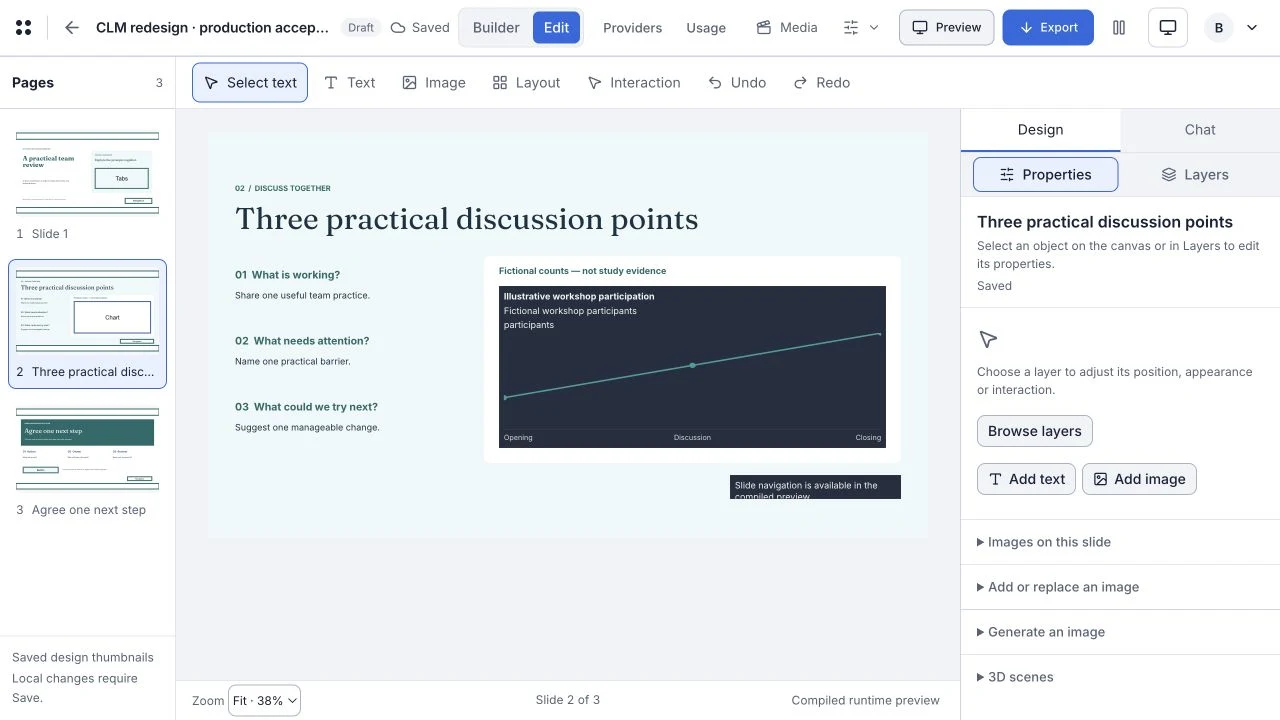
Open Edit and select an object on the slide. Use Layers for objects obscured by overlapping content. The canvas and layer list reflect the same selection.
Choose Layout to expose supported manipulation controls. If a control is unavailable, check for a lock, a code-managed object or another active edit first.
Set position and size#
- Select the object and open its layout controls in Properties.
- Adjust the numerical position, width, height or rotation controls that apply to that object.
- Use alignment actions such as Align left or Center horizontally when useful.
- Use canvas move and resize handles for visual adjustment. Toggle Snap for alignment guides.
- Save the active edit and check the saved result.
Changing slide dimensions keeps existing content positions. Review anything that ends up outside the new slide.
Manage overlapping content#
For a selection, use Bring to front or Send to back to adjust stacking. Use Duplicate to create a copy. Select multiple supported objects to Group them; Ungroup releases the group.
A group is useful for a visual unit. A link is useful when separate layers should transform together while retaining their own ordering and group membership. See Work with Layers.
Undo and save deliberately#
Use the active edit’s Undo and Redo controls for local layout or arrangement changes. Layers has its own saved-change undo controls. To undo an older saved project change, use Undo / history.
After a save, reopen the slide and check both placement and stacking before continuing with another major change.