Create a reusable visual and interaction system
Use pinned content, selective design transfer and tested components to keep a sophisticated deck consistent.
Define the rules before multiplying the pages#
A reusable system is a small set of decisions that travels through the deck: headline hierarchy, content width, evidence treatment, navigation position, detail behavior and source placement. Resolve them on representative pages before repeating them.
For Avenlith practice material, start with four page roles: image-led opening, mechanism explanation, evidence inspection and quiet recap. Keep navigation grammar and type hierarchy consistent while allowing composition to fit each purpose.
Choose a well-resolved page of each role as a reference. Consistency should help the viewer predict behavior and locate information, rather than force every page into the same layout.
Organize the page for precise editing#
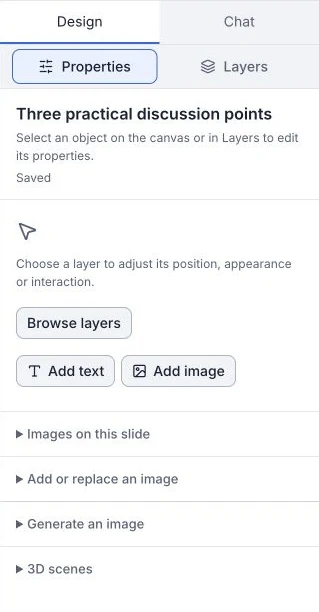
- Open Edit and Layers. Rename supported layers for their role, such as Evidence title, Comparison chart or Shared footer.
- Use Group layers for a visual unit that stays together. Use Link layers for objects that transform together while keeping their own stacking and group membership.
- Lock stable background and framing elements before editing the foreground. Inspect locks when a transform is unavailable.
- In Properties, use supported numerical position, width, height and rotation controls. Apply Align left or Center horizontally as appropriate, with Snap for supported guides.
- Save, reopen and inspect stacking and grouping. Use Undo layer change for saved layer actions when needed.
Use names that another author can understand. “Evidence source” is more useful than several indistinguishable text objects.
Transfer a design direction selectively#
Save the deck, then open Design variants. Editorial, Spotlight and Balanced compose the same saved content while wording, data and evidence remain pinned.
- Under Pinned source, choose the Source slide and confirm its saved revision.
- Under Transfer these facets, select Layout, Typography, Imagery treatment, Motion or Interaction treatment as intended.
- Choose destinations under Selected draft slides. Select the source explicitly if it should also change.
- Choose a direction, then Preview selected transfer. Compare Saved before with Candidate for each target.
- Read Exact transfer impact, including incompatible objects and unchanged facets. Use Accept compatible changes after reviewing the result.
Object kind and order affect compatibility. No compatible changes does not mean the transfer was applied. Inspect playback after accepting motion or interaction treatment.
Reuse a calculator with an explicit version#
Use Components for the supported tested-calculator library. Grouping ordinary slide objects does not publish them as library components.
In Workspace components, inspect the Component version, Parameters, Capabilities, Accessibility, Tested target profiles and Source slots. Choose the destination and Insert pinned component, then inspect defaults and outputs in the saved presentation.
Pinned instances keep their version until an explicit upgrade. Use Preview upgrade to inspect Schema changes, Behavior changes, Current instance and After migration. Decide between Accept draft upgrade and Keep pinned version.
Authors with publication access can use Publish from this deck after the saved calculator passes its golden tests. Publication does not silently update other instances or establish native-client qualification.
Make the generic version part of the system#
Under Personalization setup, declare semantic fields and permitted specialty values. On supported text, use Personalize this text and choose Source, Field and Format.
Inspect Before field, After field and When unavailable so punctuation and spacing remain intentional. Missing practice information should not leave an empty label. A long name should not displace the primary action.
In Sample preview, compare Sample doctor, Long name, Missing name and No doctor selected. Add a fictional denied-field sample when needed. Enable Highlight personalized fields and inspect text and Discussion path. Not evaluated is a gap to investigate, not a passed check.
Check the system after a shared change#
After a common change, inspect one page of each role and every affected interaction. Typography that fits a short title may wrap a long evidence heading badly. An imagery treatment may obscure a hotspot or reduce caption contrast.
Confirm the accepted saved revision, build its presentation when available, and check long text, missing fields, route defaults, returns, shared context and citations. Reopen the project to inspect persistence.
Use Review and handoff for delivery. Review real field permissions and playback in the intended client before treating an authoring preview as qualified.