Explain concepts with reveal cards
Pair short prompts with explanations viewers reveal one card at a time or all at once, then review the saved preview.
Before you start
Open a saved CLM presentation in Edit with permission to change it and select the slide. Finish any pending edit. Have each card’s prompt and explanation ready. Add any image or source material to the project first so you can choose its exact saved version.
Add reveal cards
- Open Components, find Reveal cards under Explain and choose Add reveal cards. Studio adds a card group with one card named Card 1 to the active slide, selects it and opens Interaction.
- Resize or move the group with Position so the cards fit the slide.
- Choose Edit component. Click the reveal cards anywhere on the slide to select them; selecting a card on the slide, or in the Reveal card list, opens that card’s fields.
Write each card
- In Content, enter an optional Title for the group. Leave it empty when the slide already names the topic.
- For the selected card, enter the Front prompt: a short label or question. Then enter the Explanation viewers see when they reveal the card.
- To show a project image with the explanation, choose it under Image and enter an Image description. Each image is listed by its file name, type and version, with the chosen image beside the list. A card image cannot be saved without its description.
- Choose a Source reference when a registered project source supports the explanation. A retrieved document is listed by its site, file and the version retrieved; a registered file by its file name. Leave it as No source reference when none applies.
- Use Add card for the next prompt. Move card earlier, Move card later and Remove card change the selected card’s position in the authored order.
Choose how cards start and reveal
- In Behavior, use Start revealed to choose which cards are already open when the slide appears. Start all closed and Start all revealed set every card at once.
- Choose a Reveal style. Expand below the prompt opens the explanation under its prompt. Flip to the explanation turns the card to its explanation and keeps the prompt as a small heading.
- Viewers can always use Show all and Reset. When a viewer’s device asks for reduced motion, explanations appear instantly with the same text.
Choose the grid
- In Style, choose 1 to 4 Grid columns. Cards follow the authored order from left to right.
- Review the longest explanation at the slide size you will present. Long explanations scroll inside the group.
Try the cards and save
- Choose Try interaction. Open and close cards by clicking or tapping a prompt, or with the keyboard: Tab or the arrow keys move between prompts, Enter or Space opens and closes a card, and Escape closes the open card.
- Use Show all to read every explanation, Hide all to close them and Reset to return to the starting state. Trying the cards never changes the authored starting state.
- Return to Edit component to change content. Use Undo or Redo to reverse or restore an edit.
- Choose Save interaction and wait for confirmation. If the result is unconfirmed, check the retained interaction before starting another change.
Review the saved preview
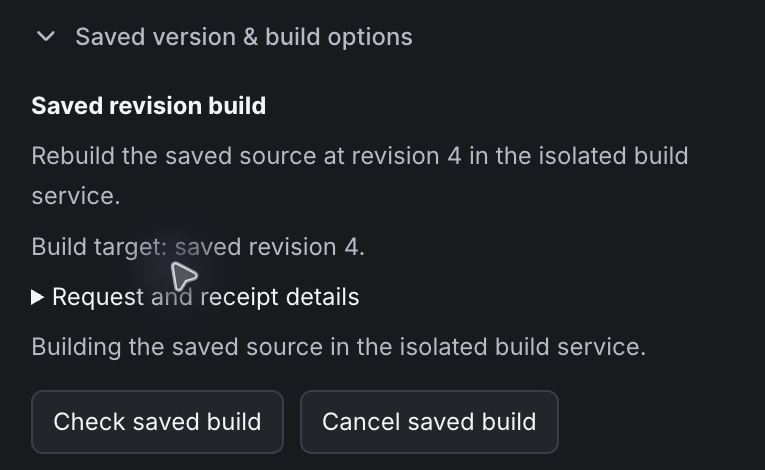
- Rebuild the saved revision from Builder using Saved version & build options, then open the confirmed saved preview.
- Check that the cards marked Start revealed are open and the others show only their prompts. Open each card, then use Show all and Reset.
- Reload the saved preview and confirm that the card content, order, starting state, reveal style and columns are retained.
Saved version & build options uses the same retained build controls after you save the reveal cards. The example below shows the running-build state.
 Enlarge screenshot
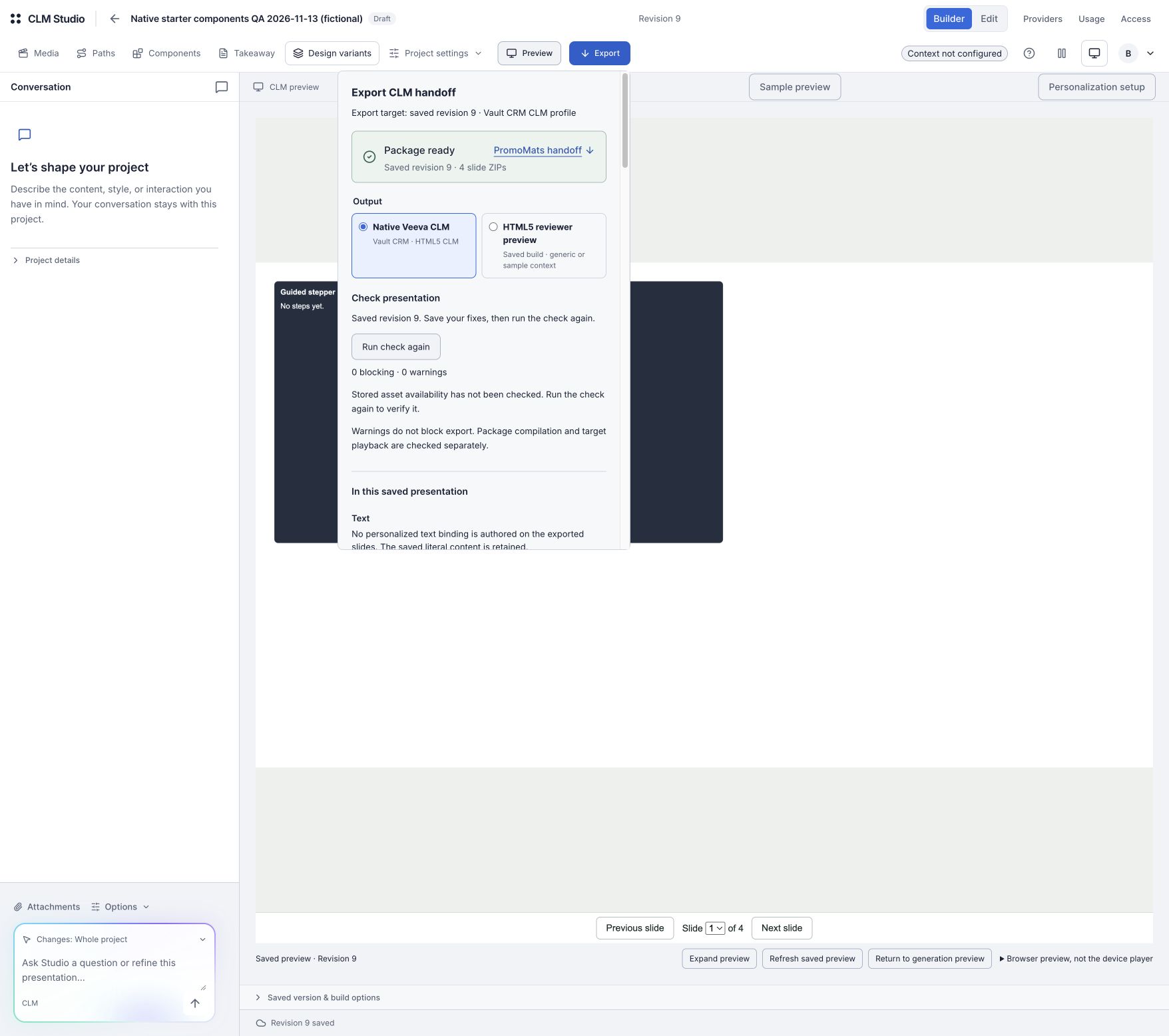
Use Export, select Native Veeva CLM, and run Check presentation. When the check has no blockers, prepare the slide packages for the saved revision.
 Enlarge screenshot
Check the result
- Every card shows its front prompt in the authored order and grid.
- Each explanation opens and closes by click, tap or keyboard, and Show all reveals every explanation as readable text.
- Images appear with their descriptions, and source references appear only where you chose one.
- Reopening the saved preview starts from the same authored starting state.
Recover and continue
- If Save interaction stays unavailable, read the message under the fields. Each card needs a front prompt, and each card image needs a description.
- If a card shows Image unavailable, choose the intended project image again or remove it from the card.
- If a save is unconfirmed, use Check saved interaction to reconcile it before repeating the edit. For a revision conflict, review the latest saved interaction first.
- If the preview shows an earlier edit, rebuild the intended saved revision.