Shape music, narration and the final mix
Write a purposeful audio brief, direct a voice, place the takes and balance them without losing the original sources.
Give each audio layer a different job#
Narration carries words. Music supports pace and tone. Effects can signal a particular event. Keeping those roles separate makes a sophisticated presentation easier to revise: you can replace a line without recreating the music or lower a bed without editing the voice.
For fictional CENDORYA practice content, keep an evidence explanation intelligible and understated. Music can introduce the story or support a transition; it should not make the viewer work harder to hear the endpoint, unit or qualification.
Decide where audio belongs: one page, a scene, a video or the whole presentation where supported. Plan what happens when the presenter leaves or returns before generating a long soundtrack.
Ask for the audio direction first#
Use a focused Builder request for the page or material you are preparing. Specify the spoken text separately from the music brief.
Prepare audio direction for this fictional CENDORYA opening. Write a concise narration draft using only the existing page meaning, with no new claims. Keep the voice warm, measured and clear. Separately propose an original instrumental music brief: restrained, spacious and hopeful, with room for speech, no vocals and no imitation of a named artist or existing track. Keep slide text and evidence unchanged. Let me review the script and music brief before generating audio.
Open Media to turn the reviewed direction into saved narration and music requests. The task panels provide the actual voice, timing, generation and placement controls.
Write and save the exact narration#
- Open Media and choose Narration.
- In Author text, enter the exact words to be spoken. Read them aloud, including numbers, abbreviations and qualifications.
- Choose a supported Speech model, Eligible voice, Language and Audio format.
- Set Timing to Audio only or Character timestamps according to the available profile and your caption needs.
- Under placement, choose the Slide and intended Audio placement.
- Choose Save script and confirm the result.
Use Use saved script in chat when you want Builder to work with that saved script. Narration is a versioned audio asset: saving or regenerating a script does not rewrite the live text on the slide.
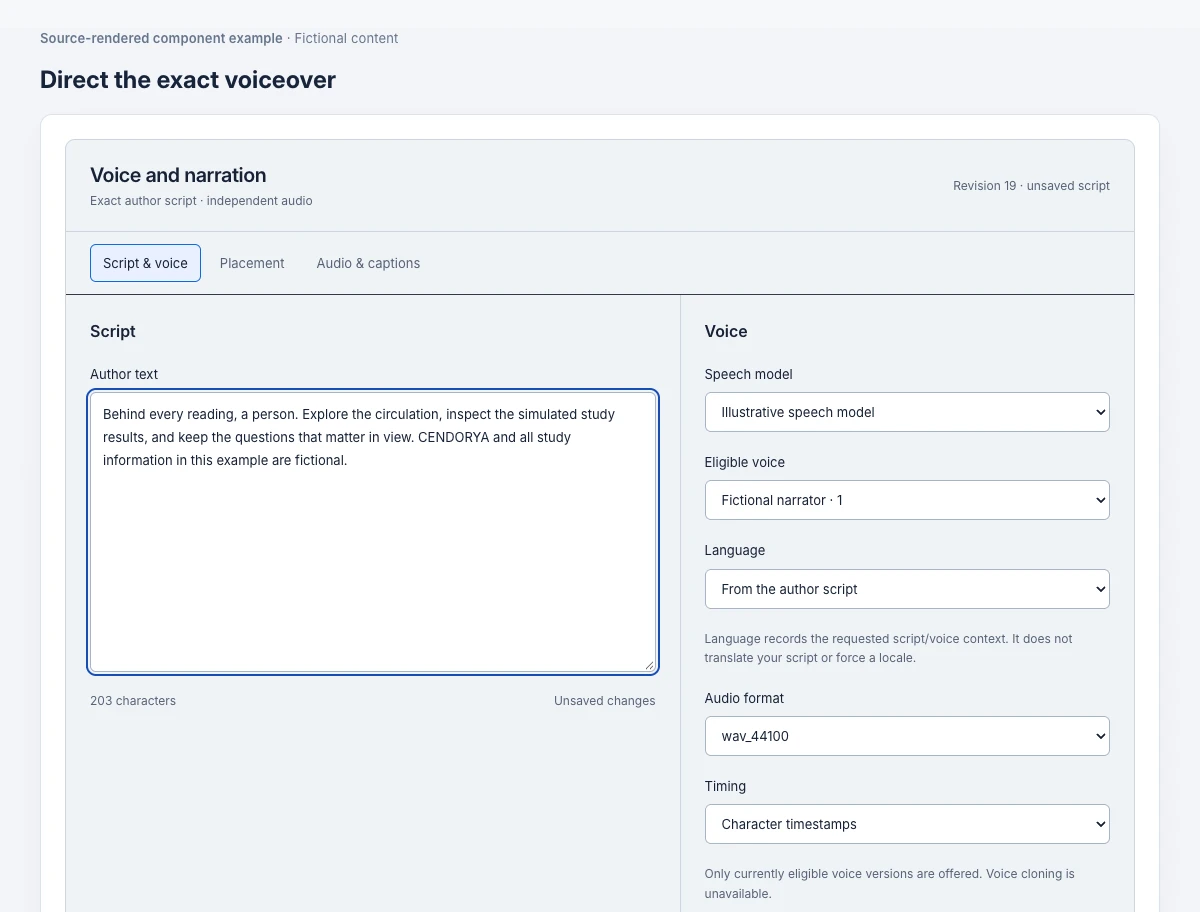
Generate and audition the voice#
- Choose Review quote for the saved script and current eligible voice.
- Inspect the quoted cost and confirm the displayed script and voice rights statement when appropriate.
- Choose Generate narration once and follow its activity.
- Audition the whole take. Check names, abbreviations, numbers, emphasis, pauses and the final word.
- Use the displayed attachment action for the take you want, then inspect its placement.
If you change the script or voice, save and review the current quote again. Use Refresh voice options if eligibility cannot be read. When a take needs another pass, describe the specific pronunciation or pacing problem instead of changing unrelated slide content.
Create a music brief that leaves room for speech#
- Under Media, open Audio, then Music.
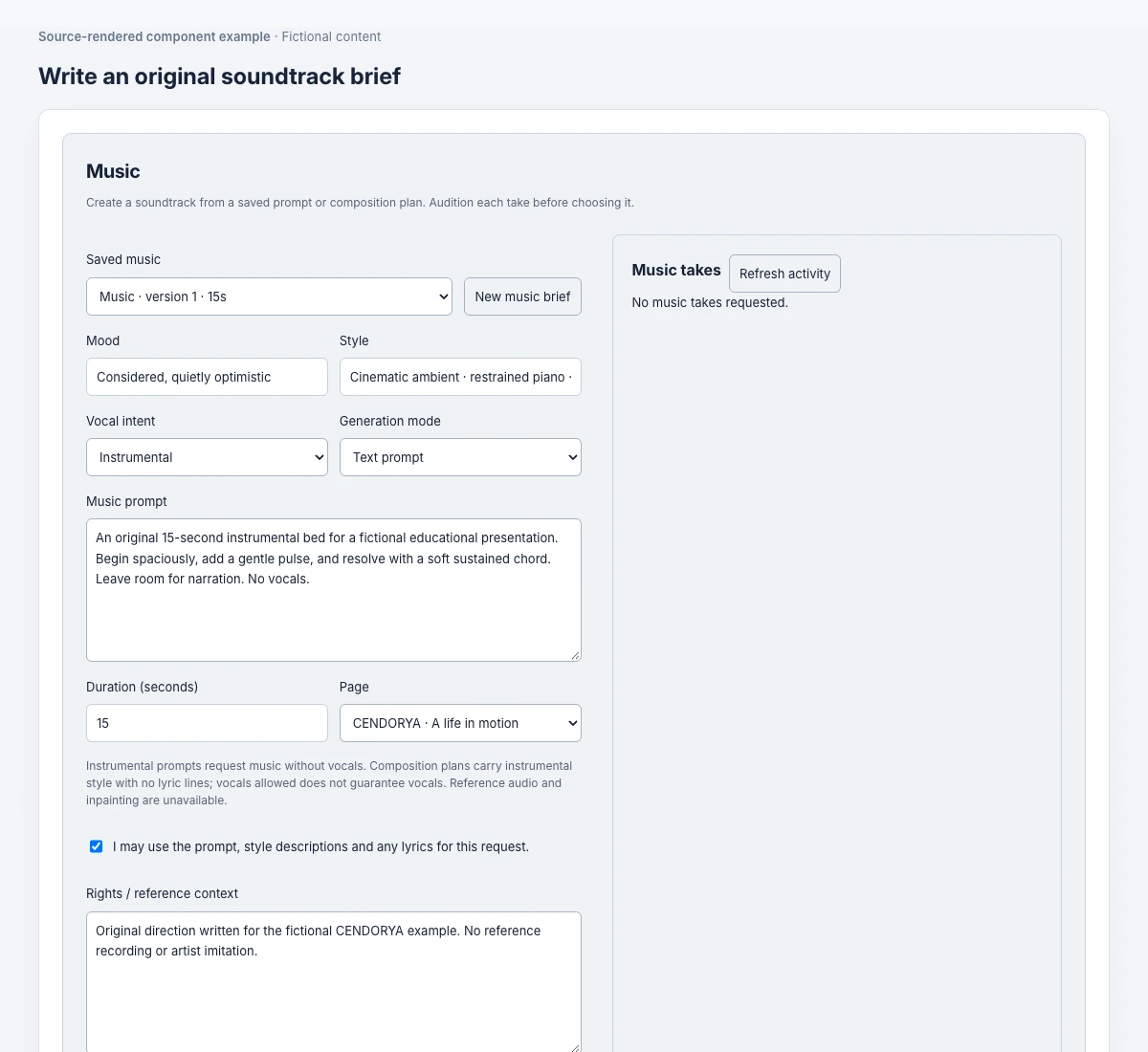
- Choose New music brief. Set Mood, Style and Vocal intent.
- For a plain-language request, select Text prompt under Generation mode and fill in Music prompt.
- Set a supported Duration (seconds) and the destination Page. Record the required rights context.
- Choose Save music brief, then Get estimate. Review it before Generate music.
- Use Inspect / audition music to listen and the displayed placement action to use the chosen take.
Original instrumental bed for a fictional life-science presentation. Spacious, restrained and quietly optimistic. Soft pulse, warm sustained textures and a clear middle register for narration. No vocals, no dramatic climax and no recognizable melody from an existing work. A gentle opening and a clean ending suitable for the requested duration.
Composition plan is available for an explicit structured section plan. Use it when named sections and requested timings matter, and validate the plan before saving. It is not an audio-editing timeline.
Set the playback window and scope#
For narration, select the Audio take, Page and Playback scope in Narration placement. Set Start offset (seconds), the audio trim, Gain and Start when scope becomes active as appropriate. Choose Save narration placement.
For a recorded music placement, choose Edit music placement. Set Placement scope to This page, Whole presentation or the available scene or video. Review the Playback window, trim, gain, fades, Loop selected trim and Start with this scope, then choose Save music placement.
Listen across the trim boundary before enabling a loop. A music take that sounds good on its own can still produce an abrupt seam or an ending that cuts across the narration. Save and check the placed result, not only the original audition.
Use your own audio when that is the right source#
For a cleared existing recording, use Upload video or audio and choose a WAV or MP3. Upload the original, confirm its result, then use Insert on [slide title] for placement. Keep the file's source and intended use clear.
Inspect the resulting audio object and its available playback or task-specific placement settings. A file extension alone does not assign the role of music or narration in a mix; review the actual placed audio and track role.
If an upload or insertion is uncertain, use Check upload or Check placement. The original remains separate from the saved playback settings.
Balance the tracks in Mix#
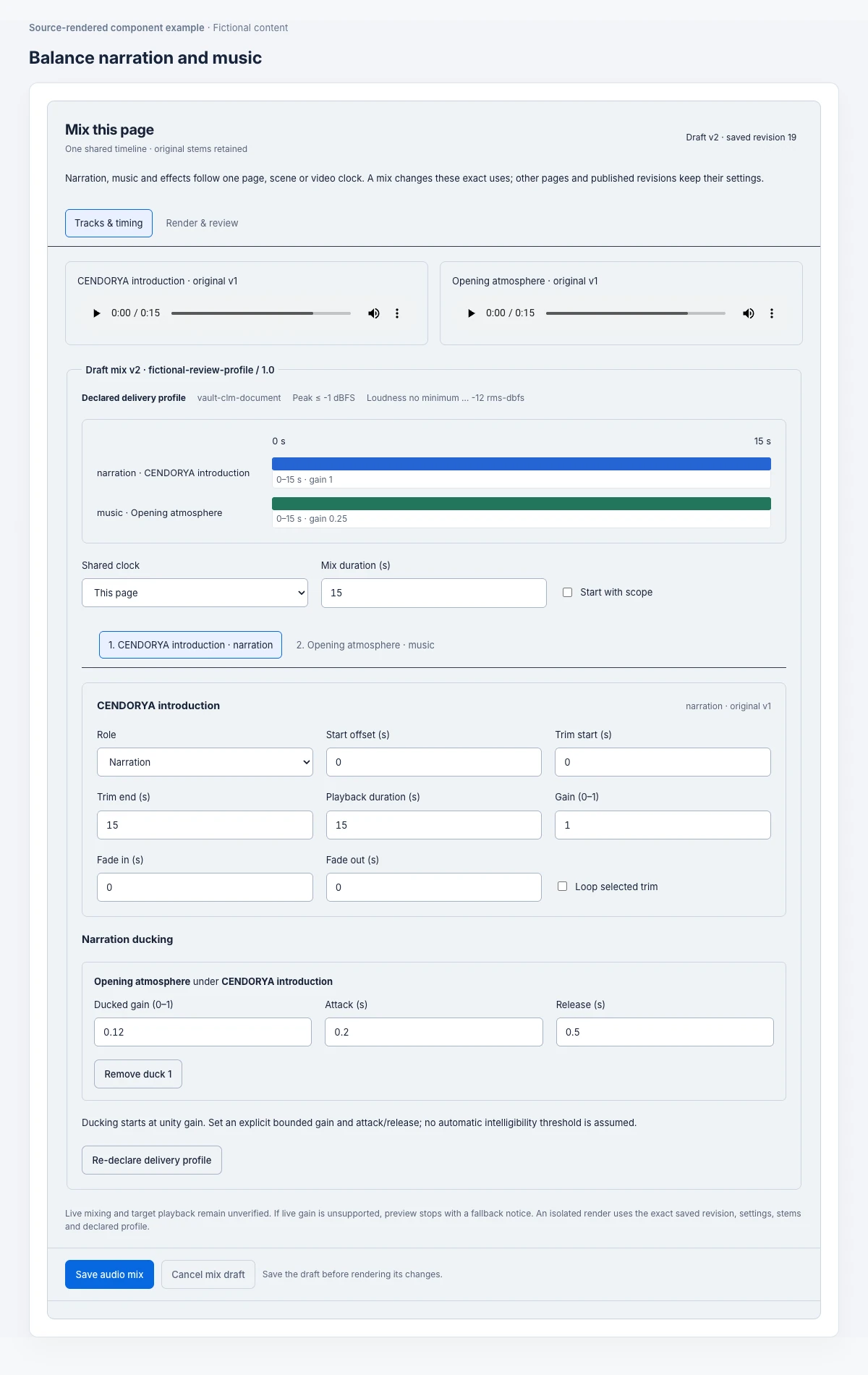
Open Audio, then Mix when the page has suitable audio. Audition the original stems first. Under Declare the delivery profile, enter the real target's profile, peak ceiling, loudness range and channels, then choose Prepare mix draft. These limits come from your delivery requirements.
Set the Shared clock and Mix duration (s). Inspect each track's Role, Start offset (s), Trim start (s), Trim end (s), Playback duration (s), Gain (0–1), Fade in (s) and Fade out (s).
Under Narration ducking, use the offered Duck [track] under [narration] action and set the Ducked gain (0–1), Attack (s) and Release (s). The new duck starts at full gain (1), so set a deliberate reduction; adding the relationship alone does not make speech clearer.
Listen for clipped openings, abrupt fades, distracting level changes and words masked by music. Studio does not shorten narration automatically to make it fit. Resolve timing conflicts, then choose Save audio mix.
Derive, edit and review narration captions#
With suitable current narration alignment, open Narration captions and choose Derive captions from current alignment. Inspect each Caption text, Start (seconds) and End (seconds). Use Seek to cue to compare a cue with the actual voice.
Inspect the Caption playback preview. Adjust Caption size (% of frame width) and Alignment so text fits without covering the essential visual or navigation. Choose Review captions for this audio, then Save captions. Export WebVTT text exposes the caption text for the supported handoff.
After regenerating the voice, inspect the captions again against that take. Keep a useful Media transcript for essential audio through Media text alternatives. A silent viewing should still convey the necessary meaning.
Review the saved mix and the complete experience#
Under Render and review saved mix, choose Check render capability. If the target source and profile support it, Render saved mix creates a derivative from the saved revision, settings and original stems.
Audition a successful derivative and inspect the emitted measurements against your declared profile. Record Approve this exact render or Reject this render after listening. Rendering alone is not approval, and an earlier render does not approve a newer source revision.
Then test the presentation: enter the page, start playback, pause, leave, return and follow another route. Confirm music does not unexpectedly continue over an unrelated discussion. Reopen the project to confirm saved script, take, placement and mix. Original stems remain available; live mixing and native-target playback still require their actual supported preview and target review.